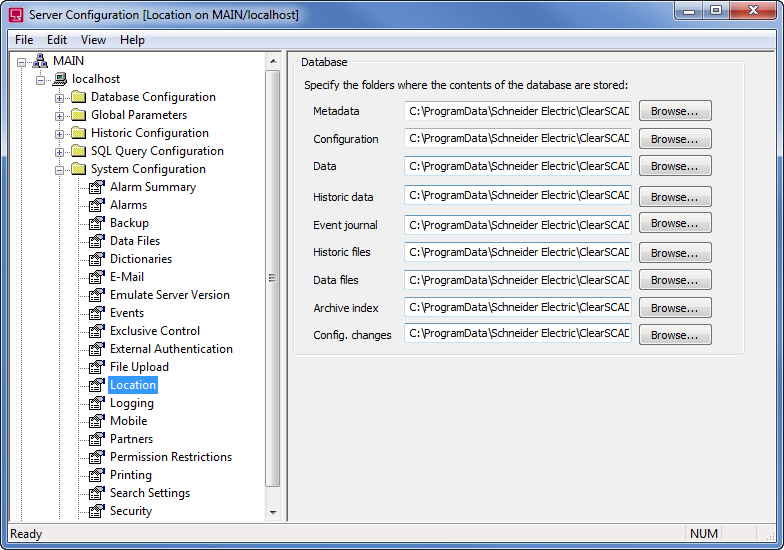
To define the configuration settings for a Geo SCADA Expert server, you will need to use the Geo SCADA Expert Server Configuration Tool. You can only log on to the tool using a User Account that is assigned the System Admin security permission for the Root Group (system).
To access the Geo SCADA Expert Server Configuration Tool:
- On the Geo SCADA Expert server, right-click on the Geo SCADA Expert Server icon in the Windows taskbar.

A context-sensitive menu is displayed.
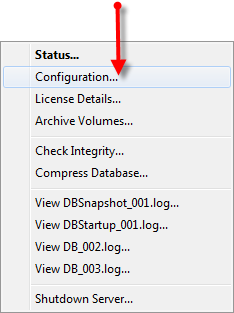
- Select the Configuration option.
The Geo SCADA Expert Server Configuration Tool is displayed.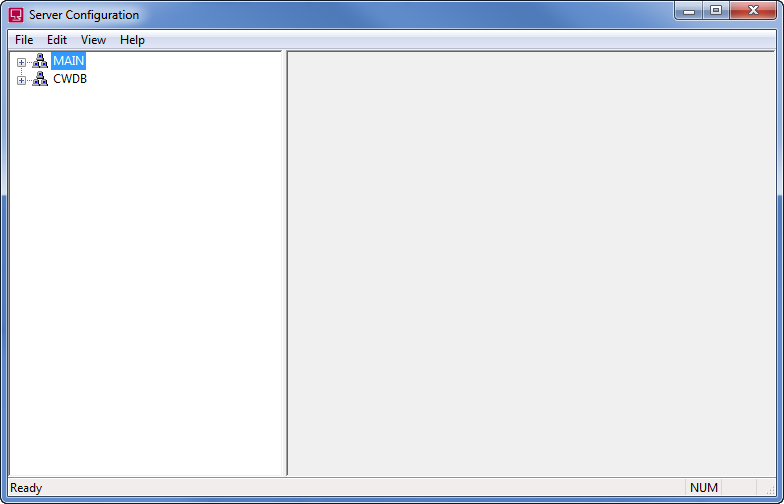
- Select the required System from the tree-structure that is shown on the left-hand side of the Geo SCADA Expert Server Configuration Tool.
- When prompted to log on, enter your Username and Password to log on to the system in the same way as you would log on to ViewX.
Alternatively, access the Server Configuration Tool as follows:
- In Windows, select the Start menu. Scroll down the alphabetical list of installed applications and expand the EcoStruxure Geo SCADA folder.
- Select the Server Configuration option.
The Geo SCADA Expert Server Configuration Tool is displayed. - Select the required System from the tree-structure that is shown on the left-hand side of the Geo SCADA Expert Server Configuration Tool.
- When prompted to log on, enter your Username and Password to log on to the system in the same way as you would log on to ViewX.
Alternatively, you can also access the Server Configuration Tool from the ViewX ribbon, as follows:
- Launch Geo SCADA Expert ViewX.
- On the ViewX ribbon, double-click the Server Config icon.
The Geo SCADA Expert Server Configuration Tool is displayed. -
Select the required System from the tree-structure that is shown on the left-hand side of the Geo SCADA Expert Server Configuration Tool.
- When prompted to log on, enter your Username and Password to log on to the system in the same way as you would log on to ViewX.
When you have successfully logged on, you can access the server settings for the selected system. To access the server settings, expand the system, server, and categories of settings by double-clicking on them in the tree-structure.