You need to access the Parameters window if you want to add, edit, or remove a Mimic parameter.
To display the Parameters Window:
- Display a Mimic in Design mode.
-
Select the Graphics tab on the ViewX ribbon.
- In the View command group, select Parameters.

The Parameters window is displayed.
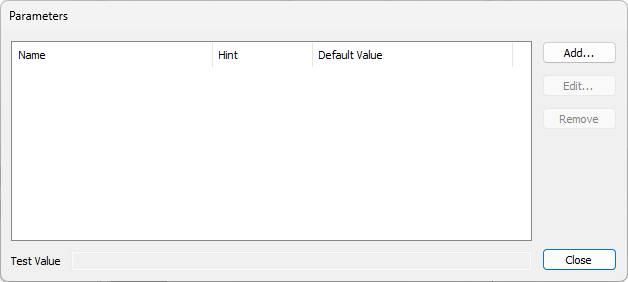
The Parameters window lists Mimic parameters (if any have been configured) under these headings:
- Name—The name that has been allocated to the parameter.
- Hint—The Hint indicates the type of ViewX field that can be used to animate the parameter. This is typically left at the default of 'None' as ViewX is usually able to detect the type of ViewX value automatically. For more information, see Add a Mimic Parameter.
- Default Value—The value that is used for the parameter if a value is not provided by a database item or defined as part of a ViewX expression.
The Parameters window contains these buttons:
- Add—Use to add a parameter (see Add a Mimic Parameter).
- Edit—Use to edit a parameter (see Edit a Mimic Parameter).
- Remove—Use to remove a parameter (see Remove a Mimic Parameter).
- Close—Use to exit the Parameters window.
There is a Test Value field that you can use to check that the parameter is working as you expected. You can enter a suitable value in the field to see how the parameter will use the value. The settings that you enter in the Test Value field are purely for test purposes—they are not stored.
If you have set up a Mimic parameter that uses a color value, when you enter a valid number in the Test Value field, the Mimic item that is associated with the parameter should change to the appropriate color. (For a color value, a valid number is in the range 0-255 inclusive.) The color that is displayed depends on the colors and value ranges that are defined for that particular property on the database item.