You have to create a Mimic parameter for each custom property that you want to use on an embedded Mimic. Each parameter represents a custom property that you can associate with a Mimic item. You can animate the parameters for an embedded Mimic in the same way as the other embedded Mimic animation properties (see Embedded Mimic Animations).
To add a parameter:
- Display the Parameters Window.
- Select the Add button to display the Add Parameter window.
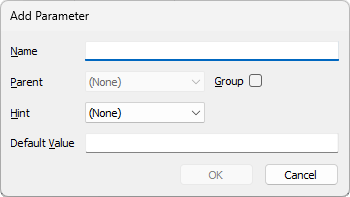
- Define the settings for the new parameter:
- Name—Enter a suitable name for the parameter. The name of each Mimic parameter has to adhere to the following limitations and restrictions:
- Parameter names cannot be the same as any of the animation properties that are available for embedded Mimics.
- Each parameter name has to be unique within a set of parameters.
- The maximum length of a parameter name is 63 characters.
- The name can only include alphanumeric characters and hyphens.
- The name can only start and end with an alphanumeric character.
- The name cannot contain consecutive hyphens.
- The name cannot include any spaces.
We recommend that, where possible, you enter parameter names that match the names of the OPC tags they are designed to represent (taking into account the above restrictions). For example, if you are creating a parameter that is to show the current value of an item, we recommend that you name the parameter CurrentValue. Parameters that share the same names as corresponding OPC tags can be set up more quickly on a Mimic via the Configure All feature.
To ascertain the name of an OPC tag, you can use the OPC Data Bar. Alternatively, you can use the Database Schema (Geo SCADA Expert stores configuration properties as OPC tags), or the Status Bar in ViewX.
- Parent—Use this combo box to choose the parent group parameter for a parameter. You can group parameters so that they can be animated as one set of parameters rather than individually.
You can only select a parent group parameter if a group parameter has been created (see below).
- Group—Use this check box to define whether a parameter is a 'group' parameter or an individual parameter. Group parameters can contain other parameters and are designed to enable you to animate several parameters at once.
Select the Group check box to set the parameter to be a group parameter.
Clear the check box to set the parameter to be an individual parameter.
- Hint—You can use the Hint combo box to choose the type of ViewX value that the parameter represents. We recommend that you leave the Hint combo box set to the default setting of None, as ViewX will usually detect the appropriate type of ViewX value automatically.
If you want to specify an option other than 'None', users will still be able use the parameter to specify any suitable property, regardless of this setting. However, the properties that will be 'hinted' (offered to the user) when they drag a database item onto the embedded Mimic will be restricted to those that correspond to the Hint criteria. To specify a different property, the user will have to specify the required property manually.
 Example:
In the Add Parameter window, the 'Hint' type is set to 'ViewXColour'.
The Mimic Parameter is dragged onto a Mimic. That Mimic is then embedded onto another Mimic.
The embedded Mimic is selected and the required Analog Point dragged across onto the embedded Mimic.
From the context-sensitive menu that is displayed, the Auto Configure Animations option is selected. This displays the Animation Wizard.
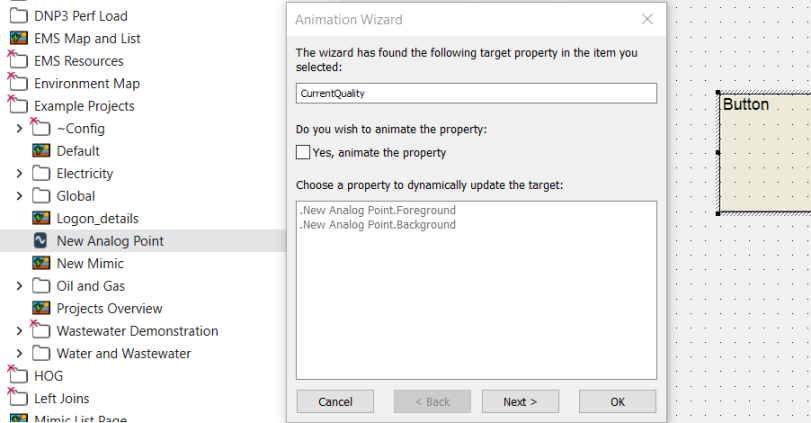
The properties that are offered in the Animation Wizard window are restricted to those that comprise ViewX Colour properties that are supported by the Analog Point. (In the Database Schema, these properties are those for which the Type column is set to 'Colour'.)
The 'Yes, animate the property' check box is selected so that the colour properties that are listed become available for selection. The required property is selected, followed by the Next button to continue to go through the pages of the Animation Wizard and complete animating the Mimic item.
To select a different property to those listed, or specify a more complicated expression, you would do so outside of the Animation Wizard. To do this, you might double-click on the embedded Mimic to display the Embedded Mimic Properties window. Then select the Animations button on the window to display the Animations window. Locate and click on the relevant Mimic parameter from those listed and then select the Edit button. In the Expression window that is displayed, edit the expression to extend it or specify the property that you require.
The hints that you can select are:
- None—This is the default option. Select this option to let ViewX detect the appropriate type of ViewX value automatically.
- ViewXBlink—The parameter is intended to be animated by the blink property of a database item.
- ViewXColour—The parameter is intended to be animated by the foreground or background properties of a database item.
- ViewXFormatString—The parameter is intended to be animated by the format string property of a database item. The format string database item property corresponds to the Format setting on the Point Form. It represents the type of formatting that has been set for the database item.
- ViewXFullScale—The parameter is intended to be animated by the high range property or the high engineering units property of a database item.
- ViewXObjectId—The parameter is intended to be animated by the Object Id property (an internal number), or the name value that is stored for the Alarm View, Help View, or Default View for a database item.
- ViewXObjectName—The parameter is intended to be animated by the Name value or the name that is stored for the Alarm View, Help View, or Default View for a database item.
- ViewXText—The parameter is intended to be animated by the Value, Units, Description, CurrentStateDesc, ObjectName, or ObjectNotes properties of a database item.
- ViewXValue—The parameter is intended to be animated by the Value of a database item.
- ViewXVariant—The parameter is intended to be animated by the Value, Units, Description, CurrentStateDesc, ObjectName, or ObjectNotes properties of a database item.
- ViewXZeroScale—The parameter is intended to be animated by the low range property or the low engineering units property of a database item.
- Default Value—Enter the value that will be used for the parameter if no other value is provided by an expression.
- Name—Enter a suitable name for the parameter. The name of each Mimic parameter has to adhere to the following limitations and restrictions:
When you have created the parameters you require, you need to associate them with items on a Mimic (see Associate a Mimic Parameter with a Mimic Item).