Every item in the Geo SCADA Expert database has its own Status display (also referred to as a View window or View dialog). You view an item's Status display by selecting that item's View Status pick action or menu option. The Status display provides information about the status of the selected item, presenting the information in the form of 'status attributes'. For further information about working with Status displays, see Status Displays.
Use this section if you need information about the status of a user on the system.
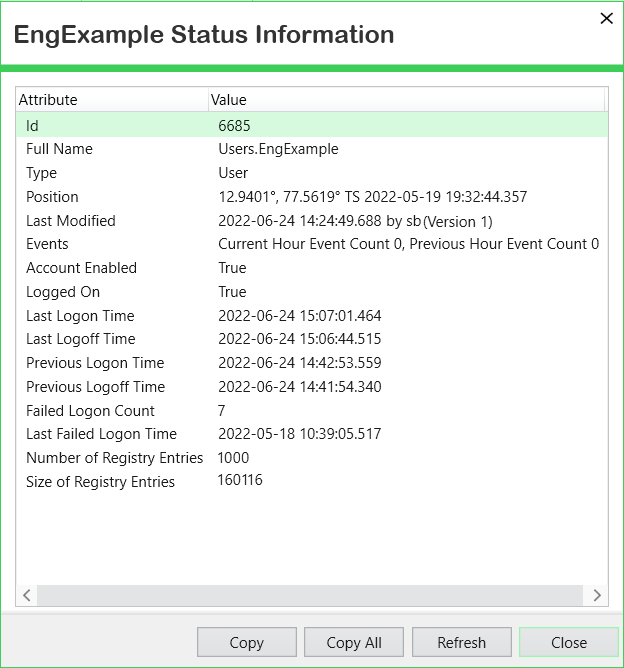
This section summarizes the status attributes that are specific to User Accounts. The status attributes comprise:
- Account Enabled—This status attribute indicates whether the user's account is enabled (available for use). The possible states are True, or False.
If the attribute is set to False (indicating that the account is disabled), the user will be unable to log onto Geo SCADA Expert.
On a User Account that is configured for two-factor authentication, if the TOTP enrollment expires, this status attribute will indicate 'False' as soon as that user next attempts to log on to Geo SCADA Expert. A system administrator will need to reset the 2FA enrollment and then re-enable the User Account if it has become disabled. The user will then need to attempt enrollment again and successfully use two-factor authentication to log on to Geo SCADA Expert. Re-enabling the user account first and then resetting the enrollment may result in the account being disabled. For further information, see Use TOTP 2FA Status Attributes to Ascertain a User's Enrollment Status.
- TOTP Enrollment Time—This status attribute displays the date and time at which the user has enrolled in two-factor authentication. The status attribute is only displayed for a User Account that is configured for two-factor authentication and has enrolled successfully.
- TOTP Enrollment Expires at—This status attribute displays the date and time at which the user's enrollment period expires. (The length of the enrollment period is configured on the Root Group.) The status attribute is only displayed for a User Account that is configured for two-factor authentication, but for which the user is not currently deemed to be successfully enrolled for two-factor authentication. In other words, the user has not yet successfully used two-factor authentication to log on to Geo SCADA Expert. The status attribute provides the user with a reminder of how soon they need to successfully complete that enrollment, or re-enrollment, before their User Account becomes disabled and will no longer provide access to Geo SCADA Expert.
Any users that happen to be logged on to Geo SCADA Expert when two-factor authentication is deployed across the system will have to log off and log back on again within this enrollment period. This only applies to any users whose User Accounts have been updated to use two-factor authentication.
- TOTP DMZ Enrollment Instance Timeout—This status attribute is only displayed for a User Account that is configured for two-factor authentication and for which enrollment is being attempted via a DMZ-connected ViewX client. The status attribute indicates that a DMZ-connected ViewX client has initiated a TOTP enrollment of this user. The time specified is the expiry of this instance of TOTP enrollment.
A DMZ-connected ViewX session initiates the DMZ-TOTP enrollment with its first unsuccessful logon attempt. By design, an initial unsuccessful logon during the enrollment process is the expected behavior on a DMZ-connected client. A subsequent logon attempt from the DMZ-connected ViewX client can proceed with the TOTP enrollment up to the expiry time. This second attempt should result in a successful enrollment (see Enroll for Two-Factor Authentication from a DMZ-Connected Client).
- TOTP Enrollment Expired—This status attribute indicates 'True' if the user has not successfully used two-factor authentication to log on to Geo SCADA Expert within the relevant enrollment period that is configured on the Root Group. The User Account has become disabled and the Account Enabled status attribute will indicate that status as soon as they next attempt to log on to Geo SCADA Expert. A system administrator will need to re-enable the User Account before it can be used again. The status attribute is only displayed for a User Account that is configured for two-factor authentication.
- Enrolled in 2FA—This status attribute indicates 'True' if the user has enrolled and then successfully used two-factor authentication to log on to Geo SCADA Expert. It indicates 'False' if the User Account is configured to use two-factor authentication, but the user has not yet enrolled and successfully used two-factor authentication to log on to Geo SCADA Expert. Use of the Reset 2FA Enrollment pick action or user-initiated re-enrollment will result in the Enrolled in 2FA status attribute being set to 'False' until that enrollment is completed. The status attribute is only displayed for a User Account that is configured for two-factor authentication.
- Time of successful enrollment in 2FA with TOTP—This status attribute indicates the date and time that the user last successfully enrolled for two-factor authentication. This is the time and date that the enrollment or re-enrollment was triggered, following which the user successfully logged on to Geo SCADA Expert using two-factor authentication. The status attribute is only displayed for a User Account that is configured for two-factor authentication.
This date and time will differ from the date and time shown in the Last Logon Time status attribute, once the user has then logged off and back on to Geo SCADA Expert again as part of their usual day-to-day activities.
- Time of the last failed attempt to enroll in 2FA with TOTP— This status attribute is only displayed if the user attempts to log on to Geo SCADA Expert using two-factor authentication during the enrollment or re-enrollment period, but was unable to log on successfully. It shows the date and time of the last unsuccessful attempt to enroll or re-enroll for two-factor authentication. A user is only deemed to be enrolled when they have successfully used two-factor authentication to log on to Geo SCADA Expert. The status attribute is only displayed for a User Account that is configured for two-factor authentication.
Once a user has enrolled successfully, the separate Last Failed Logon Time status attribute will continue to indicate the time and date of the latest unsuccessful attempt to log on using this particular User Account. Additionally, the Failed Logon Count status attribute will indicate the number of times that attempts to log on have been unsuccessful.
- Password Expires—This status attribute indicates the date and time at which the user's current password is due to expire. The status attribute is only displayed if security is enabled on the User Account and a password expiry interval is specified (see Define the Security Settings for a User).
- Logged On—This status attribute indicates whether the user is currently logged on to Geo SCADA Expert. The possible states are True, or False.
- Last Logon Time—This status attribute shows the date and time at which the user last logged on to Geo SCADA Expert.
- Last Logoff Time—This status attribute shows the date and time at which the user last logged off Geo SCADA Expert.
- Previous Logon Time—This status attribute shows the date and time at which the user logged on prior to their Last Logon Time.
- Previous Logoff Time—This status attributes shows the date and time at which the user logged off prior to their Last Logoff Time.
- Failed Logon Count—This status attribute indicates the number of times that the user has failed to log on successfully.
Depending on the User Account's configuration, Geo SCADA Expert might be set to disable the User Account automatically once a specified number of failed logon attempts has been exceeded (see Define the Security Settings for a User).
- Last Failed Logon Time—This status attribute indicates the date and time that the user last failed to log on successfully.
The default date and time of 1601-01-01 00:00:00.000 is shown if the user's attempts to log on have always been successful.
- Number of Registry Entries—This status attribute indicates the number of registry entries that are associated with the User Account.
- Size of Registry Entries— This status attribute indicates the size of the registry entries (in bytes) that are associated with the User Account.
The Date Format setting on the user's account defines the format used for the date and time entries in the Status display (see Define the Regional Settings for a User).
Further Information
View information about multiple User Accounts: see the Users List.