Translate a Comms or I/O Log File
The channel communications log files and I/O log files contain messages in hex and ASCII format (see Understanding Communications Log Files). Deciphering these messages is a complex and time-consuming task. However, Geo SCADA Expert provides 'translators' to convert or 'translate' these messages into a more readable HTML format, facilitating easier analysis of the system events and operations.
When you have enabled comms logging or I/O logging for a channel, you can translate the log files into a human readable HTML format (see Enable or Disable I/O Logging on a Channel and see Enable or Disable 'Normal' Communications Logging on a Channel). Some drivers do not have a translator.
With some protocols, Geo SCADA Expert supports both simple and advanced drivers
You can only translate comms log files and I/O log files when accessing the Server Status tool locally on a server. You cannot perform a translation on a client, as the Server Status tool needs access to the drivers that contain the translators.
To translate an I/O log file or comms log file into human readable format:
- Access the Geo SCADA Expert Server Status tool.
- On the Server Status Tool, expand the system and server, and then expand the General folder and select the Modules option.
The Modules status s displayed. This shows the drivers that are installed and their current status. - Right-click on the relevant driver in the list, for example, the DNP3 driver.
A context-sensitive menu is displayed.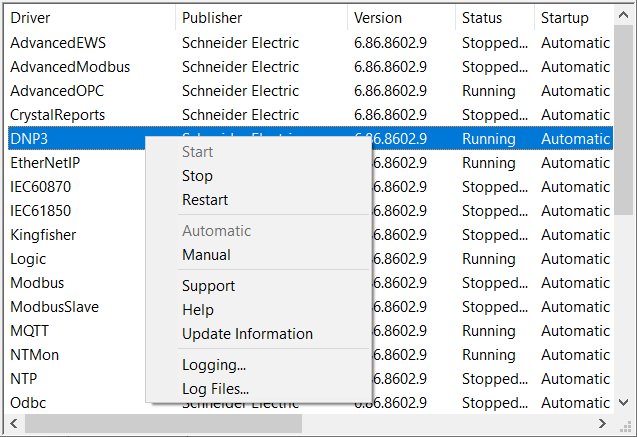
- Select the Log Files option from the context-sensitive menu.
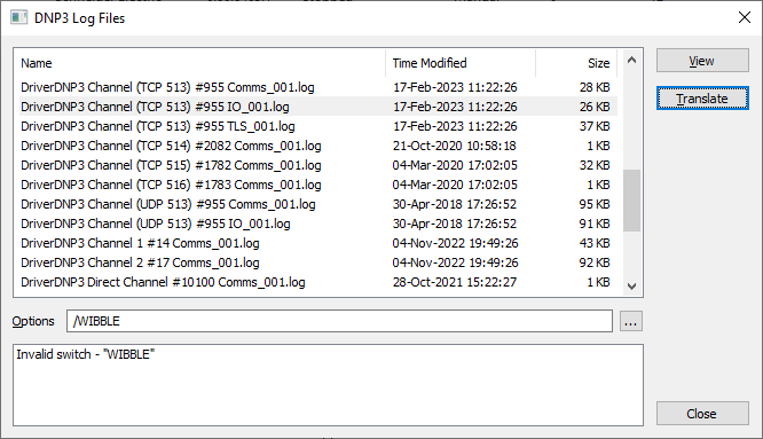
The Module Log File dialog box is displayed. The dialog box displays the log files that exist for the selected driver. If more than 1000 log files exist, the most recent 1000 files are shown.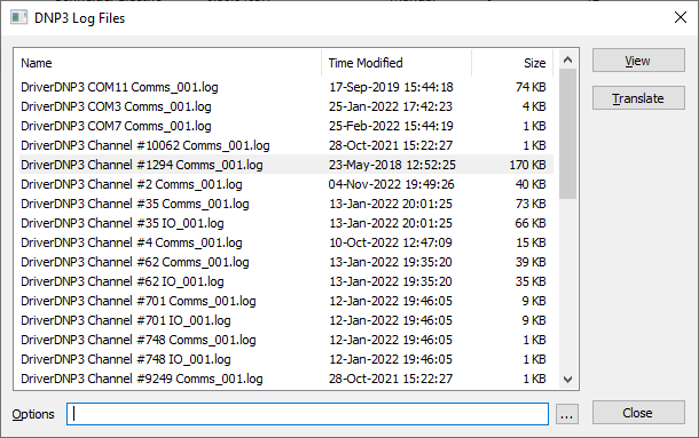
-
Locate and select the log file that you want to translate from the list of files.
To facilitate this, you can analyze the details of the log files listed in the Name, Time Modified, and Size columns (see Communications Logging).
-
Select the browse button next to the Options field to display the translator options.
The Options field is disabled if the driver is not installed locally, or if the log file is not a comms or I/O log file.
Every option has a default. You only have to choose an option if you want to change from the default.
When you select an option, the switch is placed at the cursor position within the Options field. The Server Status Tool automatically adds a space to separate the new switch from any existing switches. Alternatively, the Server Status Tool substitutes the chosen selection.
Alternatively, you can enter the translator switches manually in the Options field. The options consist of common switches and driver-specific switches. For options that are common to all the drivers, see Translation Options that are Common to all the Drivers.
-
Select the Translate button.
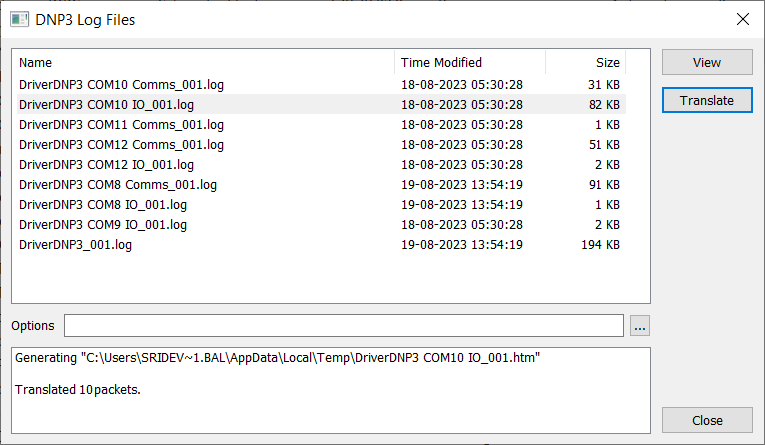
The Translate button is disabled if the driver is not installed locally, or if the log file is a non-comms log file.
The translation's progress and output are displayed in the Module Log File dialog box, and the translated result opens automatically in a web browser.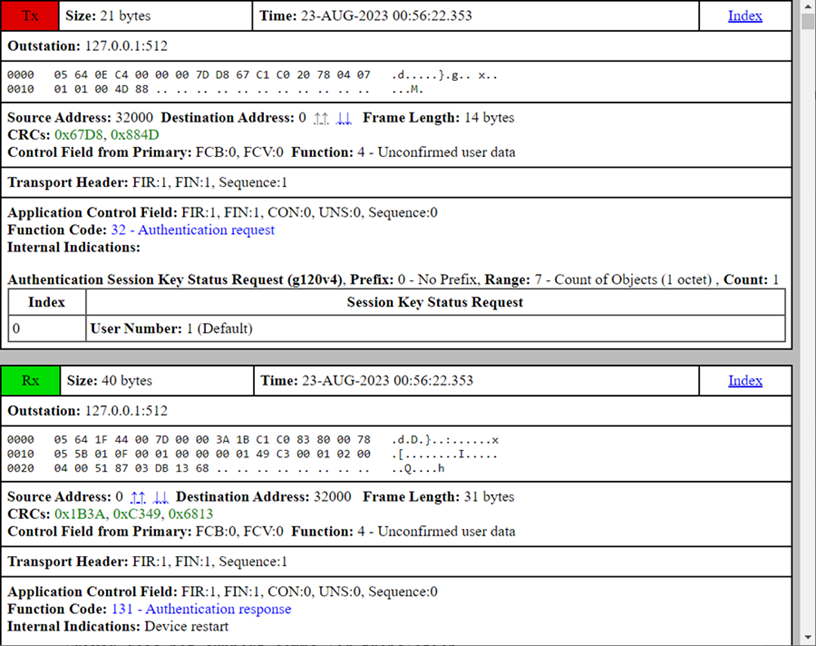
Drivers that do not support comms log translation display the following diagnostic message:
Driver does not support comms log translation.The Server Status Tool captures and displays any errors that occur during the translation.
By default, the translated files are placed in the current Windows user's temporary files folder:
%TEMP%
You can change this by using the /OUTPUT <filename> option.
We advise that you delete the files from this folder once you no longer require them. This will help to prevent the server from running out of disk space, which would impact on system performance.