Before you upgrade your Geo SCADA Expert system, you will need to obtain the required update files. These include updates for any extensions that you may be using with your Geo SCADA Expert system.
inability to save user profile data on old clients during the upgrade process
Virtual ViewX is supported by Geo SCADA Expert 2019 onwards. We strongly recommend that you install the Virtual ViewX server on a different machine to the Geo SCADA Expert server. This is to avoid potential performance issues due to the number of resources that each application uses.
If you do install Geo SCADA Expert and Virtual ViewX on the same machine, both applications must have the same version and build number. This is because the applications share some resources.
In order to run Virtual ViewX, all Geo SCADA Expert servers must be running Geo SCADA Expert 2019 onwards; they cannot be running older versions of the software, or be set to emulate older versions.
- Ensure that the certificates that are used for server and client communications have not expired, nor are about to expire (see Certificates for Geo SCADA Expert Server and Client Connections).
- Ensure that there is sufficient disk space to enable Geo SCADA Expert to perform an automatic backup of your database. (This is a precautionary measure —you will only need to reinstate the backup if a problem occurs.) For more information, see Automatic Database Backup on Upgrade.
- Get updates for any third-party extensions that you have on your Geo SCADA Expert system. An extension is a collection of installable features, for example, extensions are often collections of related drivers.
You can use the Server Status Tool to find out which extensions (if any) you have installed on a Geo SCADA Expert server. The installed extensions are listed in the General>Extensions section. You can also see information about the Version and the Publisher of each extension (see ‘Extensions’ in the ‘General System Status Information’ section of the Geo SCADA Expert Guide to the Server Status Tool).
For information about the extensions that are installed on a ViewX client, select the File menu followed by the Help option, and then the About option. This displays the About window. Select the Extensions tab to view a list of the extensions that are installed on the client.
If you right-click on an extension, you may be able to access an Update Information option. This option is only available if it has been provided by the Publisher, and may provide details and download information about any available updates.
If the Update Information option is unavailable, you should contact the Publisher. You can access the publisher’s contact details by right-clicking on the extension and then selecting Support from the context-sensitive menu.
The Publisher may provide you with updates for the extension only. Alternatively, the extension may repackage Geo SCADA Expert, in which case both Geo SCADA Expert and the extension are upgraded together.
- Get updates for any third-party DDK drivers (and SDK drivers) that you use on your Geo SCADA Expert system.
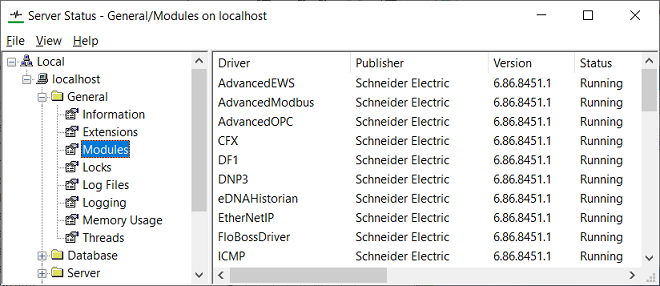
You can use the Server Status Tool to find out which DDK or SDK drivers (if any) you have installed on a Geo SCADA Expert server. In the General>Modules section, look at the Publisher details. Those modules that are not published by Schneider Electric are third-party drivers which may be from an extension, DDK driver or SDK driver (see ‘Modules’ in the ‘General System Status Information’ section of the Geo SCADA Expert Guide to the Server Status Tool).
If you right-click on a third-party module, you will be able to access a Support option. You may also be able to access an Update Information option (this option is only available if it has been provided by the Publisher). These two options may provide information that indicates whether the driver is a DDK or SDK driver. If not, they will provide contact details which you can use to get assistance.
- Get updates for any third-party applications that you use with Geo SCADA Expert (where required).
There may be significant differences between your current and new versions of Geo SCADA Expert. For example, the new version may include changes to the database schema. These differences can affect any third-party applications that you use with Geo SCADA Expert. So you may need to update your third-party applications to be compatible with the new version of Geo SCADA Expert.
- Read the Geo SCADA Expert release notes. These may contain important information relating to upgrading the specific version of Geo SCADA Expert that you are currently running.
You can also find useful upgrading information on the Geo SCADA Expert installation disk. When you insert the disk and the Geo SCADA Expert display is shown, select the Upgrading option. This displays a webpage containing upgrading details and a link to the Upgrade Strategy page on the Geo SCADA Knowledge Base website.
- If you are also upgrading Virtual ViewX, read the release notes for that application. These may contain important information relating to upgrading the specific version of Virtual ViewX that you are currently running.
- If your system uses Original WebX clients, you need to consider how the latest ActiveX control will be installed.
If your Original WebX clients allow ActiveX controls to be downloaded, the Original WebX client will get the latest ActiveX control from the Geo SCADA Expert server. This takes place automatically the first time Original WebX client connects to an upgraded Geo SCADA Expert server. However, if your company security policy prohibits the downloading of ActiveX controls, you will need to use the Geo SCADA Expert DVD to upgrade each Original WebX client.
You need to be aware that an Original WebX client is unable to connect to the system until you have installed the latest ActiveX control.
-
Determine whether you are likely to want to enable Database Emulation when you install the Geo SCADA Expert upgrade. When enabled, the upgraded server emulates the version of Geo SCADA Expert software that it was running prior to the upgrade and the database files continue to be saved in the format of that earlier database version. Such Database Emulation can prove a useful temporary stage while you run checks to ensure that the upgrade has been successful. You then deactivate Database Emulation once the checks have been completed. For more information, see Types of Emulation Supported by Geo SCADA Expert.
Ensure that all of your servers are running the same build of Geo SCADA Expert 2019 or later software before enabling the Database Emulation feature while you upgrade those servers to Geo SCADA Expert 2021 or later software. When enabled, Geo SCADA Expert will only activate the Database Emulation during the upgrade if it detects that you are upgrading from an older version of software to which the database can be emulated (Geo SCADA Expert 2019 onwards). Once you have performed checks to ensure that the upgrade was successful, you should ensure that all of your servers are running the same build of upgraded software before then deactivating the Database Emulation feature.
-
A restriction might apply during the upgrade process if your system includes clients that connect to the database via a Standby server. If you use Database Emulation or Server Emulation, or you delay upgrading those clients until all of the servers have been upgraded, users will be able to continue to perform configuration-related changes on the clients. For more detail,
Cannot proxy request to older server version.
(This is not an issue if you follow the instructions in step 10 and are able to enable Database Emulation on all of the servers while upgrading. Nor is it an issue when you Upgrade a Geo SCADA Expert Server in a Lone Server Architecture, or use Server Emulation (see Types of Emulation Supported by Geo SCADA Expert) .)
 Typical Extensions View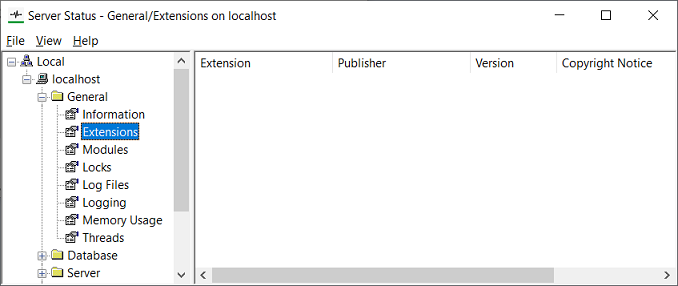
Some publishers may re-package Geo SCADA Expert to be part of another package. With these packages, you can use the installer for the package to install updates for Geo SCADA Expert and the other product together.
When you have made the recommended preparation, you can proceed to install your Geo SCADA Expert upgrade. Please refer to the section that describes your system architecture:
- Upgrade a Geo SCADA Expert Server in a Lone Server Architecture.
- Upgrade Your Geo SCADA Expert Clients (Original WebX Excluded).
- If applicable, Upgrade Your Original WebX Clients.
- If applicable, and installed on a separate machine to the Geo SCADA Expert server, Upgrade Your Virtual ViewX Server.
- If applicable, Upgrade your Licenses.
Or:
- Upgrade Geo SCADA Expert Servers in a Multi-Server Architecture.
- Upgrade Your Geo SCADA Expert Clients (Original WebX Excluded).
- If applicable, Upgrade Your Original WebX Clients.
- If applicable, and installed on a separate machine to the Geo SCADA Expert server, Upgrade Your Virtual ViewX Server.
- If applicable, Upgrade your Licenses.
Virtual ViewX is supported by Geo SCADA Expert 2019 onwards. We strongly recommend that you install the Virtual ViewX server on a different machine to the Geo SCADA Expert server. This is to avoid potential performance issues due to the number of resources that each application uses.
If you do install Geo SCADA Expert and Virtual ViewX on the same machine, both applications must have the same version and build number. This is because the applications share some resources.