The entries in each Explorer Bar are displayed in a hierarchical tree-structure. The entries correspond to the items in your database.
Each database item shown in an Explorer Bar has an icon and a name.
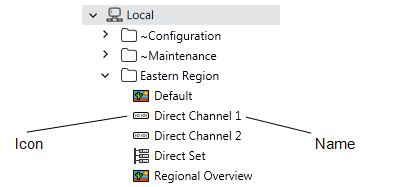
The icons differ per type of database item. They are designed to help you identify the various types of item that exist in the database.
At the top of the tree-structure on most Explorer Bars is the system that contains the items in a Geo SCADA Expert database. The system is sometimes referred to as the Root. A System or Root Group is represented by this icon:

The icon is appended by the name that has been assigned to the database.
On ViewX clients that provide access to Multiple Databases, a separate System or Root Group is displayed for each database.
Items associated with a particular database are located either directly in the System or Root Group, or within other groups in that System or Root Group. There may be multiple levels of groups.
Typically, higher level users should have provided each item in the database with a name that indicates what that item represents.
Typically, a Geo SCADA Expert system is organized so that it has Groups that contain the database items that represent the various displays, values, and plant. These groups can contain other groups to create a hierarchy.
Systems that have a modular structure might also contain Group Templates and Group Instances. These are special types of group that are represented by Group folder icons of a different color. On such systems, some Explorer Bars might use these types of group:
- Groups—These are groups that can contain ‘live’ database items (database items that represent actual components of the system, such as a digital input point). Groups are similar to folders in Windows in that they are used to contain items so that the database has a hierarchical ‘tree-structure’. For example, groups can be used to organize the database items into different categories, such as a group for the items in a functional area of a plant, or in a geographical region of a system.
Groups are represented by this icon:

- Group Templates—These are groups that contain ‘model’ configuration. The items within a Group Template are not ‘live’. Instead, they are used as the basis for the configuration of items within Group Instances. If you are an operator-level user, the security settings on your system will typically not provide access to Group Templates, as you have no need to work with them.
Group Templates are represented by this icon:

- Group Instances—These are groups that contain ‘live’ items for which much of the configuration is inherited from a Group Template. You can work with items in a Group Instance in the same way as you work with items in a normal Group.
Group Instances are represented by this icon:

You can expand and collapse any of the groups to view different levels of the hierarchy. To do this on a ViewX client, select the right arrowhead (>) or down arrowhead (˅) symbols that are displayed to the left of each group:
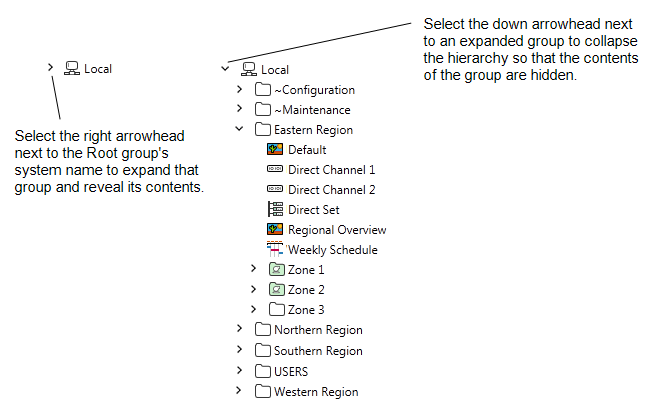
On
Within each group, different icons are used to represent the different items within the database.
Once you have located the item in which you are interested in an Explorer Bar:
- You typically right-click on that item to display a context-sensitive menu (also referred to as an Object Menu, or pick action menu). You then select an option from that menu to perform an activity associated with that item—for example,
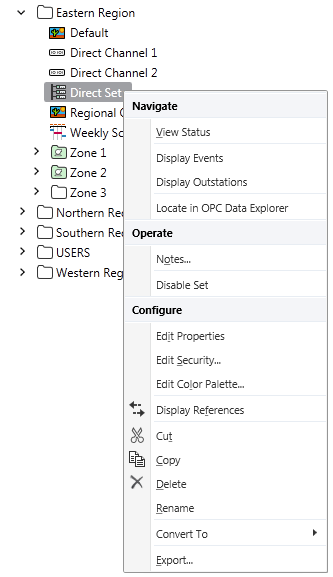
You can perform actions on individual database items within Groups or Group Instances. On some Explorer Bars, such as the Database Bar, you can also perform actions on a Group or Group Instance—this results in the action being performed on each of the relevant items within that Group or Group Instance.
Although you can access actions and controls from the Explorer Bar, operator-level users are more likely to access them from
Further Information
Further interaction functionality that is specific to the Database Bar: see Database Bar.
Groups: see Groups.
Group Templates and Group Instances: see Group Templates and Group Instances.
Hide and Display an Explorer Bar: see Using Auto Hide for a Tool Window.