The General tab contains Name, Visible, Animations, Pick Actions, ToolTip, and Dynamic Position settings that work in the same way as on other General tabs (see General Tab). However, the General tab on the Embedded Trend Properties window also contains some settings that are specific to embedded pre-configured Trends:
- System—Use the System combo box to specify which system contains the original version of the embedded pre-configured Trend, that is, the system on which the embedded Trend is stored as a 'normal' pre-configured Trend.
Typically, you will use the System combo box to select the same system that contains the Mimic you are configuring. However, you may need to change the System setting if you are editing a Mimic that has been copied from one system to another.
System A includes a Mimic named 'Overview'. The Mimic contains an embedded version of a Trend named 'Pressure'. The 'Pressure' Trend itself is stored on System A.
A user copies and pastes the 'Overview' Mimic into a folder on System B. They change the System setting for the Trend to refer to a local trend; rather than the 'Pressure' Trend on System A. To do this, on the 'Overview' Mimic on System B, they change the System setting for the embedded Trend from System A to System B. This means that the 'Overview' Mimic on System B refers to a local version of the 'Pressure' Trend, that is, a 'Pressure' Trend on System B.
- Trend—This field shows the name of the pre-configured Trend that is embedded.
- Relative—You can use this check box to define whether an embedded Trend uses relative or absolute references. This only applies when the embedded Trend is stored on a different system to the Mimic that you are currently editing.
If you clear the Relative check box, the embedded Trend will use an absolute reference. This means that:
- The embedded Trend has to be in the defined location
- The Mimic that contains the embedded Trend cannot be moved (without breaking the link to the embedded Trend)
- Copies of the Mimic will also contain the absolute reference and so has to be in the same location as the original Mimic.
If you select the Relative check box, the embedded Trend will use a relative reference. This means that the link to the embedded Trend will work as long as the Mimic and the embedded Trend maintain their locations in relation to each other. As long as their relative locations remain the same, the Mimic and Trend can be moved onto other systems, copied and so on, and the link to the embedded Trend will remain intact.
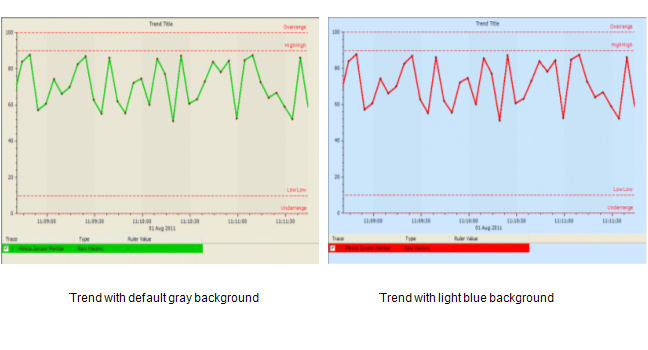
- Background—Use the Background color button to set the color of the background of the embedded pre-configured Trend. The background is gray by default, but you can change it to any of the system colors or to a custom color.
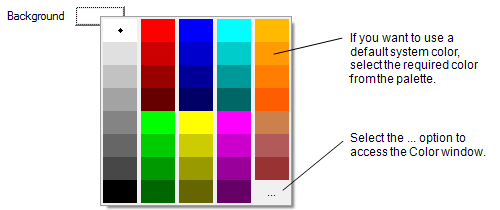
When you select the Background Color button, a color palette is displayed.
You can select any of the colors on the palette, or select the ... option to access the Color window. The colors on the palette are the system colors, and the Color window allows you to create a custom color (see Using the Color Window).
- Transparency—Use the Transparency spin-box to define the transparency of the color. You can set the color to have a minimum 0% transparency (solid) up to a maximum transparency of 100% transparency (invisible).
- Sparkline—Select the check box to hide the title, axes, and key on the embedded pre-configured Trend. When this check box is selected, the check boxes to show the title, X-Axis, Y-Axis, and key are disabled on the Embedded Trend Properties window.
If overrange and underrange alarm limits are set, red lines appear at the top and bottom of the embedded Trend if the Trend range extends to these values. If markers are shown on the traces of the pre-configured Trend, they may be clipped at the overrange and underrange limits on the embedded Trend.
Clear the check box for the default pre-configured properties to appear on the embedded Trend. Also clear the check box to enable the selection of the other check boxes that are described below.
- Show Title—Select the check box to display the title on the embedded pre-configured Trend or clear it to hide the title.
- Show X-Axis—Select the check box to display the X-Axis on the embedded pre-configured Trend or clear it to hide the X-Axis.
- Show Y-Axis—Select the check box to display the Y-Axis on the embedded pre-configured Trend or clear it to hide the Y-Axis.
- Show Key—Select the check box to display the key on the embedded pre-configured Trend or clear it to hide the key.