Use TOTP 2FA Status Attributes to Ascertain a User's Enrollment Status
This section only applies to User Accounts that are configured for two-factor authentication (see Define Whether the User has to use Two-Factor Authentication).
A number of status attributes relate to two-factor authentication (2FA) and time-based one-time password (TOTP) authentication (see Status Attributes Associated with User Accounts). At any stage during the 2FA activation and enrollment process, only the relevant subset of these status attributes is displayed. This section provides a series of examples that demonstrate some of the stages that might occur. The examples show the 2FA and/or TOTP status attributes that are displayed during each of these stages, along with the types of values that you should expect to see. Use the examples to ascertain the current enrollment status of a user's User Account.
For more information about each status attribute, see Status Attributes Associated with User Accounts.
Successful 2FA Enrollment
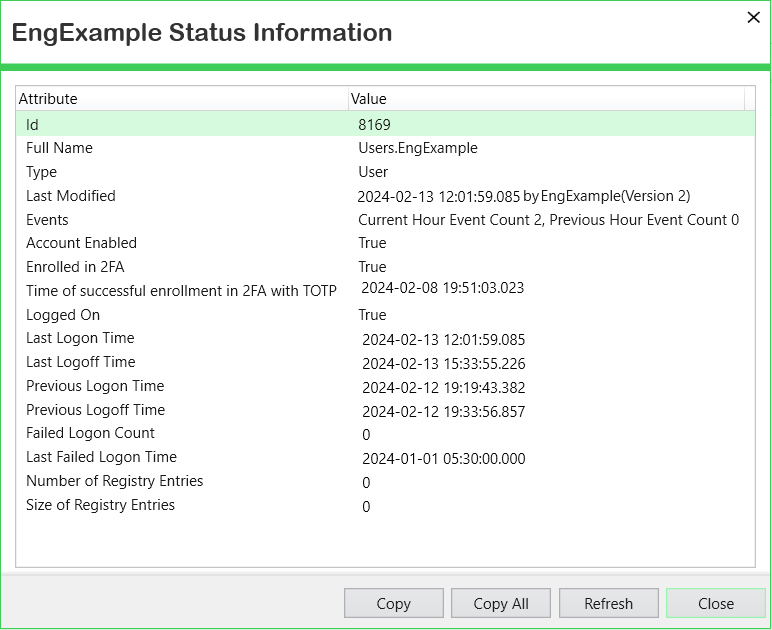
This example demonstrates the typical scenario of a user having successfully enrolled for 2FA.
With this scenario, the Status display includes these TOTP 2FA status attributes:
- Account Enabled—The value of this status attribute is 'True', indicating that the User Account is enabled (available for use).
- Enroll in 2FA—The value of this status attribute is 'True', indicating that the User Account is enrolled for 2FA.
- Time of successful enrollment in 2FA with TOTP—This status attribute shows the date and time at which the User Account has been enrolled for 2FA.
2FA Enabled but User Account not Enrolled
This example demonstrates various stages that a user might go through when 2FA is enabled on their User Account, but they have not yet enrolled.
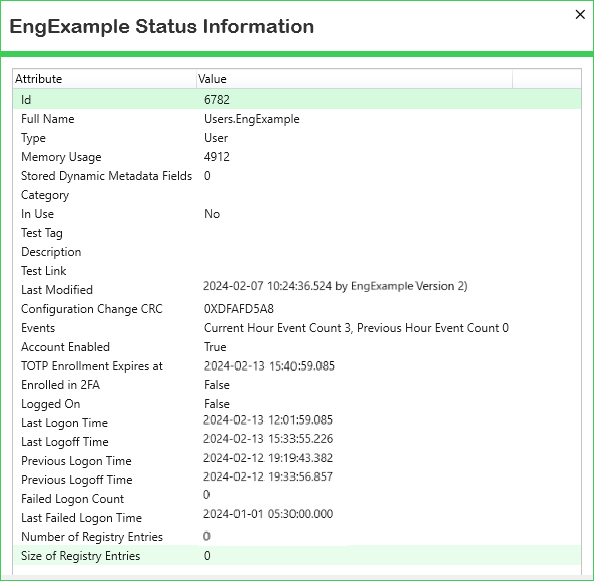
The first figure shows the Status display of a User Account on which 2FA is enabled. The user is not enrolled and has not yet made an attempt to enroll.
With this scenario, the Status display includes these TOTP 2FA status attributes:
- Account Enabled—The value of this status attribute is 'True', indicating that the User Account is enabled (available for use).
- TOTP Enrollment Expires at—This status attribute shows the date and time at which the 2FA enrollment expires.
- Enroll in 2FA—The value of this status attribute is 'False', indicating that the User Account is not enrolled for 2FA.
If a failed enrollment attempt occurs, an additional status attribute is displayed:
- Time of the last failed attempt to enroll in 2FA with TOTP—This status attribute shows the date and time of the last failed attempt to enroll for 2FA.

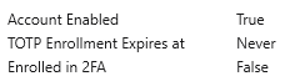
If the enrollment period is not time-limited:
- TOTP Enrollment Expires at—The value of this status attribute is 'Never', indicating that the enrollment never expires.
If the enrollment period is time-limited (as configured on the Root Group):
- TOTP Enrollment Expires at—This status attribute shows the date and time of when the TOTP enrollment expires.

Once the user has enrolled successfully, the TOTP 2FA status attributes in the Status display will indicate that status. For more information, see the example that shows 'Successful 2FA Enrollment'.
If the user has not enrolled by the time that the enrollment period expires, the TOTP 2FA status attributes will indicate that status. For more information, see the example that shows 'TOTP Enrollment Expired'.
TOTP Enrollment Expired
This example demonstrates the TOTP 2FA status attributes that indicate that the TOTP enrollment has expired. This situation only occurs if the enrollment period is time-limited and the user has not enrolled successfully by the time that period expires.
You configure the TOTP Enrollment Expiry period on the configuration form of the Root Group (see Specify the Two-Factor Authentication (2FA) Enrollment Properties).
With this scenario, the Status display includes the following TOTP 2FA status attributes:
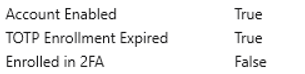
- Account Enabled—The value of this status attribute is 'True', indicating that the user account is enabled.
- TOTP Enrollment Expired—The value of this status attribute is 'True', indicating that the TOTP enrollment period has expired. This indicates that the User Account is not enrolled but still needs to enroll to access the system with this account. Effectively, the User Account is disabled. A system administrator will need to refresh the TOTP Enrollment Period for that User Account and possibly also reset the Account Enabled status of the User Account.
- Enrolled for 2FA—The value of this status attribute is 'False', indicating that the User Account is not enrolled for 2FA.
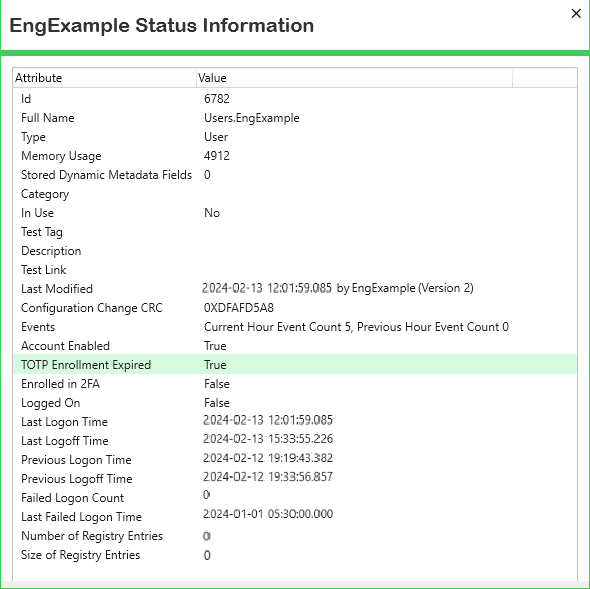
If the user has not enrolled by the time that the enrollment period expires, effectively the user’s account becomes disabled:
When the user actually attempts to logon, the account will be marked as disabled:
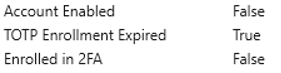
To rectify this situation:
- Reset the enrollment expiry period, using the Reset 2FA enrollment pick action on the User Account (see Reset 2FA Enrollment).
- Display the configuration form for that User Account and select the Account Enabled check box (see Enable or Disable a User Account).
Perform the activities in the order listed above. This is to prevent the User Account from becoming disabled again if the user re-attempts the enrollment process immediately that their account has been re-enabled, but before their enrollment period has been reset.