OPC UA Server Settings
This section is only available in the tool if the OPC UA Server & PCS Service feature is installed. This feature is only available for installation if the required prerequisite components are installed on the Geo SCADA Expert server (see Geo SCADA Expert Prerequisite Components).
The Global Parameters branch of the Server Configuration Tool includes an OPC UA Server & PCS Service section. The section includes OPC UA Server settings that control how Geo SCADA Expert handles OPC UA data.
Configure the following OPC UA Server settings:
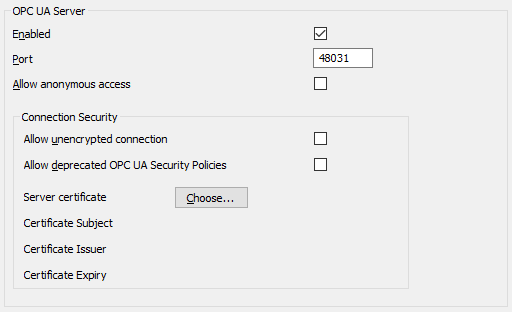
- Enabled—Use to define whether the OPC UA Server is enabled.
Select the check box to enable the OPC UA Server. Use the rest of the properties in this section to configure the OPC UA Server settings.
Clear the check box to disable the OPC UA Server. This is the default setting. The rest of the properties in this section are 'grayed out' and unavailable for use.
- Port—Enter the port number for the OPC UA Server.
- Allow Anonymous Access—Use to define whether to allow Guest User access to the OPC UA Server. The Guest user does not require authentication to be sent from the OPC UA client. We recommend using authentication.
Select the check box if Geo SCADA Expert is to allow Guest User access.
Clear the check box if Geo SCADA Expert is not to allow Guest User access. This is the default option. OPC UA clients have to log on with a valid Geo SCADA Expert User Account in order to access the OPC UA Server.
The Connection Security section includes these settings:
- Allow unencrypted connection—On a 'live' system, we recommend that this check box is clear (the default) so that communications get encrypted.
In a test environment, you might want to select this check box so that communications are not encrypted. When set, the security policy 'None' is available.
- Allow deprecated OPC UA Security Policies—This check box is clear by default to only accept current OPC UA Security Policies. Ensure that the check box is clear if your system's hardware supports up-to-date OPC UA Security Policies.
Only select the check box if your system includes legacy hardware that does not support the latest security. This setting will enable connections to be made using dated and less secure encryption schemes. Ensure that you clear the check box once the legacy hardware has been replaced with hardware that supports up-to-date OPC UA Security Policies.
Clear the Allow deprecated OPC UA Security Policies check box for just the latest supported up-to-date security policies to be available to OPC UA clients.
Select the check box to enable less secure encryption schemes, such as the Basic256 security policy, to be available to OPC UA clients.
- Server Certificate—OPC UA clients use the server certificate to confirm the server's identity. Use the Choose button next to the Server Certificate field to display a Select Certificate window. Use the window to view the details of the current certificate that is in use or to select a new certificate from the list of available certificates that Geo SCADA Expert is to use.
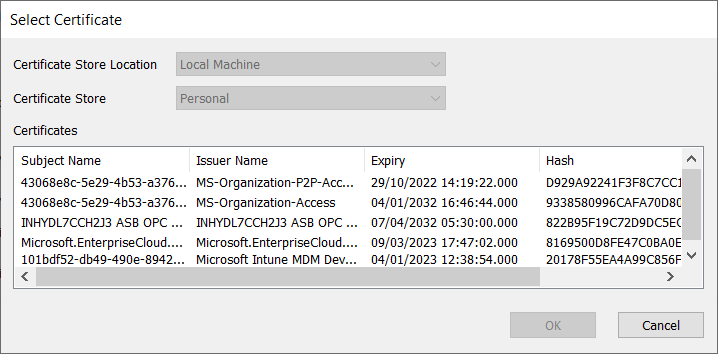
PCS creates a certificate at the time of installation and you should select this certificate unless you are providing your own certificate. The certificate that the PCS Server creates has a name that uses the following format:
<Machine Name> ASB OPC UA Server
- Certificate Subject—Displays the entity authorized to use the certificate.
- Certificate Issuer—Displays the authority that has issued the certificate.
- Certificate Expiry—Displays the certificate's validity period.
When an OPC UA client connects to the Geo SCADA Expert server, the behavior of it's certificate handling will depend on the client software. Some software will prompt for certificate validation and ask whether to add the server certificate to the client's certificate store; this might be to a file folder on the client, or to the certificate store in Windows®. The received certificate might initially be placed into an untrusted area; if so, you might be required to move the certificate to a trusted area. Please consult your OPC UA client documentation for further assistance. If you are using the OPC UA Client driver in Geo SCADA Expert to connect to the Geo SCADA Expert OPC UA Server, see Set Up Secure Connections for the OPC UA Client.
If you need to move a certificate to a more suitable location in order for secure connections to work successfully, you should do so using the Manage computer certificates app in Windows®. When you use the tool, you are likely to find the certificate in the following folder:
Local Computer\Personal\Certificates
When you start the OPC UA Server, if the existing certificate has expired, Geo SCADA Expert will prompt for a new certificate.
OPC UA Client Certificates
In general, an OPC UA Server and an OPC UA client should exchange certificates at runtime, in order to have a trusted relationship. If the received client certificate is not trusted, the OPC UA Server will reject the request, close the session and save the certificate in a specified folder for rejected certificates. With the OPC UA Server in Geo SCADA Expert, rejected clients' certificates are saved to the program folder of the OPC UA Server. This is typically:
C:\ProgramData\AVEVA\PCS\OPC UA Rejected Client Certificates\certs
To trust the certificate of an OPC UA client, you have to use the Manage computer certificates app in Windows® to manually install the certificate from this folder into the following folder:
Local Computer\Trusted People\Certificates