Geo SCADA Expert requires certain other software components to be in place before it can be installed successfully. Some of these are mandatory and others are optional (they are only required if you want to use certain features in Geo SCADA Expert).
If your computer has all of the prerequisite software installed and that software is up to date, you can ignore this topic, as this Setup page will not be shown. The Geo SCADA Expert installer will display the Welcome page of the Geo SCADA Expert Installation Wizard (see Welcome to the Schneider Electric Geo SCADA Expert Setup Wizard).
If your computer does not have all of the prerequisite software installed or any installed prerequisite software is out of date, a Setup page is displayed. This provides details about the mandatory prerequisite components that are not currently installed or are installed but are out of date. It also provides details about any optional prerequisite components. (The actual options that are offered vary, depending on the operating system and whether any of the components are already installed. For example, the Microsoft .NET Framework 4.8 is not offered on operating systems on which that component is already built in.)
Aside from these prerequisites: Be aware that you might need to install other software on the Geo SCADA Expert server or clients in order to use certain drivers in Geo SCADA Expert. This requirement only applies to a few drivers. The driver guides for such drivers should include installation information about such requirements. Check this information before starting to install Geo SCADA Expert as in some cases, the other software might need installing first.
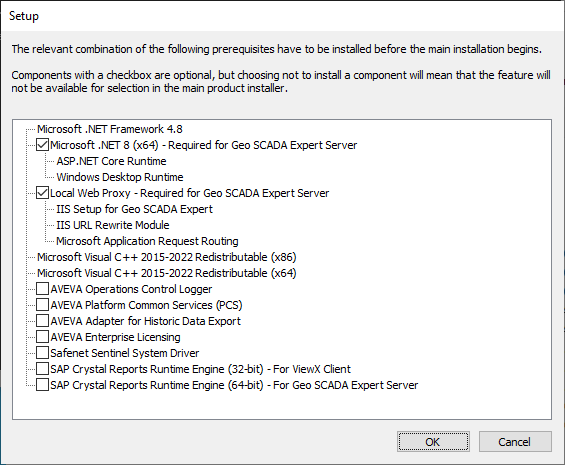
When the Setup dialog box appears:
- Use the check boxes to choose which of the optional components you want to install (in addition to the required components that will be installed automatically).
For information about which optional prerequisites you should install, see below.
To aid your choices, some of the options have a ToolTip that provides further information. For example, a ToolTip will indicate if a prerequisite component does not need installing on a client-only machine. Place the cursor over an option to display the ToolTip.
The SAP Crystal Reports runtime components are NOT installed by default. If you intend to install them you must purchase a Crystal Reports runtime license for each server on which these components are to be operational (clients do not need a license to use the runtime components). For servers on which the runtime components are operational, the Crystal Reports runtime license is included with the Geo SCADA Expert Crystal Reports driver license. Please contact your Schneider sales representative for more information.
Install the 64-bit version of the SAP Crystal Reports Runtime Engine on Geo SCADA Expert server installations (to enable generating and exporting of reports). Install the 32-bit version of the SAP Crystal Reports Runtime Engine on ViewX clients and Virtual ViewX servers (to display reports). Please select both if you are to run Server and Clients on the same computer. As the runtime components are prerequisites, you have to select them before you continue further with the Geo SCADA Expert installation (this is handled automatically in the Virtual ViewX installer). For more information about the installation order, see the Installation section of the Geo SCADA Expert Guide to the Crystal Reports Driver.
If you intend using Crystal Reports on your system, you also need to install the Crystal Reports prerequisites and driver on any
- Select the OK button to proceed.
The prerequisite components are verified and installed. Any mandatory prerequisite components are installed automatically. Optional prerequisite components are only installed if they have been selected. - If a reboot is required for the installation process to complete, a dialog box is displayed. Select Yes to allow the reboot to take place.
- Following the reboot, Windows might ask if you want to allow Geo SCADA Expert Setup to make changes to your computer. Select Yes.
- If you still have further prerequisite components to install:
- If the Setup dialog box is displayed automatically following the reboot, reselect the remaining components that you require (and clear the check boxes of any that you do not require). Then select the OK button to install the remaining prerequisite components that you have selected.
- If the Geo SCADA Expert installer does not run automatically following the reboot, re-run the installer and select the Install Geo SCADA Expert option again (see Run the Geo SCADA Expert Installer). Once the Setup dialog box is displayed, reselect the remaining components that you require (and clear the check boxes of any that you do not require). Then select the OK button to install the remaining prerequisite components that you have selected.
- Repeat the above procedure if a further reboot is required in order for the prerequisites installation process to complete.
Windows might ask you if you want to allow Geo SCADA Expert Service Manager to make changes to your computer. Select Yes to allow the installation process to continue.
When the prerequisites have been installed, the Geo SCADA Expert Installation wizard runs (see Welcome to the Schneider Electric Geo SCADA Expert Setup Wizard).
Which Prerequisite Components Do I Need to Install?
This section lists the prerequisite components that might be offered in the Setup window. (Prerequisite components are only offered if they are not already installed or need upgrading.)
Mandatory Prerequisite Components
The mandatory prerequisite components are:
-
Microsoft .NET Framework 4.8
-
Microsoft Visual C++ 2015-2022 Redistributable (x86)
-
Microsoft Visual C++ 2015-2022 Redistributable (x64)
These will be installed automatically if they do not already exist on the machine once you proceed with the installation. Any existing mandatory prerequisite components that are out of date will be upgraded.
Optional Prerequisite Components
Optional prerequisite components include a check box in the Setup window. You only need select those components that need installing for the features that you want to use in Geo SCADA Expert.
We recommend that you only install components that you need for your system. Installing components that are not needed takes up disk space unnecessarily. It also increases the attack surface. For improved system security, you should avoid installing or running components that you do not require on your system.
Be aware that you might need to install other software on the Geo SCADA Expert server or clients in order to use certain drivers in Geo SCADA Expert. This requirement only applies to a few drivers. The driver guides for such drivers should include installation information about such requirements. Check this information before starting to install Geo SCADA Expert as in some cases, the other software might need installing first.
Key:
✓ indicates an optional prerequisite component that you have to select in order to use the feature for which the component is required
The optional prerequisite components comprise:
- Microsoft .NET 8 (x64)
- Required for Geo SCADA Expert Server. This component includes:
- ASP .NET Core Runtime
- Windows Desktop Runtime
-
Local Web Proxy - Required for Geo SCADA Expert Server. This component includes:
-
IIS Setup for Geo SCADA Expert
-
IIS URL Rewrite Module
-
Microsoft Application Request Routing
-
- AVEVA Operations Control Logger
- AVEVA Platform Common Services (PCS)
AVEVA Platform Common Services (PCS) uses Microsoft Edge WebView2. As part of Microsoft Edge WebView2’s security settings, the Microsoft Defender SmartScreen is enabled by default. Therefore, if you install PCS, the Microsoft Defender SmartScreen is also installed on your machine. The Microsoft Defender SmartScreen collects and sends user information to Microsoft, as disclosed in the:
-
Microsoft Privacy Statement: https://aka.ms/privacy
-
Microsoft Edge Privacy Whitepaper: https://learn.microsoft.com/en-us/microsoft-edge/privacy-whitepaper#smartscreen
You can disable the Microsoft Defender SmartScreen if PCS is installed on your machine. Refer to the Microsoft support documentation for instructions on how to disable this feature: https://support.microsoft.com/en-us/microsoft-edge/how-can-smartscreen-help-protect-me-in-microsoft-edge-1c9a874a-6826-be5e-45b1-67fa445a74c8
-
- AVEVA Adapter for Historic Data Export
- AVEVA Enterprise Licensing
- Safenet Sentinel System Driver
- SAP Crystal Reports Runtime Engine (32-bit) - For ViewX Client
(Geo SCADA Expert supports SAP Crystal Reports 2020 and SAP Crystal Reports 2025) - SAP Crystal Reports Runtime Engine (64-bit) - For Geo SCADA Expert Server
(Geo SCADA Expert supports SAP Crystal Reports 2020 and SAP Crystal Reports 2025)
If a multi-part optional prerequisite component (such as 1 or 2 above) is partially installed, that component will become mandatory and its check box will be removed. This is by design, to help ensure that all parts of that component are installed, in order to provide a complete installation of the prerequisite component.
| Feature that you intend using on a Server, or Server and Clients Installation | Prerequisite Component (see the 'Key') | ||||||||
|---|---|---|---|---|---|---|---|---|---|
| 1 | 2 | 3 | 4 | 5 | 6 | 7 | 8 | 9 | |
|
Any Server, or Server and Clients installation. (The prerequisite component installs and configures Microsoft Internet Information Services (IIS) as a reverse proxy for the Geo SCADA Expert server’s built-in web server.) |
✓ | ||||||||
|
The AVEVA Flex subscription offer and Flex credits for licensing (rather than license files or dongles) |
✓ | ||||||||
|
The AVEVA Historic Data Export driver to export historic data to AVEVA Historian or AVEVA Insight (also see the entry below) |
✓ | ||||||||
|
Use the AVEVA Historic Data Export driver to export historic data to AVEVA PI Server or CONNECT data services (also see the entry above) |
✓ | ✓ | ✓ | ||||||
|
AVEVA Identity Manager for user logons |
✓ | ✓ | ✓ | ||||||
|
Dongles for licensing (rather than license files, or an AVEVA Enterprise License Server) |
✓ | ||||||||
|
The OPC UA server |
✓ | ✓ | ✓ | ||||||
|
The PCS Data Interface |
✓ | ✓ | ✓ | ||||||
| SAP Crystal Reports 2020 or SAP Crystal Reports 2025 - on a Server Only installation (including installation on a Permanent Standby server) (see the note earlier in this topic) |
✓ | ||||||||
| SAP Crystal Reports 2020 or SAP Crystal Reports 2025 - on a Server and Clients installation (including installation on a Permanent Standby server) (see the note earlier in this topic) |
✓ | ✓ | |||||||
| Use the Wonderware Alarm Provider driver to enable users to view and manage Geo SCADA Expert alarms from within Wonderware InTouch. | ✓ | ||||||||
| Feature that you intend using on a Client Only Installation | Prerequisite Component (see the 'Key') | ||||||||
|---|---|---|---|---|---|---|---|---|---|
| 1 | 2 | 3 | 4 | 5 | 6 | 7 | 8 | 9 | |
|
AVEVA Identity Manager for user logons |
✓ | ||||||||
|
You have opted to use client licensing and are using dongles for that client licensing (rather than license files, or an AVEVA Enterprise License Server) |
✓ | ||||||||
| SAP Crystal Reports 2020 or SAP Crystal Reports 2025 - on a Client Only installation (see the note earlier in this topic) |
✓ | ||||||||
 WARNING
inoperable system or feature
Take care when uninstalling unnecessary prerequisite components.
Always shut down Geo SCADA Expert first and ensure that no other applications require those components.
Uninstalling prerequisite components that are still required might result in Geo SCADA Expert being unable to provide access to certain features, or being unable to run. It might also affect system security.
Further Information
Prerequisites for machines on which Virtual ViewX is installed: see Virtual ViewX Server Prerequisite Components.
Upgrade the Prerequisite Components.
Specify the Geo SCADA Expert installation components that are required to enable access to the Geo SCADA Expert database from mobile devices: see the separate Geo SCADA Mobile documentation suite. (This includes information about the Mobile Companion component.)