Software locks are used to limit access to a resource in a multi-threaded application, such as the Geo SCADA Expert database server application.
The General branch of the Server Status Tool includes a Locks category that provides status information about the software locks that are in the Geo SCADA Expert server. Geo SCADA Expert creates an entry for each lock in the server. Depending on the system architecture, this might include entries for some resources that do not get used. For example, a lone server will include locks for main-standby, but those locks will not get used. The Locks category includes one row for each lock in the server.
Typically, you only need to view the lock status when asked to do so by Schneider Electric engineers—the engineers might use the status information to diagnose performance issues such as latency.
For diagnostic information regarding database locks in Geo SCADA Expert, see Lock Diagnostics Read and Lock Diagnostics Write. The Locks category displays all locks in the server, whereas database locks are specific to the 'Database' and 'Metadata' locks and assist in identifying which operation is causing high lock utilization.
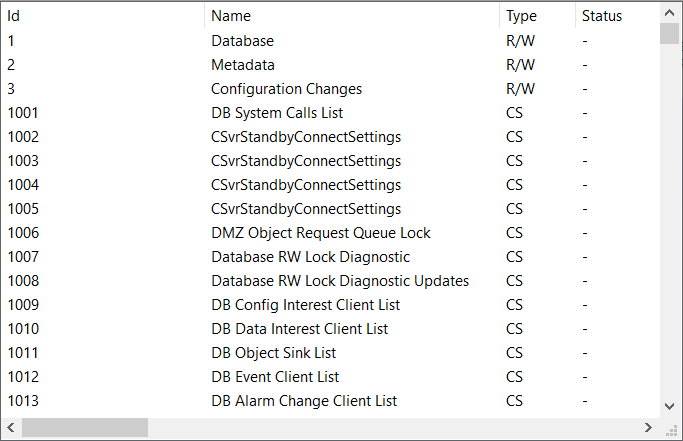
The status information for each lock is categorized as:
- Id—This is a unique number that Geo SCADA Expert uses to identify the lock.
- Name—This is the name that Geo SCADA Expert has allocated to the lock. Typically, this indicates the resource to which the lock relates. In some cases, reference is also made to:
An Advise Links Id (such as A04#01), which corresponds to the Id column in the Advises category of the Server Status Tool.
A Comms Parent Links Id (such as PL2), which corresponds to the Id column in the Comms Parent Links category of the Server Status Tool.
A Comms Child Links Id (such as PL0:CL1), which corresponds to the Id column in the Comms Child Links category of the Server Status Tool.
A Server Links Id (such as L06#03), which corresponds to the Id column in the Server Links category of the Server Status Tool.
The naming convention groups related locks together with a common prefix, typically enclosed in square brackets [ ].
For more information about the Database read and write locks, see Lock Diagnostics Write and see Lock Diagnostics Read.
- Type—This indicates the type of lock:
- R/W—A 'Readers-Writer' lock. The lock has multiple readers and no writers, or no readers and 1 writer.
- CS—A 'Critical Section' lock. The lock has 1 reader or writer with exclusive access.
- Status—This indicates whether the lock is active. The status can be:
- Locked
- Write, Thread <n> (where <n> is the ‘ID’ of the thread with the write lock). The resource is locked for writing.
- Read, Count <n> (where <n> is the number of threads that have the lock). The resource is locked for reading. A resource cannot be written to and read at the same time.
- - A hyphen indicates that the resource is not locked.
For more information, see Threads.
For locks for which the Type is 'CS', the applicable columns below (other than Longest Excl Lock Reason) are only populated if extended lock diagnostics are enabled. Such diagnostics are disabled by default and the other columns display a hyphen (-) to indicate that no extended diagnostics data is available for that lock. Typically, you need only enable extended lock diagnostics if you are asked to do so by Schneider Electric. To enable extended lock diagnostics, do so via this registry key setting:
Computer\HKEY_LOCAL_MACHINE\SOFTWARE\Schneider Electric\ClearSCADA\DB\ExtendedLockDiagnostics
Set the above registry key to True to enable extended lock diagnostics, or False to disable extended lock diagnostics, as applicable. Enabling extended lock diagnostics does not generate any extra logging, but does result in some additional computation for the extra diagnostics; this may or may not affect overall performance. The extra diagnostics can be useful when investigating locking-based issues, for example, if a lock is being held for much longer than expected. When a system is functioning as expected on a day-to-day basis, there is typically no need to have extended lock diagnostics enabled.
Be aware that entries in the list only update when the lock is locked or unlocked. As such, after changing the registry key's value, you might well find that a number of entries in the list remain unchanged initially. For example, they might continue to display the text 'Extended lock diagnostics disabled' in the Longest Excl Lock Reason column even after extended lock diagnostics have been enabled. Such entries will update when the lock is next locked or unlocked.
Even when the Longest Excl Lock Reason column does not display the text 'Extended lock diagnostics disabled' when extended lock diagnostics are enabled, other relevant columns below might still display a hyphen (-). This will occur if the resource has not been exclusively locked or unlocked since the extended lock diagnostics were enabled or last reset. For entries for which the Type is 'CS', this will be indicated by the Total Excl Lock Count and Excl Locks Per Second columns displaying a zero (0).
-
Total Excl Lock Count—Only applicable to locks for which the Type is 'CS'. This indicates the number of times that the resource was exclusively locked since the lock statistics were last reset.
-
Excl Locks Per Second—Only applicable to locks for which the Type is 'CS'. This indicates the number of times per second that the resource was exclusively locked since the lock statistics were last reset.
-
Longest Excl Lock—Only applicable to locks for which the Type is 'CS'. This indicates the longest exclusive lock since the lock statistics were last reset.
-
Longest Excl Lock Time—Only applicable to locks for which the Type is 'CS'. This indicates the end date and time of longest exclusive lock; this is the date and time that Geo SCADA Expert released the lock.
-
Longest Excl Lock Thread—Only applicable to locks for which the Type is 'CS'. This indicates the thread that had the longest exclusive lock since the lock statistics were last reset.
-
Longest Excl Lock Reason—Only applicable to locks for which the Type is 'CS'. This column indicates whether extended lock diagnostics are enabled on the server.
For locks for which the Type is 'CS', this column displays the text 'Extended lock diagnostics disabled' by default. You only need to enable extended lock diagnostics if asked to do so by Schneider Electric. For information about enabling extended lock diagnostics via its registry key setting, see above.
For locks for which the Type is 'CS', this column displays a hyphen (-) when extended lock diagnostics are enabled.
-
Avg Excl Lock Time—Only applicable to locks for which the Type is 'CS'. This indicates the average duration that the resource was exclusively locked since the lock statistics were last reset.
-
% Time in Excl Lock—Applicable to either Type of lock. This indicates the percentage of time that the resource was exclusively locked since the lock statistics were last reset.
A particular resource might:
-
Spend a percentage of time in a shared lock (this only applies to locks for which the Type is 'R/W')
-
Spend a percentage of time exclusively locked
-
Spend the rest of the time not locked (there is not a column for this; it is just implied).
Geo SCADA Expert performs a running calculation from when the locks were last reset and updates the information in the relevant columns accordingly.
Since the lock statistics were last reset, Geo SCADA Expert calculates the amount of time that a particular resource is locked. The resource uses a lock for which the Type is 'R/W'. The calculations show the following:
2% of the time is spent in a shared lock
1% of the time is spent exclusively locked
This means that for 97% of the time, the resource was not locked. (This last statistic is not shown in the Locks category; it is just implied.)
Geo SCADA Expert calculates the amount of time that another resource is locked. The resource uses a lock for which the Type is 'CS'. The calculations show the following:
4% of the time is spent exclusively locked
This means that for the remaining 96% of the time, the resource was not locked.
-
-
Time In Excl Lock—Applicable to either Type of lock. This indicates the total time that the resource was exclusively locked since the lock statistics were last reset.
-
% Time In Shared Lock—Only applicable to locks for which the Type is 'R/W'. This indicates the percentage of time that the resource was in shared locks since the lock statistics were last reset. Compare this to the percentage of time spent exclusively locked; the remainder of the time has been spent not locked.
-
Time In Shared Lock—Only applicable to locks for which the Type is 'R/W'. This indicates the total time that the resource was in shared locks since the lock statistics were last reset. Compare this to the total time spent exclusively locked; the remainder of the time has been spent not locked.
When extended lock diagnostics are enabled (see above), a context-sensitive menu is available when you right-click on an entry in the list. The menu provides these options:
-
Reset Lock Diagnostics—Use to reset the lock diagnostics of just the selected lock.
-
Reset All Lock Diagnostics—Use to reset the lock diagnostics of all of the locks in this Geo SCADA Expert server.
The lock statistics are reset automatically whenever any of the following occur:
-
The Geo SCADA Expert server gets restarted
-
At the snapshot interval (if the Reset Counters check box is selected in the Snapshots section of the Server Configuration Tool).
The exceptions to the above are entries for any locks that do not get used following the resetting of the lock statistics. As with other statistics, the entries will only update when, or if, the lock gets used. For example, if your system does not use System Calls, then the 'DB System Calls List' entry will not get updated after the lock statistics are reset.