Electrical Health TGML components
Use Electrical Health TGML components to dynamically monitor electrical parameters, such as voltage, current, active power, and power factor. Using Graphics Editor, place one or more components on the canvas and customize each to build an electrical health diagram. When arranging them, follow a hierarchy similar to an electrical one-line for clarity and consistency. Then, use your electrical health diagram on the Diagrams tab of the WebHMI.
Power Measurement Display Bar and the Power Measurement Selector
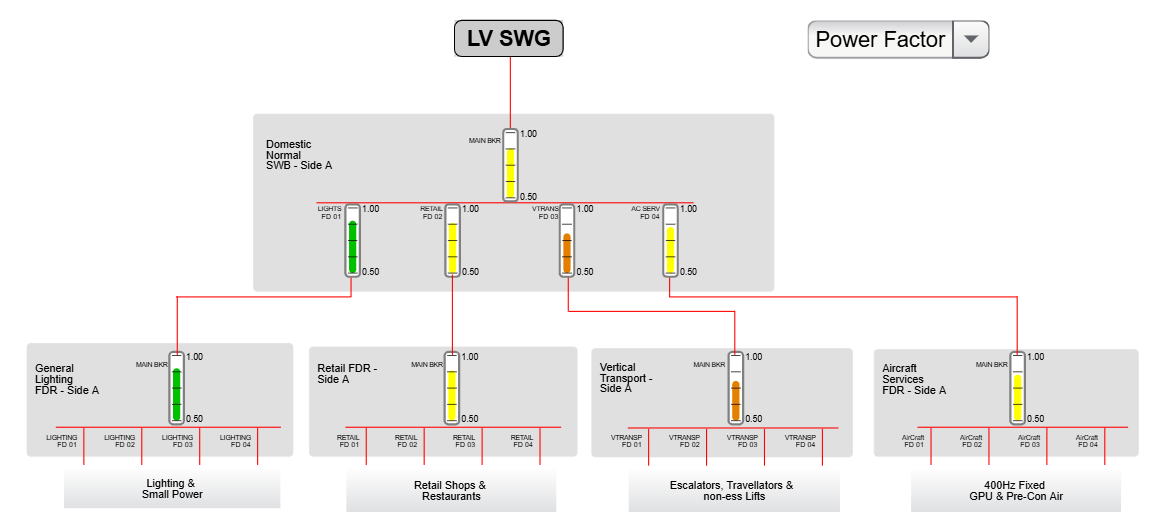
When used in partnership with the Power Measurement Display Bar, the Power Measurement Selector lets you display real-time values that indicate the health of your electrical system.
After adding both components from the Power Measurement section of the Components pane in Graphics Editor, you can:
- Bind equipment to the Power Measurement Display Bar.
- Set minimum and maximum values with associated colors to match the equipment operational ranges.
- Use the Power Measurement Selector drop-down to select the electrical parameters to measure and display. Options include voltage, current, active power, and power factor.
For more information on configuring the Power Measurement Display Bar and Power Measurement Selector TGML components, see Configuring Power Measurement components to monitor electrical health.
Setpoint Display Bar
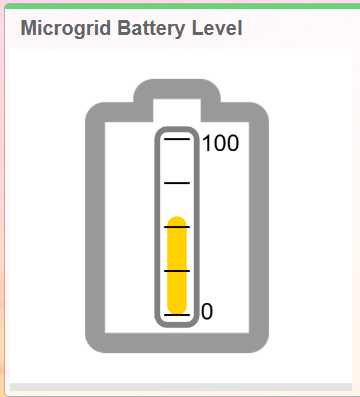
Use the Setpoint Display Bar to measure and display a single parameter.
After adding this component from the Power Measurement section of the Components pane in Graphics Editor, you can:
- Bind a device to the Setpoint Display Bar.
- Monitor various devices for a specific electrical parameter.
- Monitor various electrical parameters for a specific device.
For more information on configuring the Setpoint Display Bar TGML component, see Configuring the Setpoint Display Bar to monitor electrical health.