To update the firmware without deleting the application in the controller, click the button Update firmware... in the Process image / Create image new dialog. The first step of the Update firmware dialogs is displayed.
This is a general description of the firmware update procedure. It may be that not all the steps and options described here are available for the controller you are using. For a description of updating the firmware of PacDrive M controllers, refer to the chapter Updating Firmware - PacDrive M Controllers.
First step of the Update firmware dialogs, option Compatible selected

Description of the elements
|
Element |
Description |
|
|---|---|---|
|
Update mode |
This option is only available for EcoStruxure Machine Expert controllers: oSelect the option SERCOS device family update only to update only the firmware of the Sercos devices within an image, the area Controller firmware change of the dialog is hidden. The separate dialog for selecting the controller firmware version (step 2 of this update firmware procedure) is skipped. oIf you do not select this option, select the controller firmware version in the next step (refer to step 2 of this update firmware procedure). |
|
|
Controller firmware change |
Choose the desired type of controller firmware change. |
|
|
|
Compatible |
Select the option Compatible to provide only compatible firmware versions for selection. For EcoStruxure Machine Expert controllers, for instance, a compatible firmware version is detected with the version number: The first 3 digits have to match. Compatible is, for example, V1.30.1.0 to V1.30.1.1 or V1.30.1.2. Not compatible, is for example, V1.30.1.0 to V1.30.2.0 or V1.31.230.1. |
|
|
General |
Select the option General to provide all firmware versions for selection. By default, the latest firmware version is selected. |
First step of the Update firmware dialogs, option General selected
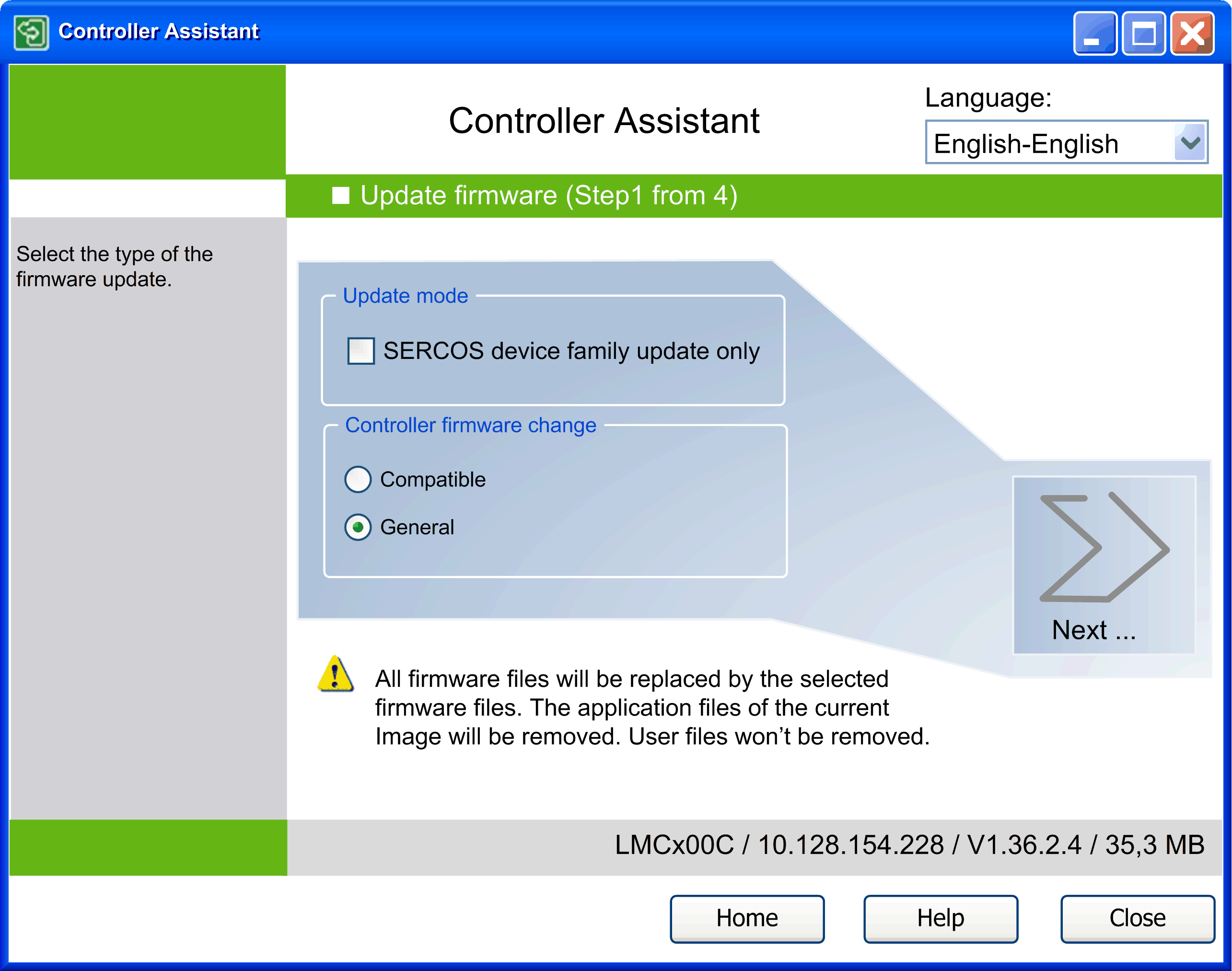
Click the button Next... to continue with one of the following dialogs:
oIf SERCOS device family update only is deselected, the dialog Update firmware (Step 2 of 4) for updating the controller firmware is displayed.
oIf SERCOS device family update only is selected, the dialog Update firmware (Step 2 of 3) for selecting the Sercos device firmware version is displayed.
Second step of the Update firmware dialogs for selecting the firmware version
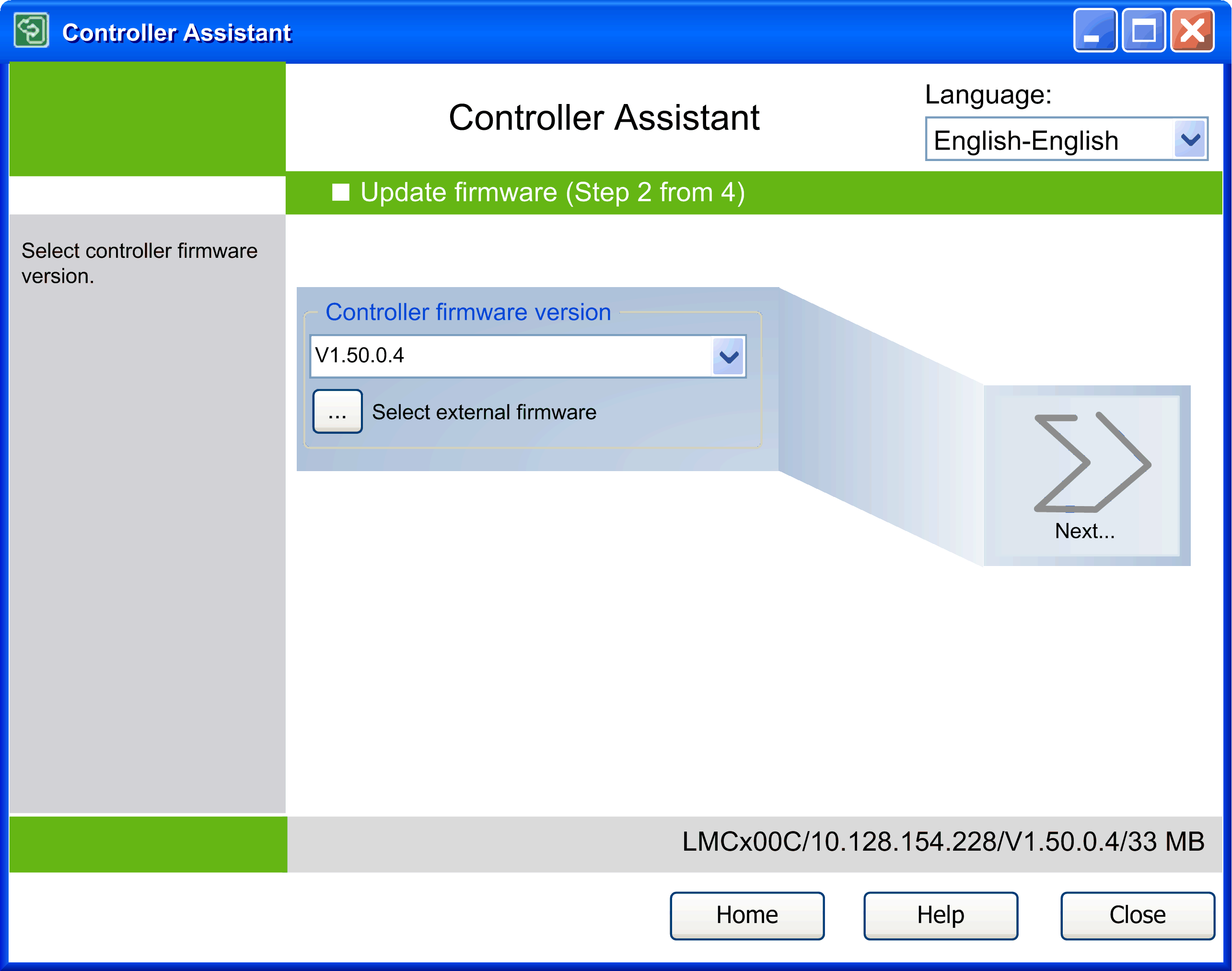
For PacDrive M and EcoStruxure Machine Expert controllers, those firmware versions that are compatible to each other are marked as a group in the same color (bright or dark) in the Controller firmware version list.
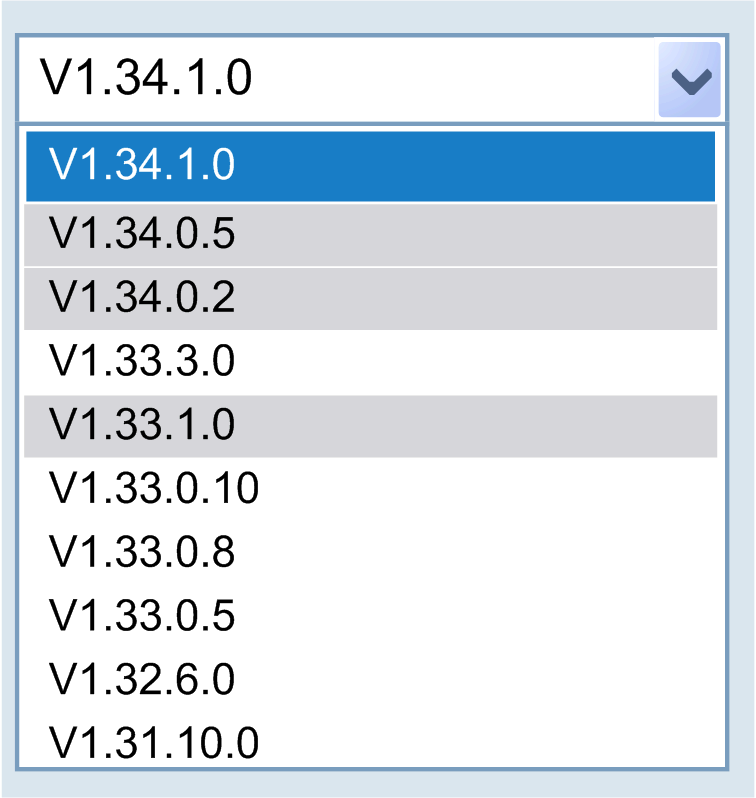
In the selection list above V1.33.0.10, V1.33.0.8 and V1.33.0.5, for instance, are compatible to each other. In contrast, V1.33.3.0 and V1.33.1.0 are not compatible to V1.33.0.10.
Select a firmware version from the list or click the  button to browse for an external firmware. It allows you to add a firmware from any location within the file system. Following a prompt, you can add the firmware to the default firmware directory. It will then be available permanently. The OK button is only activated if the firmware directory is valid. Via Select firmware directory, you can select the directory containing the firmware versions of the controllers. This directory can be declared as the default firmware directory after inquiry. Choose in the subsequent dialog if you want to select the firmware directory for the firmware files.
Click the button Next... to continue.
The dialog for updating the Sercos device firmware is accessed. Depending on the selection, this will be the dialog Update firmware (step 3 of 4) or Update firmware (step 2 of 3).
Third step of the Update firmware dialogs only updating the Sercos device firmware (only available for EcoStruxure Machine Expert controllers):
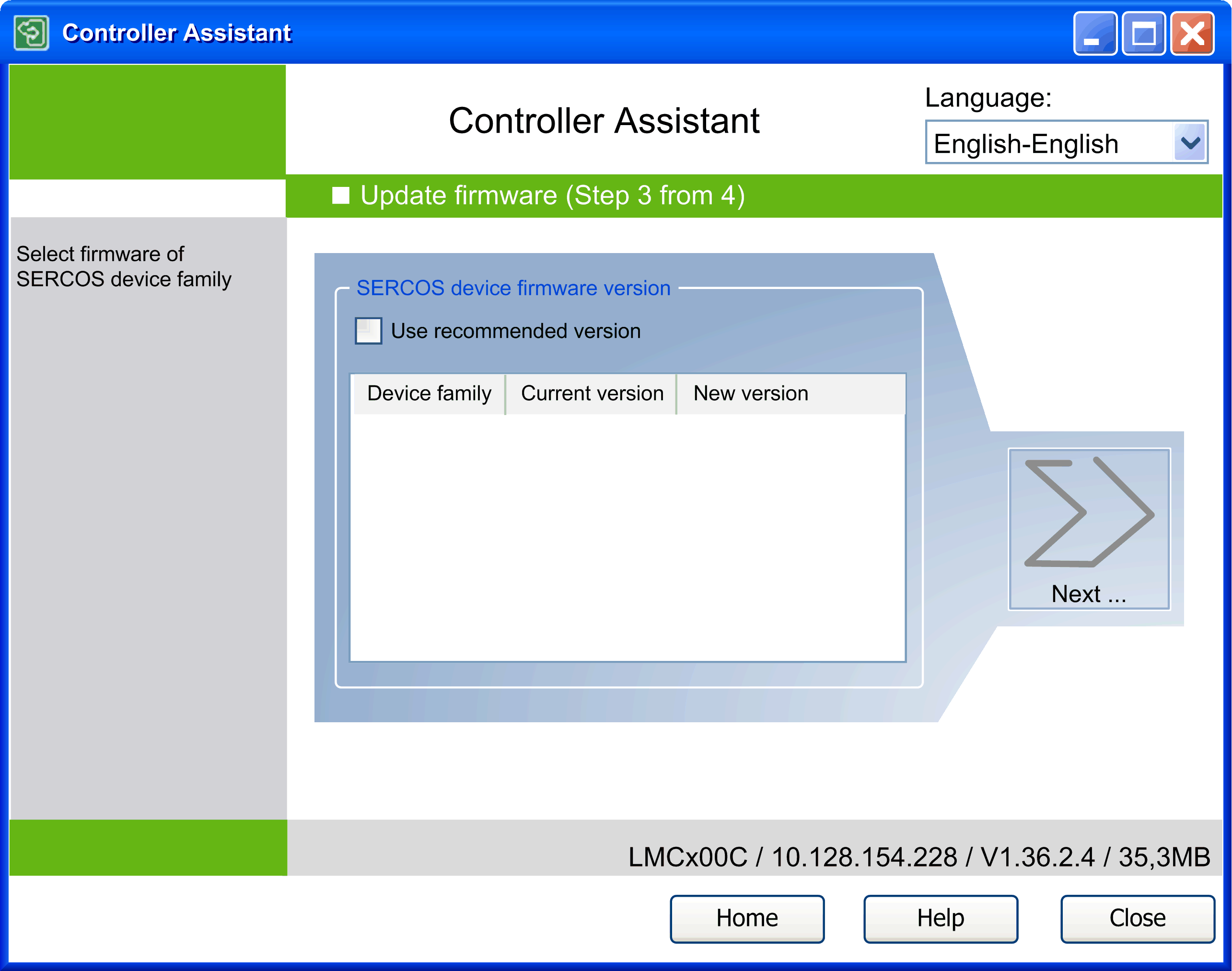
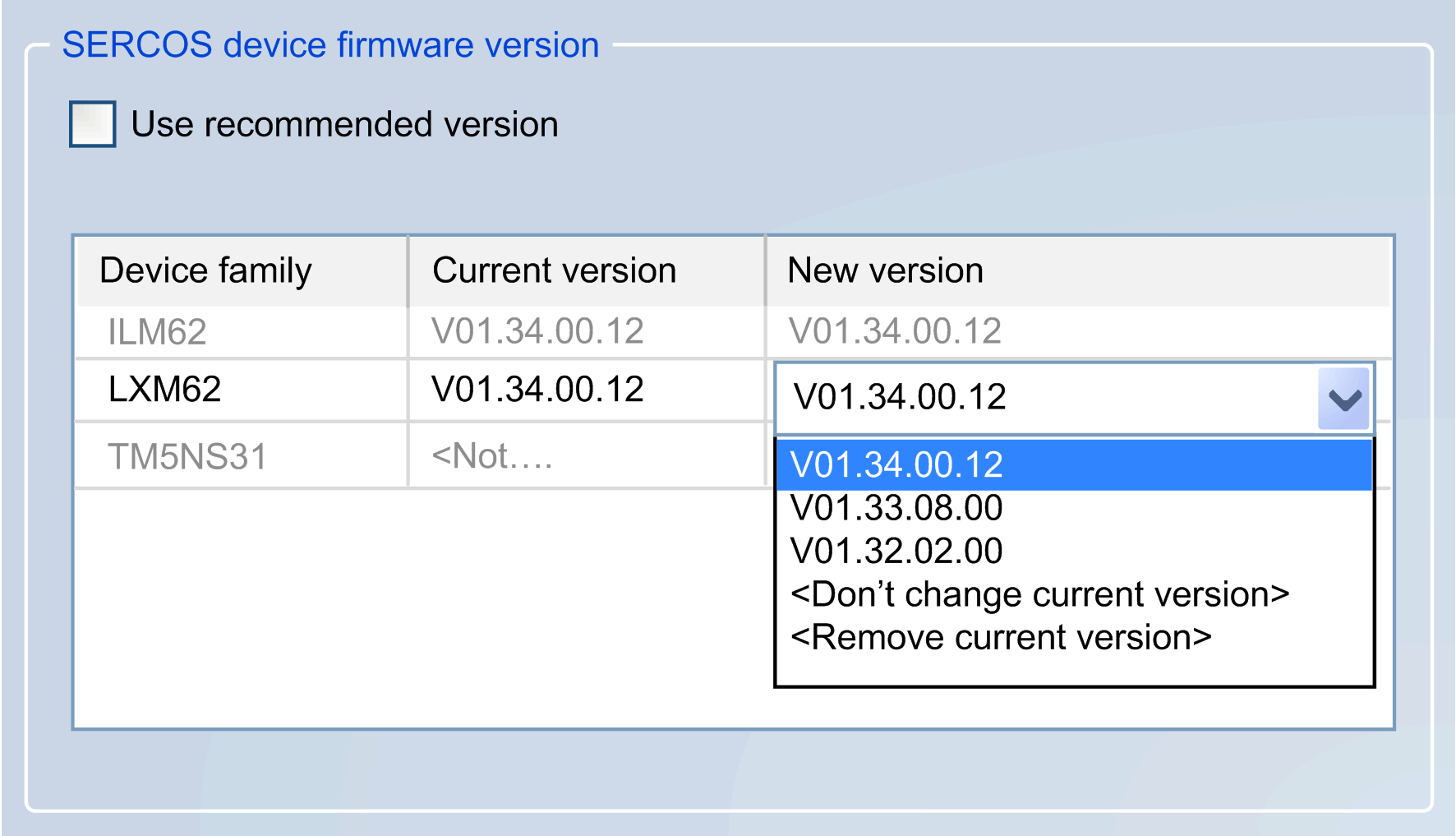
Here you can select whether you want to update to a recommended version of the Sercos device firmware The option Use recommended version is selected by default.
If the option Use recommended version is disabled, a list with the identified device families and the corresponding firmware versions is additionally displayed.
|
Designation |
Description |
|---|---|
|
Device family |
In this column, the designation of the device family is displayed. |
|
Current version |
In this column, the version of the device family that is in the active image is displayed. If there is no firmware file for the specified device family in the image, the text <not available> is displayed in this cell. |
|
New version |
The version recommended for the current controller firmware version and the corresponding Sercos device family is displayed as new version. If no recommended version has been found, the text <Current version not found> is displayed. When clicking an entry in the column, a selection menu with a list of all available firmware versions opens (see the following graphic). Here you can do the following: oselect the desired version odelete the current version in the image okeep the current version in the image The recommended version is displayed in bold. |
Selection menu New version
Click the button Next... to continue.
The dialog for specifying the communication settings is accessed. Depending on the selection, this will be the dialog Update firmware (step 4 of 4) or Update firmware (step 3 of 3).
Fourth step of the Update firmware dialogs, for specifying the communication settings
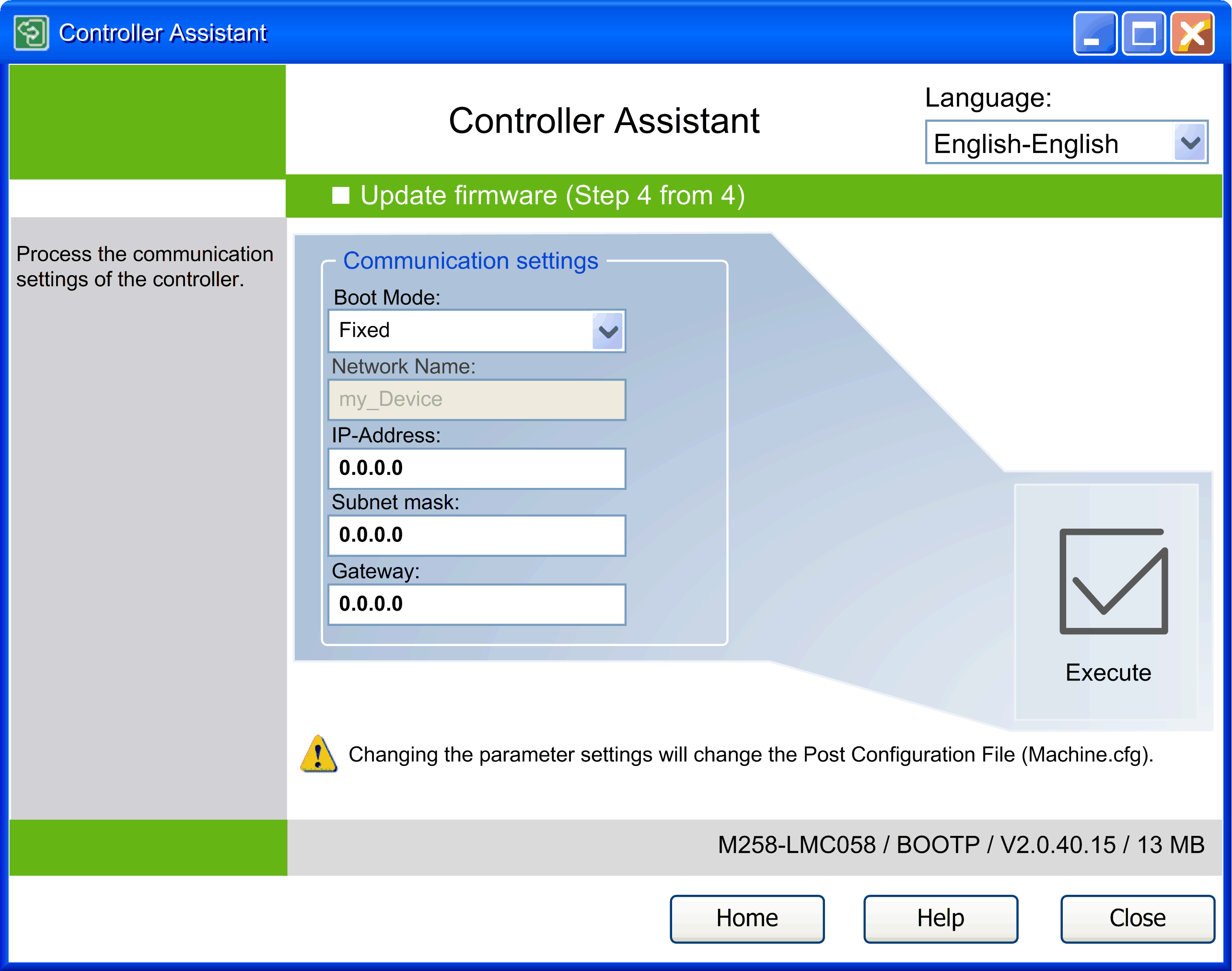
The communication settings vary depending on the controller. The illustration shows the communication setting for LMC058 / M258 / M241 / M251 / M221 controllers.
For these controllers, the parameter Boot Mode is by default set to the value Fixed and the IP-Address is set to 0.0.0.0. This has the effect that the communication settings on the controller remain unchanged. You can adapt the communication settings to your individual requirements.
NOTE: For LMC058 / M258 / M241 / M251 / M221 controllers, the modified parameters are written to the post configuration file Machine.cfg which overwrites the parameters of the EcoStruxure Machine Expert application.
Carefully manage the IP addresses because each device on the network requires a unique address. Having multiple devices with the same IP address can cause unintended operation of your network and associated equipment.
|
|
|
UNINTENDED EQUIPMENT OPERATION |
|
oVerify that there is only one master controller configured on the network or remote link. oVerify that all devices have unique addresses. oObtain your IP address from your system administrator. oConfirm that the IP address of the device is unique before placing the system into service. oDo not assign the same IP address to any other equipment on the network. oUpdate the IP address after cloning any application that includes Ethernet communications to a unique address. |
|
Failure to follow these instructions can result in death, serious injury, or equipment damage. |
Click the Execute button to start the update process, updating the firmware in the Controller Assistant image.
If you work on a PC with the operating system Windows 7, the dialog box User Account Control can additionally be displayed for several functions (refer to the chapter Controller Assistant on Windows 7).