Configure Modbus Point Scanners Settings
The configuration Form of a Modbus Server Device item includes a Modbus tab. The tab includes a Modbus Point Scanners section. Use the section to configure the settings to specify whether Geo SCADA Expert is to automatically create the required Modbus Point Scanner(s) when exporting or downloading configuration (see Export to RemoteConnect, and see Download Configuration).
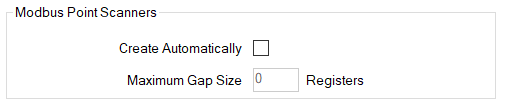
Use this check box to define whether Geo SCADA Expert is to automatically create Modbus Point Scanner(s) based on the settings defined for each associated SCADAPack x70 Configuration Item. Alternatively, you can choose to manually create SCADAPack x70 Modbus Point Scanner Configuration Items to define each block of registers along with their corresponding scanning settings. The default setting for this property can be configured from the Geo SCADA Expert Server Configuration tool (see Configure the SCADAPack x70 Server Settings).
Select the check box if Geo SCADA Expert is to automatically create the Modbus Point Scanner(s) during an export or download.
Clear the check box if you intend to configure the Modbus Point Scanner(s) manually by creating the Modbus Point Scanner items in the database and connecting the SCADAPack x70 Configuration Items to them. This is a similar process to how you configure Modbus Point Scanners in RemoteConnect.
When automatically creating scanners, set the Mapping type to Modbus (Server Device) on the SCADAPack x70 Configuration Items. This mapping defines all of the scanning settings (see Configure the Properties on the Mapping Tab).
When manually creating scanners, set the Mapping type to Modbus (Point Scanner) on the SCADAPack x70 Configuration Items (see Configure the Properties on the Mapping Tab).
Automatically creating the scanners can simplify the process of configuring the Modbus Server Devices within Geo SCADA Expert.
When creating Modbus scanners automatically, the gaps (if any) between mapped Modbus registers are considered along with the Maximum Gap Size when determining the block of registers for each scanner.
You cannot enable this check box whilst emulating Geo SCADA Expert 2022 or earlier (see Types of Emulation Supported by Geo SCADA Expert).
You use this field to control how the automatic scanner creation works when there are gaps between consecutive Modbus mappings of the SCADAPack x70 Configuration Items.
Use this field to specify the maximum gap between registers. The default value is 0.
Use the field to specify the maximum number of consecutive Modbus registers that are unused before a new Modbus Point Scanner is created. When the SCADAPack x70 Configuration Items are mapped to consecutive Modbus registers, they must also have identical scanning settings to share the same scanner.
The maximum number of Modbus Point Scanners that can be created in a SCADAPack x70 device is 3000. A larger gap size might result in fewer scanners, but the SCADAPack x70 device also scans the unused registers. A smaller gap size might result in more scanners but the SCADAPack x70 device scans fewer or no unused registers.
If the unused Modbus registers do not exist in the Modbus device, then the SCADAPack x70 device might generate an error while trying to scan the unused registers. Hence, if unused Modbus register(s) do not exist in the Modbus device, the gap size must be 0.
A gap size of 0 starts a new scanner when there is a gap between registers. If the value is not 0, n unused Modbus object association(s) is/are created for each unused register (or pair of registers for 32-bit data types). A gap larger than the maximum gap size will start a new scanner. The maximum value of the Maximum Gap Size field is 1000 registers, which is the same as the maximum number of registers that can be associated with a scanner.
For more information, see Examples of Automatic Modbus Point Scanner Creation.
Further Information