The Users List provides information about the User Accounts on your system. Like other Queries Lists, you can display the List from the Queries Bar.
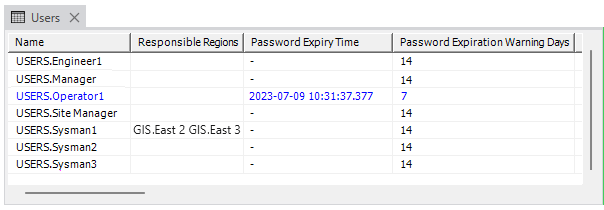
The Users List consists of rows and columns. Each row represents an individual User Account and each column contains information about that particular User Account.
The Users List contains these columns:
- Name—The name of the User Account (including the parent Group). This is defined during the creation of the User Account or when a User Account is renamed.
- Responsible Regions—The names of any regions for which the User Account has responsibility (see Assign Regions of Responsibility). This only applies to systems that use Geo SCADA Expert's Geographical Location features.
- Password Expiry Time—The date and time at which the User Account's current password becomes invalid. This only applies to User Accounts that are managed directly in Geo SCADA Expert. When the date and time is reached, a new password has to be configured for the User Account.
With User Accounts that are managed directly in Geo SCADA Expert, you can:
Set the password expiration default for new User Accounts (see Define the Default Security Settings for New User Accounts).
Set the password expiration on a per User Account basis (see Define the Security Settings for a User).
With User Accounts that are associated with Windows or LDAP User Profiles, password management is performed via the relevant Windows domain or LDAP server.
- Password Expiration Warning Days—The number of days' warning that a user is given in advance of their password expiring. This only applies to User Accounts that are managed directly in Geo SCADA Expert.
With such User Accounts, you can:
Set the default for the password expiration warning for new User Accounts (see Define the Default Security Settings for New User Accounts).
Set the password expiration warning on a per User Account basis (see Define the Security Settings for a User).
With User Accounts that are associated with Windows or LDAP User Profiles, password management is performed via the relevant Windows domain or LDAP server.
- Number of Registry Entries—The number of registry entries that are associated with the User Account. Up to 1000 registry entries can be stored per User Account. The registry entries relate to the SetRegistry global Script function, and the REGISTRY function that can be used in expressions.
- Last Logon Time—The date and time that the user last logged on to Geo SCADA Expert.
- Last Logoff Time—The date and time that the user last logged off Geo SCADA Expert.
- Last Failed Logon Time—The date and time that the user last made an unsuccessful attempt to log on to Geo SCADA Expert.
- Failed Logon Count—The number of times that the user has been unsuccessful in their attempts to log on to Geo SCADA Expert. This might be for a number of reasons, such as the user entering the wrong password (passwords are case-sensitive).
You can configure Geo SCADA Expert to disable a User Account automatically once a specified number of failed logon attempts has been exceeded. For more information, see:
- Previous Logon Time—The date and time that the user last logged on to Geo SCADA Expert prior to their Last Logon Time.
- Previous Logoff Time—The date and time that the user last logged off Geo SCADA Expert, prior to their Last Logoff Time.
- TOTP Enrollment Required—This column indicates whether the User Account is configured for two-factor authentication (see Define Whether the User has to use Two-Factor Authentication). If so, the column indicates the user's current enrollment status.
'True' indicates that the User Account is configuration for two-factor authentication but the user has yet to enroll.
'False' indicates that the User Account is configuration for two-factor authentication and is enrolled.
The column is blank if the User Account is not configured for two-factor authentication.
- TOTP Enrollment Time—The date and time that the user attempted to enroll in two-factor authentication. This only applies to User Accounts that are configured for two-factor authentication (see Use Two-Factor Authentication with Geo SCADA Expert, and see Define Whether the User has to use Two-Factor Authentication).
If the user is successfully enrolled, this column displays the date and time of that successful enrollment.
If the user was unsuccessful in their attempt to enroll, the column displays the date and time of that unsuccessful attempt to enroll. (This status is indicated by a time and date appearing in this column, while the TOTP Enrollment Required column displays 'True' and the TOTP Enrollment Period Expired column displays 'False'.)
The column is blank if any of the following applies:
The User Account is not configured for two-factor authentication.
The User Account is configured for two-factor authentication but the user has yet to attempt to enroll.
A system administrator has reset the User Account's enrollment status, so requiring the user to enroll or re-enroll. The user has not yet attempted the enrollment process.
(A system administrator resets a User Account's enrollment status by using the Reset 2FA Enrollment pick action on the User Account.)
- TOTP Enrollment Period Expired—This column indicates whether the User Account is configured for two-factor authentication (see Define Whether the User has to use Two-Factor Authentication). If so, the column indicates whether the user's current enrollment period has expired. If this has occurred, the user will be unable to log on and will require a system administrator to reset their enrollment period and re-enable their User Account. (The account will have become disabled as a result of the expiry period having expired.)
'True' indicates that the User Account is configured for two-factor authentication but the user did not enroll or re-enroll successfully within the enrollment period, which has now expired. To rectify this situation, a system administrator should reset that User Account's enrollment status (see Reset 2FA Enrollment), and then re-enable the User Account.
'False' indicates that the user is already enrolled, or is still within the enrollment period so is still able to attempt enrollment. Use this column in conjunction with the other TOTP columns to determine which status applies:
The User Account is configured for two-factor authentication and is enrolled. This is the expected status of most users that are configured for two-factor authentication. (This status is indicated by the TOTP Enrollment Required column also displaying 'False' and a time and date being shown in the TOTP Enrollment Time column.)
The user's last attempt to enroll or re-enroll was unsuccessful. They can still make further attempts to enroll or re-enroll as the enrollment period has not yet expired. (This status is indicated by the TOTP Enrollment Required column displaying 'True' and a time and date being shown in the TOTP Enrollment Time column.)
A system administrator has reset the User Account's enrollment status, so requiring the user to enroll or re-enroll. The user has not yet attempted that enrollment process, but there might still be time to do so as they are still within the enrollment period. (This status is indicated by the TOTP Enrollment Required column displaying 'True' and the TOTP Enrollment Time column being blank.)
The column is blank if the User Account is not configured for two-factor authentication.
- User Groups—The names of any User Groups of which the User Account is a member (see Associate a User with a User Group). This column is blank if the User Account is not a member of any User Group.
- Type—The type of database item. This column displays the entry 'User'.
- Memory Usage—The approximate amount of memory occupied by the database item for the User Account, in bytes.
As with other Lists, you can:
-
Filter the Users List so that it only provides information about User Accounts with specific attributes (see Filter a List).
-
Right-click on any User in the List to display a context-sensitive menu. From this menu, you can select options to display further information about a User Account, or perform various actions. For information about the actions that are specific to this type of database item, see Actions Associated with Users and User Groups.