When you have enabled comms logging for a channel (see Enable or Disable 'Normal' Communications Logging on a Channel), you can display the comms log file in Notepad or a similar text editor application.
Only advanced drivers can have I/O and Comms log files. Simple drivers only have Comms logging (simple driver log files are similar to I/O log files).
To display a communications log file:
- Access the Geo SCADA Expert Server Status tool.
- On the Server Status Tool, expand the system and server, and then expand the General folder and select the Modules option.
The Modules status is displayed. This shows the drivers that are installed and their current status. - Right-click on the relevant driver in the list, for example, the DNP3 driver.
A context-sensitive menu is displayed.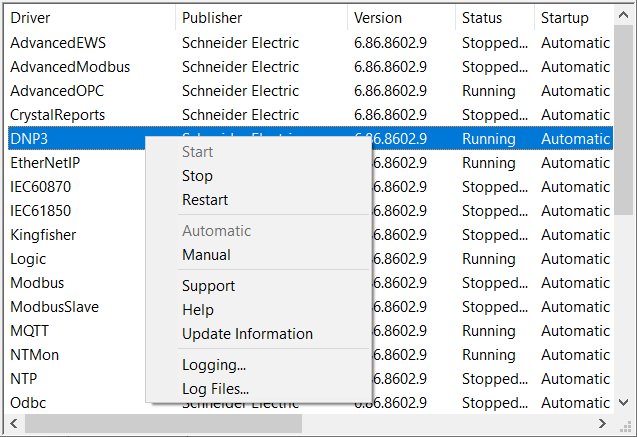
- Select the Log Files option from the context-sensitive menu.
The Module Log File dialog box is displayed. The dialog box displays the log files that exist for the selected driver. If more than 1000 log files exist, the most recent 1000 files are shown.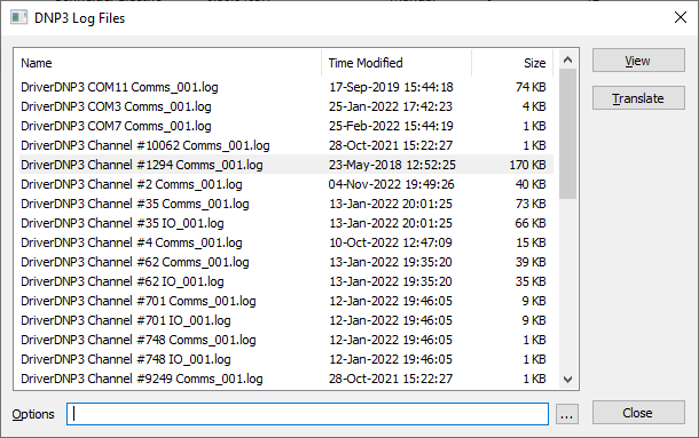
- Locate and select the comms log file that you want to display from the list of files.
The filename will have the following format:
<driver name> <port> Comms_<nnn>.log
For example, DriverDNP3 COM1 Comms_001.log.
To identify a log file, you can analyze the details of the log files listed in the Name, Time Modified, and Size columns.
-
Either:
Select the View button.
or
Double-click the selected log file.
The log file opens in a text editor such as Notepad.
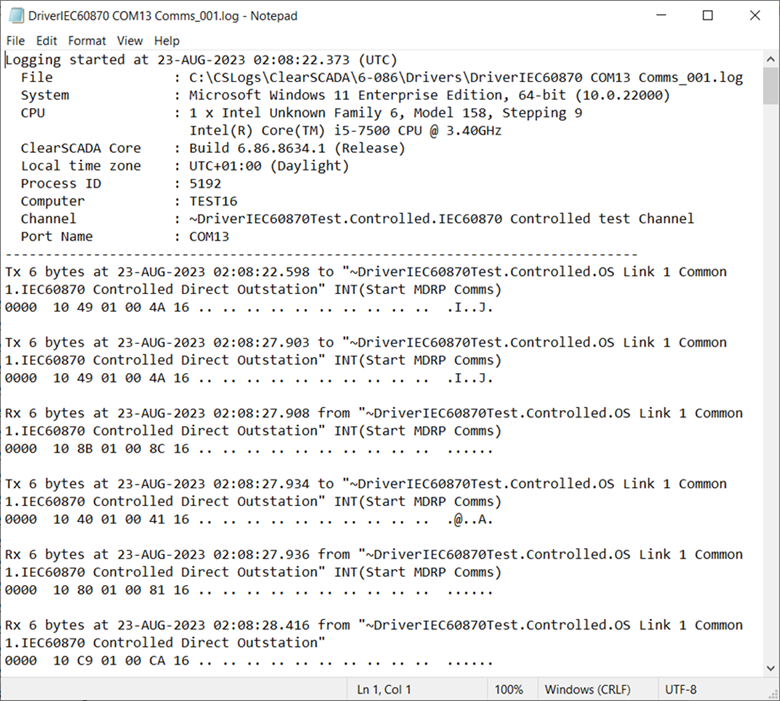
As an alternative to the above procedure, you can use Windows Explorer to locate the log file and then right-click the log file to open with a text editor such as Notepad. If you are unsure as to where the file is located, see Locating the Log Files.
If a translator is available for the driver, you can translate the messages in a comms log file into human readable format. For more information, see Translate a Comms or I/O Log File.