Working with the Virtual ViewX Manager
Inability to run Virtual ViewX
Ensure that domain permissions for non-administrative Remote Desktop users are sufficient to enable Virtual ViewX to run.
Do not delete, or change the password of, the VVXLocalUser that is created automatically in Windows when Virtual ViewX is installed on the Virtual ViewX server. This user account is required to run the ViewX processes on that server machine.
For more information, read the Geo SCADA ExpertVirtual ViewX Troubleshooting Guide.
The Virtual ViewX Manager is an application that is installed on each Virtual ViewX server machine. The application provides information about the server's communication settings, Virtual ViewX license, file locations, and so on.
This topic summarizes the information that is shown on each tab of the Server Manager window.
POTENTIAL LOSS OF COMMUNICATIONS OR SECURITY BREACH
Changing the settings on the Server Manager window that have not been specified underneath, without guidance from Schneider Electric support may result in the Virtual ViewX server being unable to run. It could also affect system security. Only alter such settings when advised to do so in this topic or by Schneider Electric support.
Unless specified otherwise, this topic summarizes the content of the Server Manager window when the application is installed on a server operating system. The properties and tabs differ slightly when the application is installed on a desktop operating system (see Servers and Desktop Computers, and see 64-Bit).
To display the Server Manager window:
-
In Windows, select the Start menu. Scroll down the alphabetical list of installed applications and expand the EcoStruxure Geo SCADA folder.
- Select the Virtual ViewX Manager option.
With a Virtual ViewX server installation that is activated and licensed, the Server Manager Window is displayed - see below.
(On new installations, the Product Registration Wizard is displayed - see License your Virtual ViewX Installation).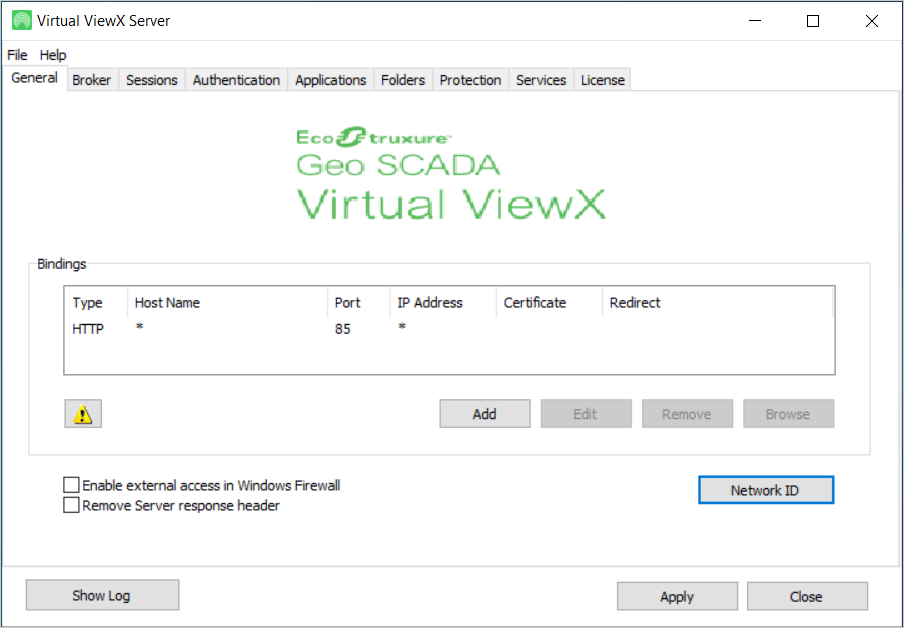
The Server Manager window contains various tabs, the contents of which are summarized below. The port number in the Service Manager window on a desktop operating system differs from the port number used on a server operating system.
To close the Server Manager window, select the Close button.
 General Tab
This tab shows the protocol that the Virtual ViewX server uses for communications with the Geo SCADA Expert server. It also shows the internal port to which requests from IIS will be forwarded.
Do not confuse this port with the port that Virtual ViewX uses for communications with Geo SCADA Expert. The latter port is specified during the initial Virtual ViewX installation process (see Virtual ViewX Server Setup Wizard). It is this latter port that should be used to connect Virtual ViewX to Geo SCADA Expert, rather than the port shown on the General tab of the Server Manager window.
POTENTIAL LOSS OF COMMUNICATIONS OR SECURITY BREACH
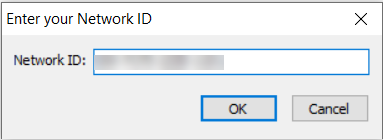
A Network ID button is included on the tab. The Network ID identifies the server installation and is used by the Virtual ViewX License Server. If you are deploying the Virtual ViewX License Server then the Network ID must be the same across all Virtual ViewX Servers that are accessing a common pool of licenses at the License Server. For more information, see the Geo SCADA Knowledge Base.
Broker Tab
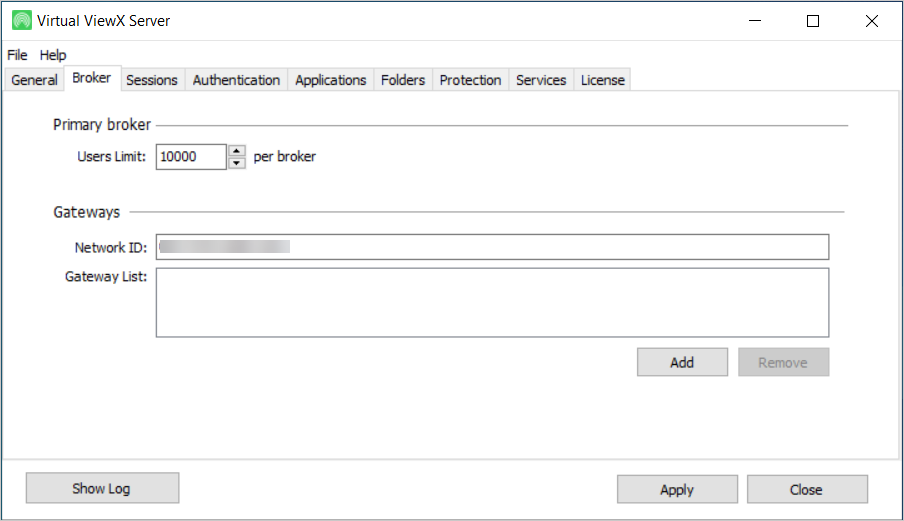
This tab is only included when the application is installed on a server class computer. The Primary broker section enables you to define the maximum number of users that can be allowed per broker.
The Secondary broker section enables you to add or remove records from the Pool List.
The Gateways section enables you to enter or modify the Network ID. The Gateways list indicates any gateways that are used for load balancing. You can add or remove Gateways from the Gateways list.
Sessions Tab
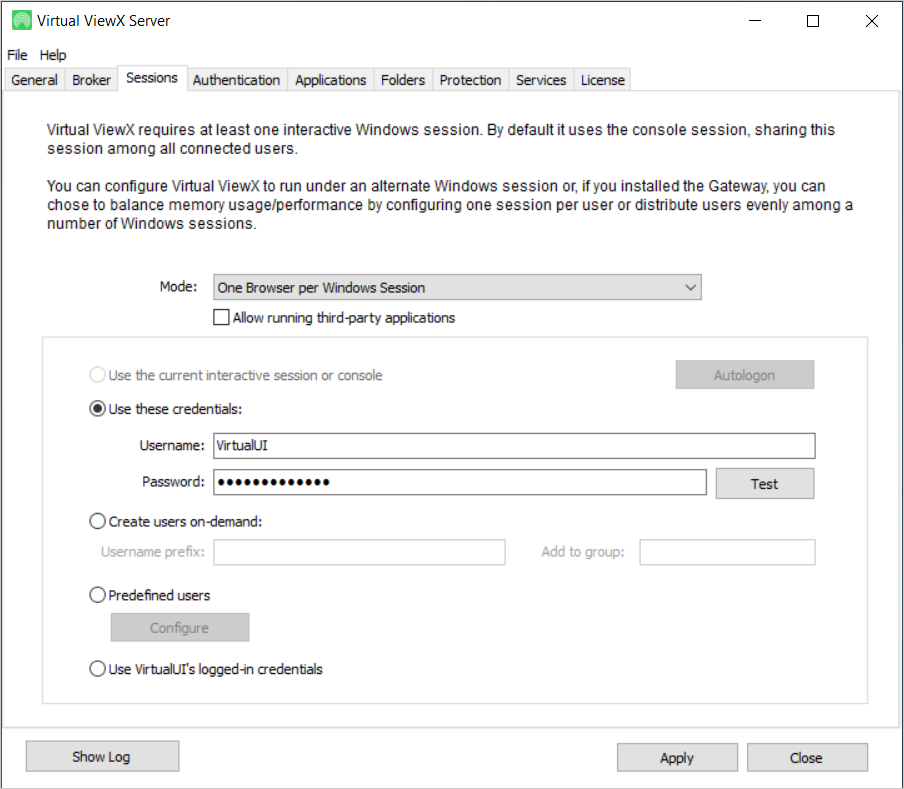
This tab indicates whether the Virtual ViewX session uses the default console session, or runs under an alternative Windows account. When Virtual ViewX is installed on a Windows Server Operating System, a user in the Remote Desktop group will be created and added here during the installation process. If the Virtual ViewX server is to provide access to Geo SCADA Expert from multiple client accounts, use one of the following configurations:
- Create users on-demand—This option is used by default and this user type has multiple accounts so that each Virtual ViewX session has a separate account.
- Predefined users—This option enables you to pre-create all users beforehand (enough for the maximum number of potential sessions). With this option, you can use either a custom list or select usernames with a prefix. This option requires you to specify the passwords of the accounts, which must match their local or domain passwords as applicable.
Multiple Virtual ViewX clients connecting to the same Virtual ViewX Server:
If you intend running more than 10 Virtual ViewX clients off the same server and either the Virtual ViewX server or the Geo SCADA Expert server. If you are running a Geo SCADA Expert 2019 Server, you have to increase the number of client advise ports accordingly. Set the port range to accommodate the maximum number of Virtual ViewX clients that the Virtual ViewX server is to support. You specify this using the Client Configuration window (see Display the Geo SCADA Expert Client Applet, and see Change the Range of Ports for the Client’s Incoming Data).
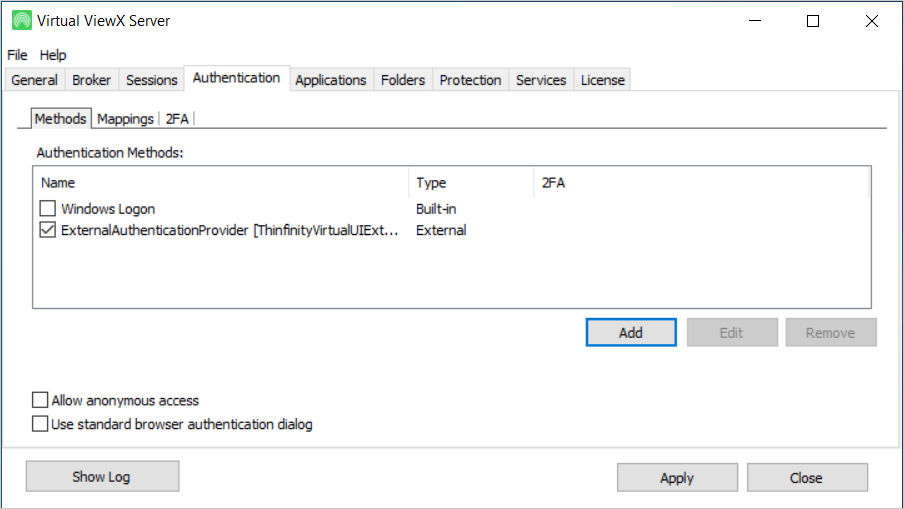
Authentication Tab
This tab shows the authentication method used for user access to Virtual ViewX.
POTENTIAL LOSS OF COMMUNICATIONS OR SECURITY BREACH
POTENTIAL LOSS OF COMMUNICATIONS OR SECURITY BREACH
Applications Tab
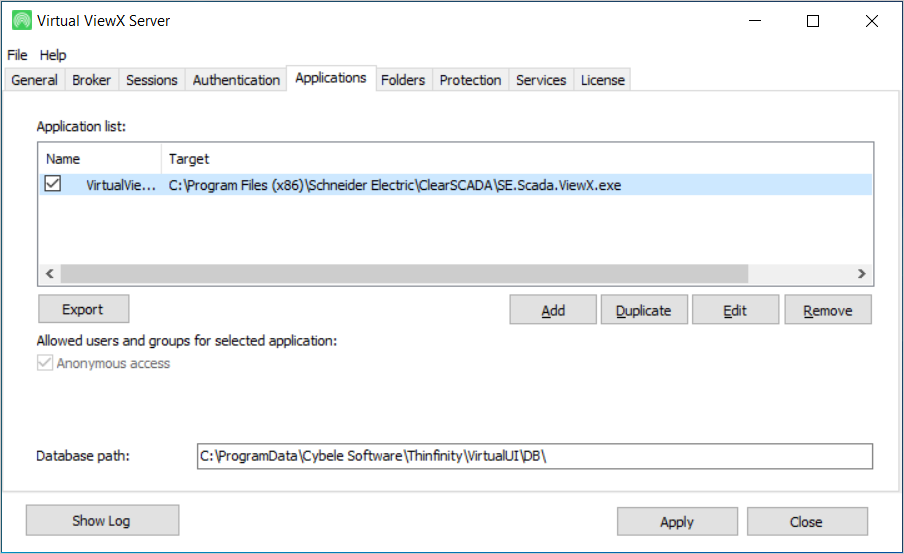
This tab indicates where the ViewX application has been installed on the Virtual ViewX server machine. The tab also indicates whether the Virtual ViewX server is running in Limited Virtual ViewX/Operator mode or Full Virtual ViewX mode (see Mode of Operation of a Virtual ViewX Server). (You have to reinstate this setting whenever you upgrade the Virtual ViewX server to run a newer version of Geo SCADA Expert software.)
The Database Path field towards the bottom of the tab indicates the location of log files associated with the Windows Service sessions that occur when Virtual ViewX runs.
You can opt to include the URL to the relevant Alarm View on the Virtual ViewX server (rather than to the WebX server) in alarm redirection e-mails (see E-Mail Settings). To enable the Virtual ViewX URL to work, the Allow browser arguments check box has to be selected in the Virtual ViewX Manager. To check this:
-
Double-click on the Virtual ViewX Manager application entry in the Application list on the Applications tab.
The Application Profiles Editor window is displayed. -
Ensure that the Allow browser arguments check box is selected.
(The check box is selected by default on clean installations of Geo SCADA Expert from the March 2024 Update of Geo SCADA Expert 2023 onwards.)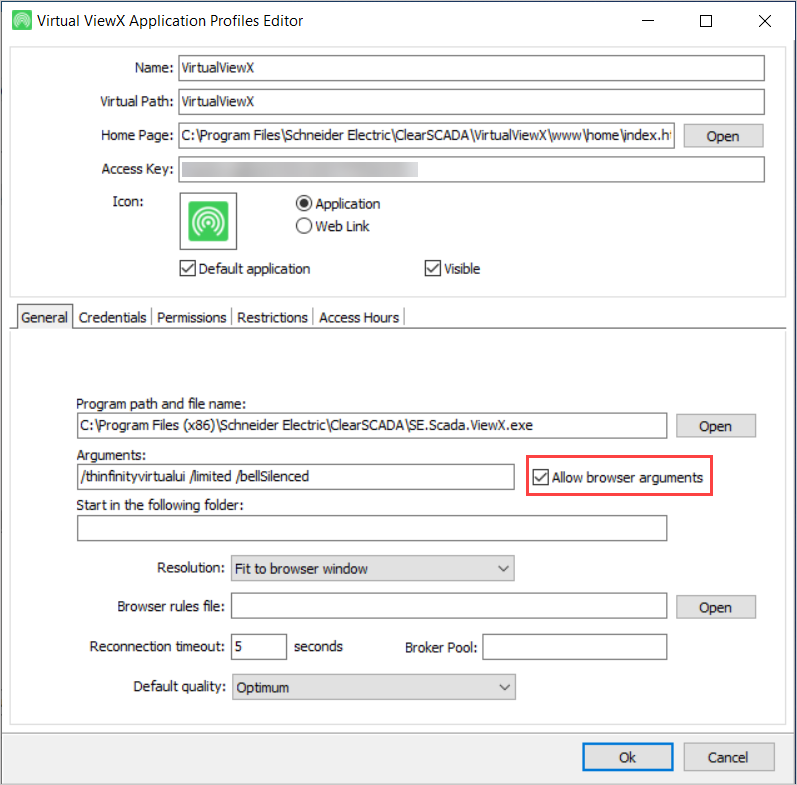
-
Select the OK button to close the Application Profiles Editor window.
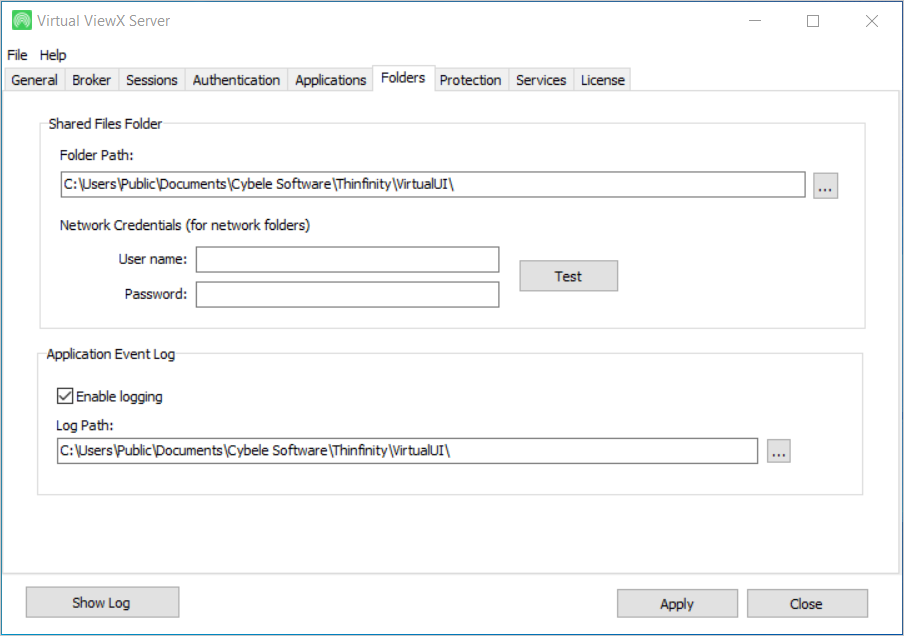
Folders Tab
This tab shows the location at which the screen virtualization software is stored. We recommend that you do not alter the files at this location. This software is integrated with Virtual ViewX to provide web access to the Geo SCADA Expert database.
Protection Tab
This tab includes a setting to configure a brute force password attack prevention. You can enable or disable the Enable brute force detection check box to enable/block settings to prevent unauthorized IP addresses from connecting. This setting can provide a similar level of protection as IIS does on server class operating systems, such as the ability to specifically block or allow certain IP addresses. The default setting is to allow only local connections to port 6580 because remote connections should be made via the IIS port and proxy.
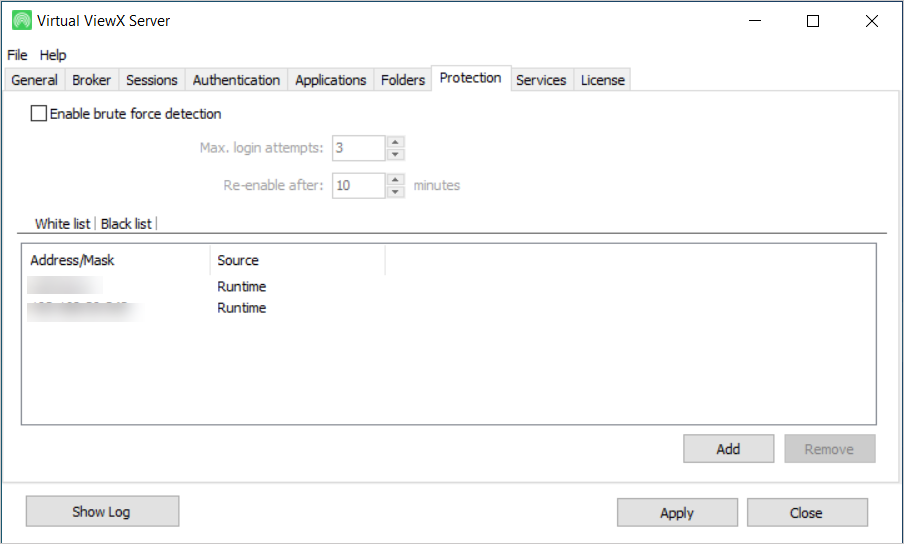
The Virtual ViewX Manager's whitelist and blacklist apply only to the Virtual ViewX Server's internal port (default 6580, but 85 on Windows 10 and Windows 11).
Since Virtual ViewX is served through an IIS proxy, you can only use the whitelist and blacklist in the Virtual ViewX Manager to prevent access to the localhost port 6580 (or 85).
If you intend to place restrictions on Virtual ViewX users, you must do so in the IIS settings for the proxy website.
You can similarly use the Client Access Control List in Geo SCADA Expert to restrict ViewX. If you do so, you must allow ViewX access from the Virtual ViewX Servers.
Services Tab
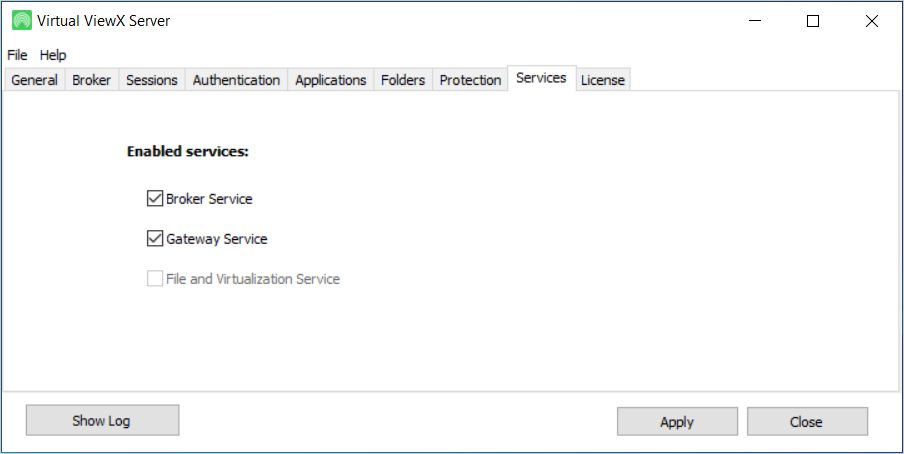
This tab enables you to select and enable the following services:
- Broker Service—Enable this service.
- Gateway Service—Enable this service.
- File and Virtualization Service—Disable this service so that it is unavailable.
Licenses Tab
This tab shows the e-mail account and serial number that were used to activate the Virtual ViewX server.
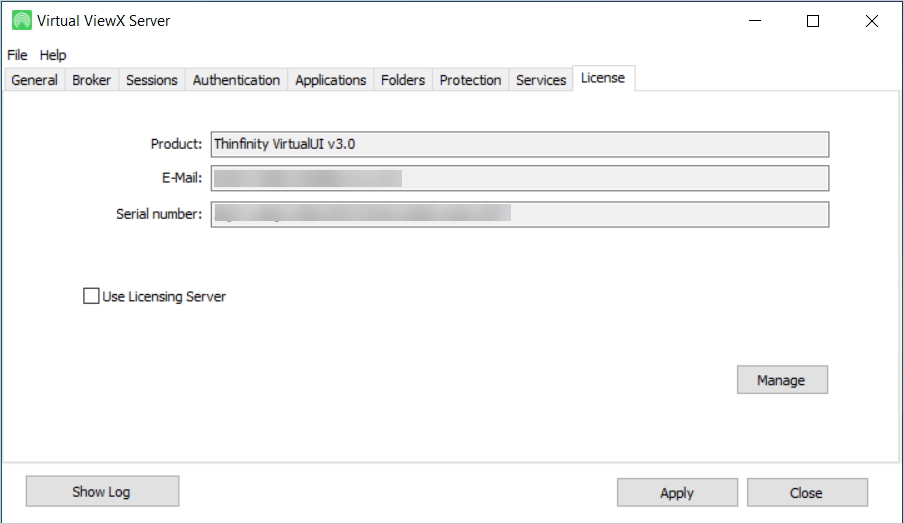
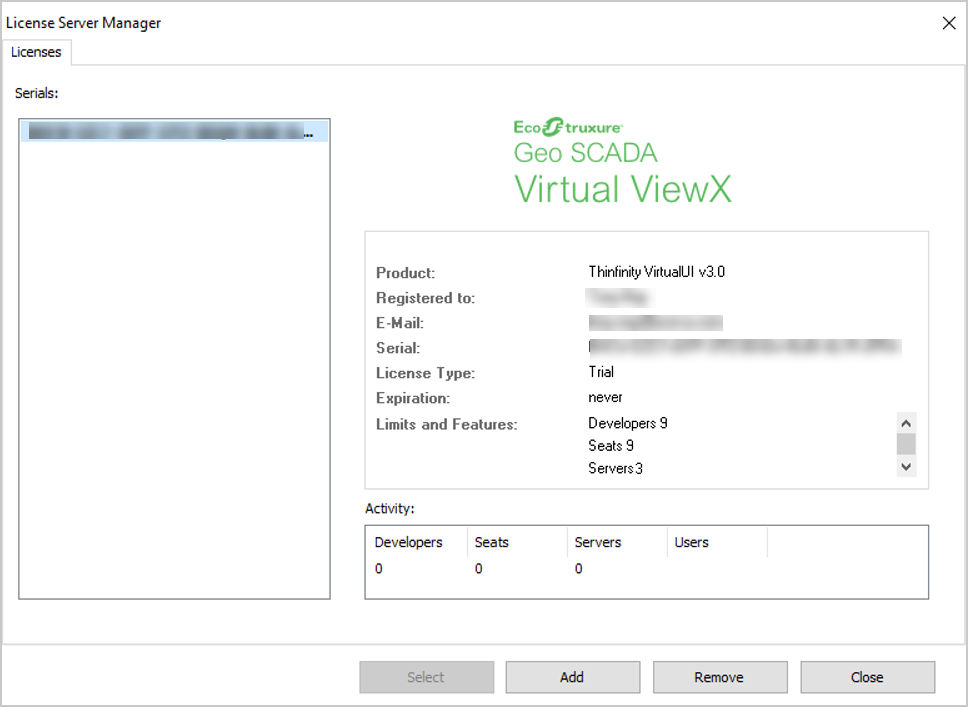
If you select the Manage button on this tab, you are presented with a window that provides further details about the Virtual ViewX license. This includes the number of ViewX servers and Virtual ViewX client users that the license supports. In the Activity field, you can also see the number of licenses that are currently in use for this particular Virtual ViewX server.
It takes a few seconds to display the actual numbers showing the licenses used. While the loading is in progress, zeros are displayed in place of the actual numbers.
Further Information