You define the E-Mail settings for each server so that Geo SCADA Expert can send and retrieve e-mails.
You only need to configure the Outgoing Mail (SMTP) e-mail settings if your system is to use the Alarm Redirection feature, and is being configured to redirect alarms via e-mail (see Introduction to Alarm Redirection).
The Outgoing Mail (SMTP) e-mail settings also apply if the Crystal Reports driver is being used to e-mail Crystal Reports and the Use SMTP server to e-mail reports setting is selected. The Use SMTP server to e-mail reports setting is in the Crystal Reports section of the Geo SCADA Expert Server Configuration Tool (for more information, see the Geo SCADA Expert Guide to the Crystal Reports Driver).
You only need to enable and configure the Incoming Mail (POP3/IMAP) e-mail settings if your system is to use the Alarm Redirection via e-mail feature and the recipients are expected to reply to those e-mails in order to acknowledge the alarms. (If the users are to receive e-mail notifications, but are then expected to log on to Geo SCADA Expert in order to acknowledge the alarms (rather than reply to the e-mails), there is no need to enable Incoming Mail (POP3/IMAP).)
You only need to configure the E-Mail Acknowledgment Criteria e-mail settings if your system is to use the Alarm Redirection via e-mail feature and the recipients are expected to reply to those e-mails in order to acknowledge the alarms. Additionally, to help ensure that the e-mail responses are genuine requests to acknowledge the alarms, you want users to either:
- Enter an Acknowledgment Keyword into the subject line of the e-mail reply that they send to Geo SCADA Expert to acknowledge the alarm
- Remove all or part of a Hiding Keyword in the body of the e-mail, in order to reveal the required Acknowledgment Keyword in the body of the e-mail reply that they send to Geo SCADA Expert to acknowledge the alarm.
 WARNING
UNEXPECTED ACKNOWLEDGMENT OF ALARMS
To define the e-mail settings:
- Access the Geo SCADA Expert Server Configuration Tool.
- Expand the System Configuration branch of the tree-structure.
- Select the E-Mail entry to display the E-Mail settings.
The settings are in several sections:
- Outgoing Mail (SMTP)
- Incoming Mail (POP3/IMAP)
- E-Mail Acknowledgment Criteria
- Alarm View Links.
- In the Outgoing Mail (SMTP) section, define these settings:
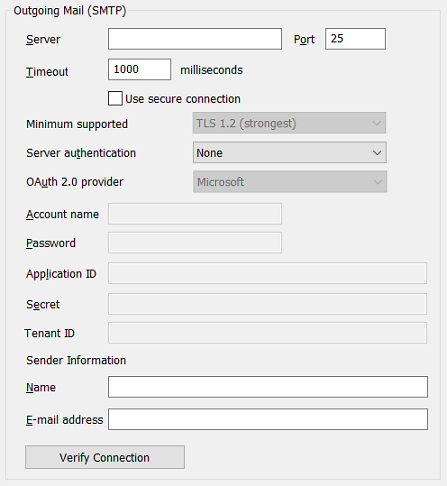
- Server—Enter the node name or IP address of the mail server to which outgoing e-mail is sent.
- Port—Enter the number of the port via which your mail server receives messages.
- Timeout—Enter the number of milliseconds for which the outgoing server will wait to complete the connection.
- Use secure connection—Select this check box if the Outgoing mail server uses a secure connection. When you select this check box you can the select the Minimum supported protocol.
- Minimum supported—If you are using a secure connection you have to select the protocol that the Outgoing mail server supports.
You can select one the following security protocols:
- TLS 1.0 (weakest)—This is the minimum security protocol you can apply and is the weakest, this protocol replaces SSL 3.0.
- TLS 1.1—This is a protocol provided within Geo SCADA Expert with significant updates to TLS 1.0 that provides additional protection against cipher-block chaining attacks.
- TLS 1.2 (strongest)—This is the maximum security protocol you can apply and is the strongest. It encompasses TLS 1.0 and TLS 1.1 with significant additional security enhancements. This is the default setting.
You have to select the protocol that is used by the Outgoing mail server to achieve a successful connection. If a higher security connection, such as TLS 1.2, can be established then that will be used regardless of the option that is selected.
- Server Authentication—Specify the type of authentication that the mail server uses when sending outgoing mail. Choose from:
- None—Select this option if the mail server does not require authentication to send outgoing mail.
- Password authentication—Select this option if the mail server uses password authentication for outgoing mail. Specify the required authentication criteria in the Account Name and Password fields (see below).
- OAuth 2.0 authorization—Select this option if the mail server uses OAuth 2.0 authorization for outgoing mail. Specify the required authorization criteria in the OAuth 2.0 Provider, Account Name, Application ID and Secret fields (see below). Also specify the Tenant ID if that field is enabled for use.
- OAuth 2.0 Provider—This combo box is only available for use when the Server Authentication option is set to 'OAuth 2.0 authorization'. Select the third-party provider that supplies the Access Token that is used for authorizing the outgoing mail on your mail server. Currently, the only supported provider is:
- Microsoft.
- Account Name—If the mail server uses password authentication for outgoing mail, enter the name of the mail server log in account in the Account Name field. This field is only available when the Server Authentication option is set to an option other than 'None'.
- Password—If the mail server uses password authentication for outgoing mail, enter the password for the mail server log in account in the Password field. This field is only available when the Server Authentication option is set to 'Password Authentication', or is set to 'OAuth 2.0 authorization' with the Oauth 2.0 provider set to 'Microsoft'.
NOTE: Geo SCADA Expert stores username and password information in the registry for use with features such as e-mail
- Application ID—The Application ID is also known as the Client ID. Enter the ID that was obtained from the OAuth 2.0 provider (for information on how to obtain this, see the documentation provided by that provider). Geo SCADA Expert uses the ID to determine which application on the OAuth 2.0 provider it should use to obtain an access token. It uses the token to access the Outgoing mail server when sending outgoing mail. This field is only available for use when the Server Authentication option is set to 'OAuth 2.0 authorization'.
- Secret—Enter the Secret that was obtained from the OAuth 2.0 provider (for information on how to obtain this, see the documentation provided by that provider). Geo SCADA Expert uses the Secret to allow it to access the OAuth 2.0 provider when that provider is configured to use a Secret.This field is only available for use when the Server Authentication option is set to 'OAuth 2.0 authorization'.
- Tenant ID—Enter the Tenant ID that was obtained from the OAuth 2.0 provider. This identifies the Active Directory where the OAuth 2.0 provider is located and might comprise an ID number or a domain name. The field is only available for use when the OAuth 2.0 provider option is set to 'Microsoft'.
- Name—Enter the name that is associated with outgoing e-mail. This is usually a server user name that corresponds to a setting at the server, and it is displayed in the From field in each message sent by Geo SCADA Expert.
Depending on the permissions assigned to the user that is sending an Alarm Redirection e-mail, and the settings in the e-mail provider, you might be able to overwrite the sender's name when sending an e-mail, to indicate the individual from whom the e-mail was sent, or on behalf of whom it was sent. If the user does not have the required permissions to do this, attempts to change the sender's name will generate a diagnostic message associated with that E-Mail Action in the Events List, and the e-mail will not be sent.
- E-Mail Address—Enter the e-mail address that is associated with outgoing e-mail. This is usually a generic e-mail address for your organization, and it is displayed in the From field in each message sent by Geo SCADA Expert.
Depending on the permissions assigned to the user that is sending an Alarm Redirection e-mail, and the settings in the e-mail provider, you might be able to overwrite the sender's e-mail address when sending an e-mail, to indicate the individual e-mail address from which the e-mail was sent, or on behalf of which it was sent. If the user does not have the required permissions to do this, attempts to change the sender's e-mail address will generate a diagnostic message associated with that E-Mail Action in the Events List, and the e-mail will not be sent.
- Verify Connection— Use this button to test that the configured Outgoing Mail settings do enable Geo SCADA Expert to connect successfully to the Outgoing mail server.
Geo SCADA Expert will attempt to test the connection using the configuration that is currently shown in the properties in the Outgoing Mail section, regardless of whether that configuration has yet been saved to the server. If applicable, Geo SCADA Expert will also use any passwords or secrets that it has loaded into memory.
- In the Incoming Mail (POP3/IMAP) section, define these settings:
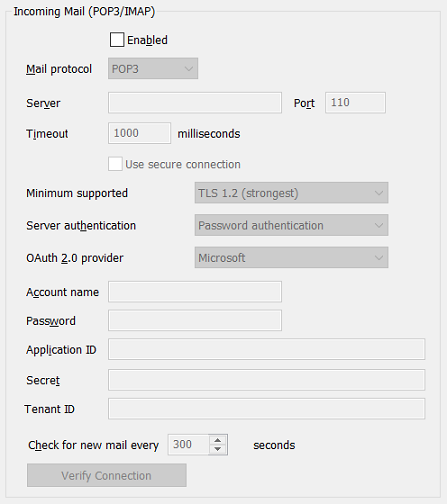
- Enabled—Either:
- Select the Enabled check box in the Incoming Mail section to allow Geo SCADA Expert to check for incoming e-mail. This means that the acknowledge alarms via e-mail feature can be used.
- Clear the Enabled check box to set Geo SCADA Expert so that it does not check for incoming e-mail. This means alarms cannot be acknowledged via e-mail.
- Mail protocol—You can select one of the following protocols for the Incoming mail server:
- POP3
- IMAP
- Server—Enter the node name or IP address of the mail server from which Geo SCADA Expert retrieves incoming messages.
- Port—Enter the port number of the port via which Geo SCADA Expert retrieves messages from the mail server.
- Timeout—Enter the number of milliseconds for which the incoming server will wait to complete the connection.
- Use secure connection—Select this check box if the Incoming mail server uses an secure connection. When you select this check box you can the select the Minimum supported protocol.
- Minimum supported—If you are using an secure connection you need to select the protocol that the Incoming mail server supports.
You can select one the following protocols:
- TLS 1.0 (weakest)—This is the minimum security protocol you can apply and is the weakest, this protocol replaces SSL 3.0.
- TLS 1.1—This is a protocol provided within Geo SCADA Expert with significant updates to TLS 1.0 that provides additional protection against cipher-block chaining attacks.
- TLS 1.2 (strongest)—This is the maximum security protocol you can apply and is the strongest. It encompasses TLS 1.0 and TLS 1.1 with significant additional security enhancements. This is the default setting.
You have to select the protocol that is used by the Incoming mail server to achieve a successful connection. If a higher security connection, such as TLS 1.2, can be established then that will be used regardless of the option that is selected.
- Server Authentication—Specify the type of authentication that the mail server uses when retrieving incoming mail. Choose from:
- Password authentication—Select this option if the mail server uses password authentication for incoming mail. Specify the required authentication criteria in the Account Name and Password fields (see below).
- OAuth 2.0 authorization—Select this option if the mail server uses OAuth 2.0 authorization for incoming mail. Specify the required authorization criteria in the OAuth 2.0 Provider, Account Name, Application ID and Secret fields (see below). Also specify the Tenant ID if that field is enabled for use.
- OAuth 2.0 Provider—This combo box is only available for use when the Server Authentication option is set to 'OAuth 2.0 authorization'. Select the third-party provider that supplies the Access Token that is used for authorizing the incoming mail on your mail server. Currently, the only supported provider is:
- Microsoft.
- Account Name—Enter the account name required to retrieve mail from the (incoming) mail server. Each mail server requires an account name to retrieve incoming mail.
- Password—Enter the password for the account (the account specified in the Account Name field). This field is only available for use when the Server Authentication option is set to 'Password authentication', or is set to 'OAuth 2.0 authorization' with the Oauth 2.0 provider set to 'Microsoft'.
NOTE: Geo SCADA Expert stores username and password information in the registry for use with features such as e-mail
- Application ID—The Application ID is also known as the Client ID. Enter the ID that you obtained from your OAuth 2.0 provider (for information on how to obtain this, see the documentation provided by that provider). Geo SCADA Expert uses the ID to determine which application on the OAuth 2.0 provider it should use to obtain an access token. It uses the token to access the Incoming mail server when retrieving incoming mail. This field is only available for use when the Server Authentication option is set to 'OAuth 2.0 authorization'.
- Secret—Enter the Secret that you obtained from your OAuth 2.0 provider (for information on how to obtain this, see the documentation provided by that provider). Geo SCADA Expert uses the Secret to allow it to access the OAuth 2.0 provider when that provider is configured to use a Secret.. This field is only available for use when the Server Authentication option is set to 'OAuth 2.0 authorization'.
- Tenant ID—Enter the Tenant ID that was obtained from the OAuth 2.0 provider. This identifies the Active Directory where the OAuth 2.0 provider is located and might comprise an ID number or a domain name. The field is only available for use when the OAuth 2.0 provider option is set to 'Microsoft'.
- Check for new mail every n seconds—Use to define the how often Geo SCADA Expert checks for new mail. The default setting is 300 seconds, however this frequency might be too fast for some systems.
We recommend that you check with your e-mail provider as to whether they apply a rate limit for checking for new mail. If so, ensure that you specify a frequency that is equal to or slower than that rate. For example, when using OAuth 2.0 authorization, you might find that you have to specify a frequency that is greater than 10 minutes, to avoid your logon from being disabled.
When changing the setting, please bear in mind that a setting that is too low may have a detrimental effect on system performance, and a setting that is too high may result in alarms not being acknowledged (via e-mail) within a suitable amount of time.
- Verify Connection— Use this button to test that the configured Incoming Mail settings do enable Geo SCADA Expert to connect successfully to the Incoming mail server.
Geo SCADA Expert will attempt to test the connection using the configuration that is currently shown in the properties in the Incoming Mail section, regardless of whether that configuration has yet been saved to the server. If applicable, Geo SCADA Expert will also use any passwords or secrets that it has loaded into memory.
- Enabled—Either:
- In the E-Mail Acknowledgment Criteria section, define these settings:
(The section is only available for use when the Incoming Mail (POP3/IMAP) section is enabled (see above).)
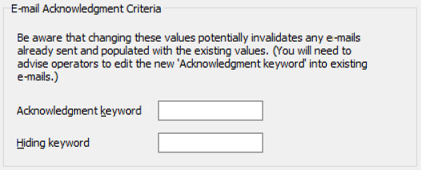
- Acknowledgment Keyword— A redirection e-mail contains information about an individual alarm that has been raised on the system, and for which the alarm entry was unacknowledged when Geo SCADA Expert sent the e-mail. By populating the Acknowledgment Keyword field, you are configuring Geo SCADA Expert to only acknowledge the alarm on receipt of a reply to the e-mail if that e-mail includes this Acknowledgment Keyword. The keyword identifies that the reply is an acknowledgment to that alarm and helps to prevent Geo SCADA Expert from acknowledging alarms on receipt of auto response e-mails or unrecognized e-mails. (E-mails that do not include the Acknowledgment Keyword are ignored.)
Enter the Acknowledgment Keyword text that a recipient of an Alarm Redirection e-mail has to enter into the subject line of the e-mail reply that they send back to Geo SCADA Expert. On receipt of such an e-mail reply, Geo SCADA Expert will acknowledge the alarm. If the keyword is not included in the subject line of the reply e-mail, that e-mail is ignored.
If used in conjunction with the Hiding Keyword (see below), the recipient can optionally remove all or part of the Hiding Keyword to reveal the Acknowledgment Keyword in the body of the e-mail instead. This means of alarm acknowledgment can be used as an alternative to adding the Acknowledgment Keyword to the subject line of the reply e-mail.
The Acknowledgment Keyword can include a combination of alphanumeric characters and symbols. It is case-sensitive. It cannot include colons (:) or spaces. When used in conjunction with the Hiding Keyword, the two keywords must differ from each other.
Changing the Acknowledgment Keyword on an existing system will potentially invalidate any Alarm Redirection e-mails that have already been sent and populated with the previous value of this keyword. To overcome this, inform the relevant users of the new Acknowledgment Keyword and advise them to use this in existing e-mails.
The Alarm Redirection feature does not support the use of voting buttons in Alarm Redirection e-mails. In order to acknowledge an alarm by e-mail, you have to enter the Acknowledgment Keyword into the subject line of the reply e-mail, or delete all or part of the Hiding Keyword from the body of the reply e-mail.
Geo SCADA Expert supports APOP (Authenticated Post Office Protocol) which provides origin authentication and replay protection when sending the user's password on the network. If your mail server supports APOP, Geo SCADA Expert will use APOP automatically.
If the Acknowledgment Keyword field is left blank in the E-Mail section of the Server Configuration Tool, users will be able to acknowledge redirected alarms merely by sending the Alarm Redirection e-mails back to the Geo SCADA Expert server.
- Hiding Keyword—The Hiding Keyword is an optional way of acknowledging alarms by e-mail. It is used in conjunction with the Acknowledgment Keyword (see above). Populate the Hiding Keyword field if you want to simplify the process of e-mail acknowledgment. When this field is populated, Geo SCADA Expert sends the AlarmInstanceId, Acknowledgment Keyword, and Hiding Keyword in the redirection e-mail. The recipient can then acknowledge the alarm in either of two ways:
- Remove all, or some, of the Hiding Keyword from the body of the reply that they send back to Geo SCADA Expert. The removal (in full or in part) of the Hiding Keyword 'reveals' the Acknowledgment Keyword in the body of the reply e-mail.
- Leave the Hiding Keyword unchanged and enter the Acknowledgment Keyword into the subject line of the e-mail that they send back to Geo SCADA Expert.
To use this means of acknowledging alarms by e-mail, use the field to enter the Hiding Keyword text that Geo SCADA Expert is to include in the body of any Alarm Redirection e-mails that it sends to users. When this field is populated, Geo SCADA Expert includes both the Acknowledgment Keyword and the Hiding Keyword in the body of the Alarm Redirection e-mails that it sends to users. In order to acknowledge the alarm, the user has to perform one of the activities mentioned above.
The Hiding Keyword can include a combination of alphanumeric characters and symbols. It is case-sensitive. It cannot include colons (:) or spaces. It must differ from the Acknowledgment Keyword (see above).
Changing the Hiding Keyword on an existing system will potentially invalidate any Alarm Redirection e-mails that have already been sent and populated with the previous value of this keyword. To overcome this, inform the relevant users of the new Hiding Keyword and advise them to use this in existing e-mails.
Leave the Hiding Keyword field empty if this means of acknowledging redirected alarms by e-mail is not to be used.
- Acknowledgment Keyword— A redirection e-mail contains information about an individual alarm that has been raised on the system, and for which the alarm entry was unacknowledged when Geo SCADA Expert sent the e-mail. By populating the Acknowledgment Keyword field, you are configuring Geo SCADA Expert to only acknowledge the alarm on receipt of a reply to the e-mail if that e-mail includes this Acknowledgment Keyword. The keyword identifies that the reply is an acknowledgment to that alarm and helps to prevent Geo SCADA Expert from acknowledging alarms on receipt of auto response e-mails or unrecognized e-mails. (E-mails that do not include the Acknowledgment Keyword are ignored.)
-
In the Alarm View Links section, define these settings:

-
Virtual ViewX Path—An alarm redirection e-mail can optionally include a hyperlink to an Alarm View for the item that has triggered the redirection alarm (see E-mail / Voicemail Redirection). If your system includes Virtual ViewX clients, you can opt to have the hyperlinks reference the Alarm Views on the Virtual ViewX server, rather than the WebX server. To enable this, populate this field with the URL of the Virtual ViewX server.
When the field is populated, the hyperlinks in alarm redirection e-mails include the URL to the relevant Alarm View on the Virtual ViewX server. To enable this behavior to work, the 'Allow browser arguments' check box has to be selected in the Virtual ViewX Manager application (see Working with the Virtual ViewX Manager). (The check box is selected by default on clean installations of Geo SCADA Expert from the March 2024 Update of Geo SCADA Expert 2023 onwards.)
When the field is empty (the default), the hyperlinks in alarm redirection e-mails include the URL to the relevant Alarm View on the WebX server. This is the same behavior as previous releases of Geo SCADA Expert.
-
System Name—You only need to populate this field if you want to distinguish between different Geo SCADA Expert systems. In which case, specify the System Name of the relevant Geo SCADA Expert server, exactly as it appears in the Client Configuration window on the Virtual ViewX server (see Configure a Virtual ViewX Server Connection to the Geo SCADA Expert Server).
There is no need to populate the field if you only have one Geo SCADA Expert system to which the Virtual ViewX server is configured to connect. Also leave both fields blank if your system does not include Virtual ViewX clients.
-
- Apply the changes to the server.
When you have finished defining the E-Mail settings, you can continue with the server configuration. If you are unfamiliar with the server configuration process, we suggest you proceed to learn about the Events Display Settings for the Event Journal (Events List).