A third-party OPC client can only connect to Geo SCADA Expert server if it has the Geo SCADA Expert Data Access Components installed.
If Geo SCADA Expert is installed on the OPC client and the default ('Typical') installation option was used for that installation, the Data Access Components will have been installed by default. You can check whether they have been installed by opting to make a change to the Geo SCADA Expert installation and then check on the Custom Setup page whether the Data Access Components are installed. Select the Data Access Components for installation if they are not already installed. For more information, see Making Changes to your Geo SCADA Expert Installation, and see Custom Setup.
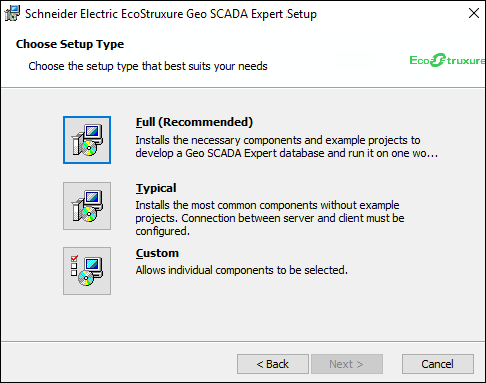
If Geo SCADA Expert is not installed on the OPC client, you will need to Run the Geo SCADA Expert Installer program. When you come to the Choose Setup Type page of the installation wizard, select the required installation option and ensure that it includes the Data Access components (the components are installed by default with most of the options). If you do not require other Geo SCADA Expert components to be installed on the OPC client machine, you can select the Typical Install option and then opt to only install the Data Access components. For more information, see Installing Geo SCADA Expert in the Geo SCADA Expert Installation Guide.
Once installed, the Data Access Components will handle the communications between the third-party OPC client and the Geo SCADA Expert server.
By installing the Data Access Components, you allow the third-party OPC client to communicate with the Geo SCADA Expert server using TCP/IP protocol. This means that DCOM is not used and so the problems commonly associated with DCOM on OPC systems are avoided DCOM Issues.
Now that you have installed the Data Access components on the third-party OPC client PC, you need to Configure the Third-Party OPC Client - System Connection