The AVEVA Historic Data Export tab includes a Direct Connection section. This section of properties only apply when the Connection Mode is set to 'Direct' (see Specify the Connection Mode).
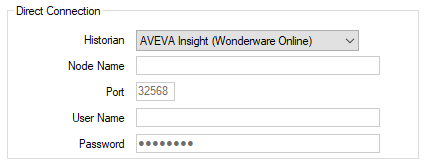
- Historian—Use this combo box to specify the historian application to which you want to export point data. For example, if you want to export to AVEVA Insight (formerly Wonderware Online), select AVEVA Insight (Wonderware Online). You also have to set a connection token (see Exporting Historical Data to AVEVA Insight). If you want to export to an on-premise Historian, select AVEVA Historian (Wonderware Historian). The rest of the fields in this section only apply when exporting data to an on-premise historian.
- Node Name—(Only available when exporting data to an on-premise historian). Enter the name or the IP address of the historian server to which you want to export historic data.
- Port—(Only available when exporting data to an on-premise historian). Enter the number of the TCP/IP port on the historian server that the network connection will use. The default port number is 32568.
- User Name—(Only available when exporting data to an on-premise historian). Specify the user name that will give HCAL access to the historian. The user name should have sufficient access permissions to allow data storage. For more about historian security, see the information about the historian in the documentation supplied with the relevant AVEVA application.
- Password—(Only available when exporting data to an on-premise historian). Specify the password for the user account that will give HCAL access to the historian.
Further Information
For further information about the historians on AVEVA applications, see the information about the historian in the documentation supplied with the relevant AVEVA application.