Enable or Disable Communications Logging on a Channel
This topic applies to Comms, I/O, and TLS log files. Only advanced drivers can have all 3 types of log files. Simple drivers only have Comms logging (simple driver log files are similar to I/O log files).
Communications logging can impact system performance, so we advise that you only enable communication logging on a channel when required. You should leave it disabled at other times.
When you have finished logging the communications that you require, we recommend that you disable the logging feature. This helps to ensure better system performance and leaves more disk space available for other types of files. Remember that if you have enabled several types of log files on a channel, you will need to disable each logging option separately.
To enable communications logging on a channel:
- Log on to ViewX via a User Account that is assigned the Diagnostics permission.
- Display the Database Bar (see Display an Explorer Bar).
- Use the Database Bar to locate the channel for which you want to log data.
Alternatively, you can locate the channel in a List
- Right-click on the channel (select the channel if you are using a List
A context-sensitive menu is displayed. - Select the relevant Enable ... Logging option.
The Enable Logging window is displayed.If you want to enable Comms logging on a channel, select the Enable Comms Logging option.
The Enable Comms Logging window is displayed.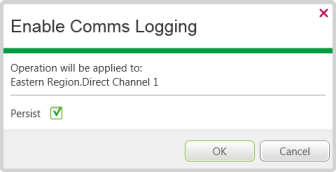
- Use the Enable Logging window to determine whether the logging continues until it is disabled manually:
- Select the Persist check box to set communications logging so that it remains enabled until it is explicitly disabled. Communications logging will remain enabled even after the driver or system is shutdown and restarted, or there is a server changeover.
- Clear the Persist check box to temporarily enable communications logging—communications logging is enabled but will end when the driver or system is shutdown and restarted, or there is a server changeover.
- Select the OK button.
A log file is generated. It contains details about the communications via the selected channel from the current time.
When you have enabled communications logging for the channel, you can proceed to Display a Communications Log File on a Channel.
To disable communications logging on a channel:
Follow the same procedure as above, but select the relevant 'Disable...Logging' option.
No new log files are created for the channel, even if the Persist feature was enabled (see above).
To disable Comms logging on a channel, select the Disable Comms Logging option.