The Server Status Tool contains statistical and diagnostic information that you can use to assess your system and investigate unexpected system behavior. You can only log on to the tool using a User Account that is assigned the System Admin security permission for the Root Group (system).
To run the Server Status Tool:
- On the Geo SCADA Expert server, right-click on the Geo SCADA Expert Server icon in the Windows taskbar.

A context-sensitive menu is displayed.
- Select the Status option.
The Geo SCADA Expert Server Status Tool is displayed. -
Select the required System (database) from the tree-structure that is shown on the left-hand side of the Geo SCADA Expert Server Status Tool.
-
When prompted to log on, enter your Username and Password to log on to the system in the same way as you would log on to ViewX.
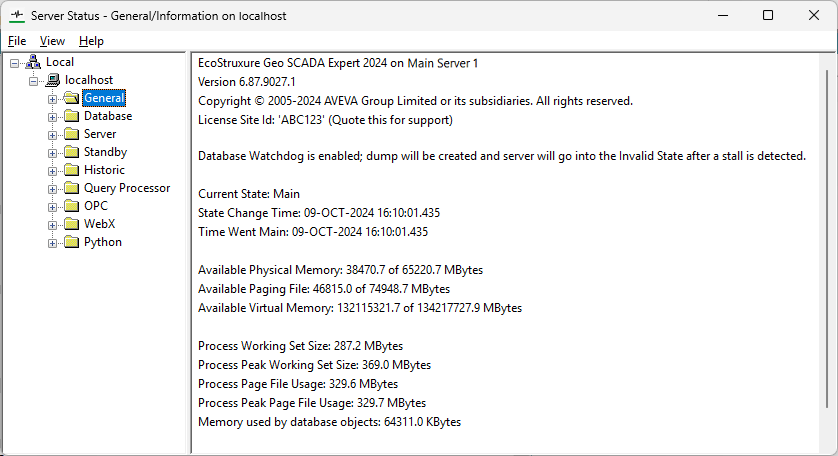
Alternatively, access the Server Status Tool as follows:
- In Windows, select the Start menu. Scroll down the alphabetical list of installed applications and expand the EcoStruxure Geo SCADA folder.
- Select the Server Status option.
The Geo SCADA Expert Server Status Tool is displayed. - Select the required System from the tree-structure that is shown on the left-hand side of the Geo SCADA Expert Server Status Tool.
- When prompted to log on, enter your Username and Password to log on to the system in the same way as you would log on to ViewX.
Alternatively, you can also access the Server Status Tool from the ViewX ribbon, as follows:
- Launch the Geo SCADA Expert ViewX.
- On the ViewX ribbon, double-click the Server Status icon.
The Geo SCADA Expert Server Status Tool is displayed. - Select the required System from the tree-structure that is shown on the left-hand side of the Geo SCADA Expert Server Status Tool.
- When prompted to log on, enter your Username and Password to log on to the system in the same way as you would log on to ViewX.
If you are unfamiliar with the Server Status Tool, see Overview of the Server Status Tool.
If you are familiar with the Geo SCADA Expert Status Tool, refer to the section you require:
- General System Status Information
- Database Status Information
- Server Status Information
- Standby Status Information
- Historic Status Information
- Query Processor Status Information
- OPC Status Information
- Original WebX Status Information
- Python Status Information
- Common System Problems.
For more information about the categories that appear in each of the above sections, either select the relevant links above, or see Server Status Categories.
Restricted Access when the Database is Unavailable
The Server Icon displays a magenta cross when the Geo SCADA Expert server is running, but has detected an error that indicates that the database is not in a valid state to support logon or operational clients. Should this occur, access to the system will be locked down to only provide default System Admin access to clients that are on the same host as the server. This is intended to enable sufficient system administrator-level access to investigate and rectify the issue. On the server machine, you can use the local instance of the Server Configuration Tool client to connect to the system and reconfigure the database if it is in an invalid state. Also on the server machine, you can use the local instance of the Server Status Tool client to connect to the database while it is loading or in an invalid state. Access to the system will be denied from remote clients, including user clients such as ViewX and Virtual ViewX. Only once the system is back up and running is access designed to be granted from remote clients.