Specify the Two-Factor Authentication (2FA) Enrollment Properties
With Geo SCADA Expert 2023 onwards, you can further strengthen the security of user access to Geo SCADA Expert by requiring users to provide two factors of authentication before they are permitted to access the database. Geo SCADA Expert 2023 supports time-based one-time password (TOTP) authentication. You can specify the enrollment and re-enrollment properties for users whose User Accounts are configuration to use two-factor authentication. You do this using the properties in the Two-Factor Authentication (2FA) Enrollment Configuration section of the Root Group tab of the Root Group.
Unlike the Two-Factor Authentication (2FA) Account Description section of properties, the configuration in this Two-Factor Authentication (2FA) Enrollment Configuration section takes effect straight away, without the need to 'deploy' those changes.
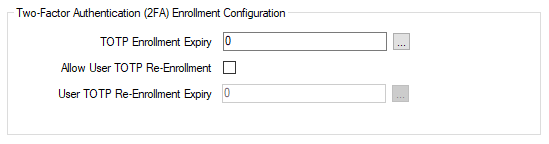
-
TOTP Enrollment Expiry—Specify the period of time within which the user of a newly configured, or administrator reset, User Account (configured to use two-factor authentication) has to enroll for, and successfully log on to Geo SCADA Expert using, two-factor authentication. This period also applies to users of existing User Accounts that have just been configured to require those users to use two-factor authentication to log on to Geo SCADA Expert.
Configure the TOTP Enrollment Expiry property with a value that provides sufficient time for those users to perform all of the following:
-
Install an appropriate authenticator app on a device such as a smartphone.
-
Scan in the QR code provided by Geo SCADA Expert (this action can only be performed on a ViewX client or a Virtual ViewX client).
-
Create an authenticator account on that app.
-
Use two-factor authentication to successfully conclude the enrollment and log on that particular Geo SCADA Expert system.
Although we do not recommend it, specifying a value of zero (0) leaves the users' accounts to remain awaiting enrollment indefinitely.
There might be occasions when a user needs to re-enroll (for example, if they need to move the authenticator app over onto a new smartphone). Users of User Accounts that a system administrator has had to reset for enrollment (using the Reset 2FA Enrollment pick action) will then have to repeat the above enrollment sequence. At the start of that re-enrollment process, if applicable, the user should delete from their authentication app the old existing TOTP 2FA authenticator account for that particular Geo SCADA Expert system. (So that they do not inadvertently try to use that old authenticator account when they try to log on to Geo SCADA Expert in future.)
-
-
Allow User TOTP Re-Enrollment—Use this check box to specify whether users across the system can re-enroll their TOTP 2FA authenticator account. This enables users to change their enrollment for two-factor authentication from one device to another if need be, without having to ask a system administrator for assistance when they want to do this. To enable this, users are offered a 'Re-enroll authenticator app' check box on the Log On window whenever they log on to Geo SCADA Expert. To trigger the re-enrollment process for their User Account, they select the check box and then have to successfully authenticate a valid one-time password from their current authenticator account. They are then presented with the QR code to scan in using their authenticator app. At that stage, they might be required to delete from their authenticator app the old existing TOTP 2FA authenticator account for that particular Geo SCADA Expert system. (So that they can create a new authenticator account and use that new account to complete the re-enrollment process.)
With a system on which the Allow User TOTP Re-Enrollment check box is clear, a system administrator (whose User Account is assigned the Security permission for the relevant User Accounts) has to enable re-enrollment on users' User Accounts when required. They do this using the Reset 2FA Enrollment pick action on those User Accounts. The user will then need to attempt enrollment again and successfully use two-factor authentication to log on to Geo SCADA Expert.
System administrators also have to use the Reset 2FA Enrollment pick action on any User Accounts on which the enrollment or re-enrollment expiry period has been exceeded. This is regardless of whether the Allow User TOTP Re-Enrollment check box is selected or clear. They also have to re-enable those User Accounts (as, by design, they become disabled once the enrollment or re-enrollment period has expired).
-
User TOTP Re-Enrollment Expiry—Specify the period of time within which a user has to complete TOTP 2FA re-enrollment once they have triggered that re-enrollment process on their User Account. (Re-enrollment is triggered by the user selecting the 'Re-enroll authenticator app' check box on the Log On window when logging on to a system on which they are already enrolled for two-factor authentication.)
This expiry period should be kept short (for example, 2 minutes) to reduce the amount of time that the user's account is left vulnerable to attack.