Geo SCADA Expert provides three distinct options for logging on to ViewX. Each logon option is designed to provide a secure authentication experience to suit your company's preferences and security requisites. A system administrator will be able to advise you as to which option your system and User Account is set up to use. Based on the system configuration and your User Account's setup, you will log on to ViewX using one of the following options:
- Standard logon—This is the traditional way of logging on to ViewX using your User Account. To gain access to the database, you enter a valid user name and password. Standard logon includes Geo SCADA Expert External Authentication with either Active Directory or LDAP. These login types require a password to be entered, which is authenticated with an external system.
- Two-factor authentication (2FA)—This is an extension to the standard logon. This logon option requires two steps of verification before you can gain access to the database. In addition to a user name and a password, you must authenticate using a second factor. This comprises a one-time password that you obtain from a third-party authenticator that you have installed on a device such as a smartphone. If your User Account is configured to use two-factor authentication (2FA), you must enroll using a third-party authenticator app (see Enroll for Two-Factor Authentication). You then use the authenticator account that gets created to generate each one-time password that you require for authentication along with your username and password each time that you log on thereafter.
- Single sign-on (SSO)—This logon option enables you to gain access to Geo SCADA Expert using the same logon credentials that you use to access other AVEVA services via SSO in your company. Unlike the other logon options, with this option you log on by selecting an SSO button, rather than by entering a username and password. This logs you onto the database using your existing logon credentials. The SSO logon option is available only when all of the following apply:
- The PCS framework is installed and configured
- The Geo SCADA Expert servers have the AVEVA Identity Manager token-based authentication feature enabled
- The ViewX client is configured to use SSO
Additionally, for SSO to be functional, a system administrator has to configure ViewX to use Single Sign-on
- The PCS framework is installed and configured
The single sign-on and two-factor authentication logon options are only supported from Geo SCADA Expert 2023 onwards. You cannot use 2FA in conjunction with SSO.
User Accounts in Geo SCADA Expert are designed to be allocated to individual members of staff. User Accounts have:
- User names and passwords—
If your User Account is configured to use SSO, you do not need to enter the user name and password to log on. Instead, Geo SCADA Expert uses Windows Integrated Login to log on to ViewX.
- Permissions—Each User Account can be allocated permissions, which affect the items and features that are available. For example, your User Account may allow you to view data, but prohibit you from configuring database items.
A system administrator might update your permissions if access requirements change. If so, the updates to your User Account will come into effect the next time that you log on.
If you do not log on via a User Account, Geo SCADA Expert might log you on as the Guest user automatically. The Guest user is a built-in User Account that, if active on your Geo SCADA Expert system, might be configured to provide very limited access to Geo SCADA Expert
 Standard Logon
To log on to the database using just the user name and password of your Geo SCADA Expert User Account:
-
Display the Log On window.
There are several ways of displaying the Log On window:
- Select the Home tab on the

This displays a Log On window that allows you to log on to one or more systems simultaneously.
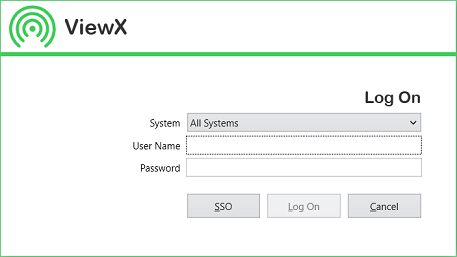
If you are connected to two or more systems, the Log On command includes a drop-down menu from which you can select to log on to a particular system, or all systems.
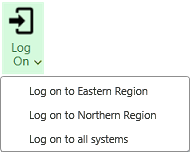
If you use this menu, your selection displays in the System field on the Log On window when it appears.
- In the
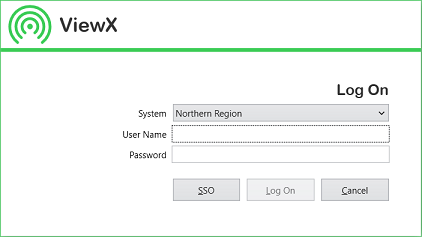
- Select the Log On command to the right of the ViewX title bar. This displays the Log On window.
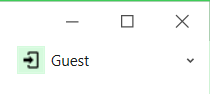
- Select the Log On option from any other display,
- Select the Home tab on the
- When the Log On window is on display, select the required System that you want to access.
You can choose to log on to one specific system or to log on to All Systems simultaneously
When logging on to multiple systems, Geo SCADA Expert attempts to log you on to all of the systems (databases) to which it has access, using the same user name and password. If the user name and password are invalid for a system, a diagnostic message is displayed. You will need to log on to that system individually.
-
Enter your unique User Name. This is the user name that has been configured for your User Account.
If your system is configured to use the External Authentication feature, a system administrator will be able to advise you as to whether your user name for ViewX is the same as your Windows or LDAP user name.
-
Enter the Password for your User Account. If you are unsure of the password, please contact a system administrator.
If your system is configured to use the External Authentication feature, your password for ViewX will be the same as your Windows or LDAP password.
If your User Account is managed directly in Geo SCADA Expert and you attempt to log on to multiple systems (databases) simultaneously and use a password that has expired on one or more of the systems, the Change Password window is displayed. You will need to change the password (see Change your Password). The new password is applied to your User Account on all systems on which your User Account exists and to which the ViewX client has access. The password expiry times begin again starting from the time you set the new password
(If your system is configured to use the External Authentication feature and your User Account is associated with a Windows or LDAP User Profile, password changes are managed via the relevant Windows or LDAP server.)
On a ViewX workstation on which the On-Screen Keyboard feature is enabled, an alphanumeric keyboard is displayed whenever the User Name or Password fields are selected. You can use either a traditional keyboard or Use the
-
Select the Log On button.
You should now be successfully logged on to ViewX.
Use Two-factor Authentication to Log On
This section applies if the Geo SCADA Expert system and your User Account are configured to use Geo SCADA Expert's TOTP 2FA (two-factor authentication) feature
When 2FA is active against multiple Geo SCADA Expert systems to which you have access, you will need a separate authenticator account for each system. You have to enroll separately on each of those systems.
-
Display the Log On window.
There are several ways of displaying the Log On window:
- Select the Home tab on the
This displays a Log On window that allows you to log on to one or more systems simultaneously.
If you are connected to two or more systems, the Log On command includes a drop-down menu from which you can select to log on to a particular system, or all systems.
If you use this menu, your selection displays in the System field on the Log On window when it appears.
- In the
- Select the Log On command to the right of the ViewX title bar. This displays the Log On window.
- Select the Log On option from any other display,
- Select the Home tab on the
- When the Log On window is on display, select the required System that you want to access.
The field’s drop-down list comprises the Geo SCADA Expert systems (databases) to which the ViewX client and your User Account have access. When using 2FA, you can only log on to one system at a time; you cannot log on to all systems simultaneously. This is because you require a different authenticator account for each system (database) on which 2FA is deployed.
- Enter your unique User Name. This is the user name that has been configured for your User Account.
If your system is configured to use the External Authentication feature, a system administrator will be able to advise you as to whether your user name for ViewX is the same as your Windows or LDAP user name.
- Enter the Password for your User Account. If you are unsure of the password, please contact a system administrator.
If your system is configured to use the External Authentication feature, a system administrator will be able to advise you as to whether your password for ViewX is the same as your Windows or LDAP password.
If your User Account is managed directly in Geo SCADA Expert and you attempt to log on to a system and use a password that has expired on that system, the Change Password window is displayed. You will need to change the password (see Change your Password). The new password is applied to your User Account. The password expiry times begin again starting from the time you set the new password
(If your system is configured to use the External Authentication feature and your User Account is associated with a Windows or LDAP User Profile, password changes are managed via the relevant Windows or LDAP server.)
On a ViewX workstation on which the On-Screen Keyboard feature is enabled, an alphanumeric keyboard is displayed whenever the User Name or Password fields are selected. You can use either a traditional keyboard or Use the
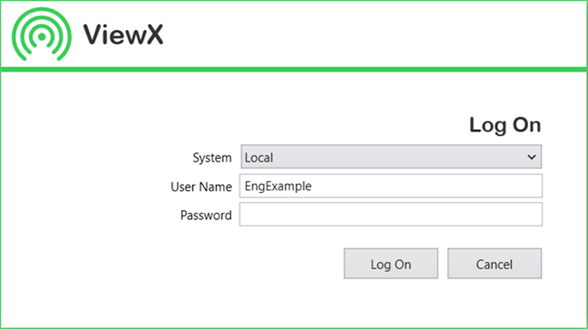
- Select the Log On button.
The One-Time Password Authentication window is displayed.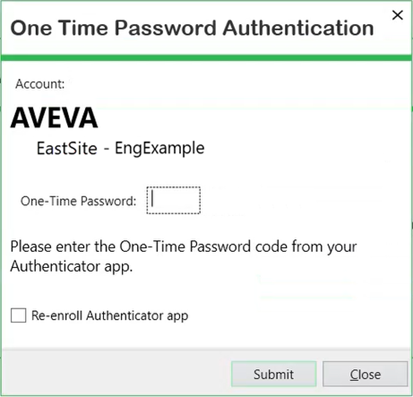
- Use the authenticator app on your device to obtain the one-time password that you need to enter into the window.
- Enter the one-time password in the One-Time Password field in the One-Time Password Authentication window and then select the Submit button.
You should now be successfully logged on to ViewX using two-factor authentication logon.
Use Single Sign-on to Log On
This section applies if your system is configured to use the External Authentication feature along with
An SSO button is only included on the Log On window if your system is set up to enable logon via single sign-on (SSO). You cannot use 2FA in conjunction with SSO.
To log on using single sign-on (SSO):
-
Display the Log On window.
There are several ways of displaying the Log On window:
- Select the Home tab on the
This displays a Log On window that allows you to log on to one or more systems simultaneously.
If you are connected to two or more systems, the Log On command includes a drop-down menu from which you can select to log on to a particular system, or all systems.
If you use this menu, your selection displays in the System field on the Log On window when it appears.
- In the
- Select the Log On command to the right of the ViewX title bar. This displays the Log On window.
- Select the Log On option from any other display,
- Select the Home tab on the
- When the Log On window is on display, select the required System that you want to access.
You can choose to log on to one specific system or to log on to All Systems simultaneously
When logging on to multiple systems, Geo SCADA Expert attempts to log you on to all of the systems (databases) to which it has access, using the same log on credentials. When logging on using SSO, you can use the Log on to all systems option provided that all of the Geo SCADA Expert servers are running Geo SCADA Expert 2023 or later. If you use the Log on to all systems option on a multi-database system in which the servers are running a mixture of older and newer versions of Geo SCADA Expert software, the logon will only partially succeed; this is by design. With such a setup, the Log on to all systems option will only log you onto those servers that are running Geo SCADA Expert 2023 or later. To log on to the servers that are running an older version of the software, log on to each of those servers individually.
- Select the SSO button.
If you are not already logged on to a Geo SCADA Expert system via SSO, the AVEVA Identity Manager window is displayed. Use the window to log on to AVEVA Identity Manager.
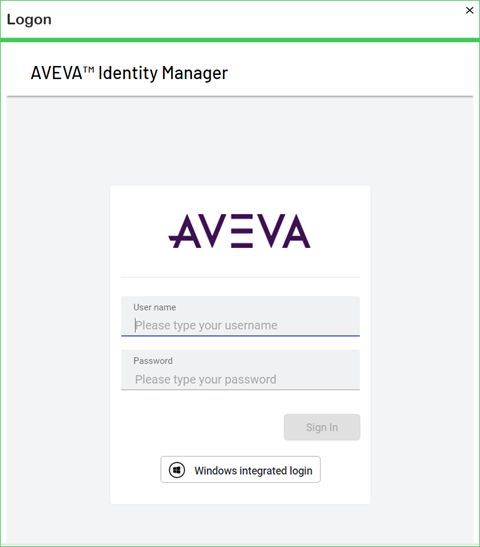
If you are already logged on to a Geo SCADA Expert system using SSO, the AVEVA Identity Manager window is not displayed. Instead, you are logged on to Geo SCADA Expert using your currently active SSO token.
(The SSO button does not appear on the Log On window if all of the Geo SCADA Expert servers to which the ViewX client is able to connect have the SSO feature disabled. Nor does it appear if configured not to do so on the client.)
The SSO button will be disabled in certain instances, such as when using a ViewX client client that is configured to use SSO on a multi-database setup on which only some systems are configured to use SSO. The SSO button will only be accessible when logging into a system that is configured to use SSO. For other systems, the SSO button will be 'grayed out' and unavailable for use.
Unsuccessful Logon
Provided that you are using valid logon credentials with a valid User Account, your logon attempts should be successful and should log you on to the selected system(s).
If the log on is not successful, the Log On window will display a message explaining the problem that occurred.
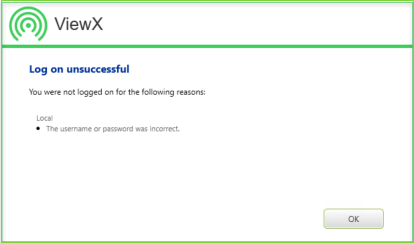
If this occurs, take note of the reason(s) given and select OK to attempt to log on again.
If the unsuccessful logon is due to a failure to log on using AVEVA Identity Manager and a reattempt does not rectify the situation, talk to your system administrator. If the unsuccessful logon is due to the unavailability of the SMS server, you might be advised to log on using standard logon until access to the SMS server has been rectified.
If the unsuccessful logon is due to a failure to log on using two-factor authentication and a reattempt does not rectify the situation, talk to your system administrator.
If you attempt and fail to log on multiple times, the system might disable your User Account temporarily for a specified duration. If the system is configured to limit the number of failed log on attempts your account may become disabled permanently
The system(s) on to which you are logged are displayed by the Log On Status field to the far right of the ViewX title bar. If you use the same user name to log on to all of the systems offered, the Log On Status displays that user name.
<System>: <Username>
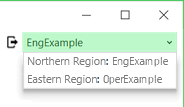
If you are logged in to two or more systems with different non-guest User Accounts, the Log On Status will display "Multiple Users".
In the unlikely event that logging on causes unexpected ViewX behavior, a system administrator might need to reset the profile for your User Account