Create Protocol Points
Associated with: SCADAPack x70 Device Configuration items
Security permission required to access this pick action: Configure
To create a single protocol-specific Point automatically, consider using the Create Protocol Point pick action (rather than the Create Protocol Points pick action). For more information, see Create Protocol Point.
Use the Create Protocol Points pick action to create a suite of SCADAPack x70 Points of the relevant point- and protocol-type and automatically associate them with the relevant SCADAPack x70 Analog, Digital, Counter, or String Configuration item on the selected SCADAPack x70 Device Configuration item. The newly created Points might require some additional configuration (see Minimum Configuration - Points), but the majority of their properties will be assigned default values where possible.
The pick action is only available on a SCADAPack x70 Device Configuration item if a protocol-specific SCADAPack x70 Outstation item of the appropriate protocol references that SCADAPack x70 Device Configuration item. This is currently restricted to SCADAPack x70 Outstation items that are of the DNP3 protocol.
The pick action is particularly useful on systems that use Group Templates and Group Instances. It enables the rapid creation of a suite of protocol-specific Points in all of the Group Instances that reference the Group Template in which the pick action is being used.
To create a suite of protocol-specific Points for the selected SCADAPack x70 Device Configuration item:
- Ensure that:
- All of the required SCADAPack x70 <Point Type> Configuration items for the selected SCADAPack x70 Device Configuration item exist in the database, have valid, saved configuration, and reference the relevant SCADAPack x70 Device Configuration item. (When the pick action is executed, Geo SCADA Expert will ignore any SCADAPack x70 <Point Type> Configuration items that do not have valid configuration and will not create any Points for those particular Configuration items.)
- A suitable name is given to each SCADAPack x70 <Point Type> Configuration item that is associated with the SCADAPack x70 Device Configuration. (As those names will be used as the basis for the names of the protocol-specific Points that are created using the Create Protocol Points pick action (see below for more information).)
- The protocol-specific content is suitably set up on each SCADAPack x70 <Point Type> Configuration item, including (if applicable) the configuration that indicates whether the Configuration items relate to an input or output. This latter information is important, as it determines whether the pick action creates an Input Point or an Output Point for that particular SCADAPack x70 <Point Type> Configuration item.
The protocol-specific properties are typically on the <Protocol Type> tab of the configuration Form.
-
From the SCADAPack x70 Device Configuration item's context-sensitive menu, select the Create Protocol Points pick action.
The Create Protocol Points window is displayed.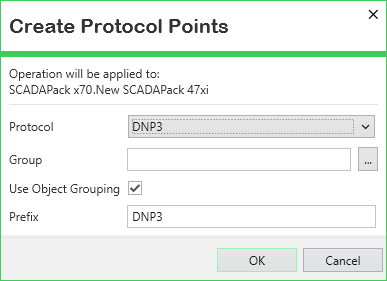
-
Use the Protocol field to select the required communications protocol for the SCADAPack x70 Points that are to be created and associated with the SCADAPack x70 <Point Type> Configuration items on the selected SCADAPack x70 Device Configuration item. You are only provided with the names of the protocol(s) with which the SCADAPack x70 Configuration items are already configured to communicate. This is currently restricted to the DNP3 protocol. (If the required option is not there, cancel the pick action and check each SCADAPack x70 <Point Type> Configuration item's settings; in particular the configuration on the relevant <Protocol Type> tab.)
-
Use the Group field to specify the Group within which Geo SCADA Expert is to create the SCADAPack x70 Points. The Group must exist already in the database. Use the browse button to display a Reference browse window and then select the required entry from the window. The field is case-sensitive. If you enter the name of an existing Group manually, remember to include its full path in the database and use the exact capitalization that exists for that Group in the database.
Leave the field blank if you want Geo SCADA Expert to create the SCADAPack x70 Points in the same Group as that in which the protocol-specific SCADAPack x70 Outstation item is located. (Depending the location of the protocol-specific SCADAPack x70 Outstation item in the database compared to the SCADAPack x70 Device Configuration item, this might comprise a different Group to the one in which the selected SCADAPack x70 Device Configuration item is located.)
-
The Use Object Grouping check box relates to the configuration of the Object Grouping field on the Form of each SCADAPack x70 <Point Type> Configuration item that is associated with the selected SCADAPack x70 Device Configuration item.
Either:
-
Select the Use Object Grouping check box (the default) for Geo SCADA Expert to apply the relevant object grouping (if any) when it creates the SCADAPack x70 Points. When an object group is specified on a SCADAPack x70 <Point Type> Configuration item, the automatically created Point for that Configuration item is placed in a subgroup with that object group name, within the specified Group.
If the subgroup already exists within that Group in the database, Geo SCADA Expert will use that subgroup. If the subgroup does not exist at that location in the database, Geo SCADA Expert will create it before creating the relevant SCADAPack x70 Points in that subgroup.
-
Clear the check box if Geo SCADA Expert is not to apply any object grouping when it creates the SCADAPack x70 Points. It will place the automatically created Points directly in the specified Group in the database.
-
-
Use the Prefix field to specify any text that Geo SCADA Expert is to include at the start of the name of each SCADAPack x70 Point that it creates automatically as a result of this pick action being executed. You might want to use this field, for example, to help identify all of the points that Geo SCADA Expert creates automatically in the database. Any text that you specify here has to adhere to the naming restrictions in Geo SCADA Expert, including the maximum length of each name (see Naming Restrictions).
-
Select the OK button to confirm your selection and trigger Geo SCADA Expert to create the SCADAPack x70 protocol-specific Points and associate them with the relevant SCADAPack x70 <Point Type> Configuration items on the selected SCADAPack x70 Device Configuration item. The Points will be placed in the specified Group and (if applicable) take into account any object grouping (you might need to close and reopen the Group in the Database Bar in order to refresh that Explorer Bar so that it shows the newly created Points). Each protocol-specific Point will automatically be associated with the relevant <Point Type> Configuration item to which it relates on the SCADAPack x70 Device Configuration item from which the pick action was triggered.
The configuration of any SCADAPack x70 protocol-specific Points that already exist on the SCADAPack x70 Device Configuration item will remain unchanged. This applies to any SCADAPack x70 protocol-specific Points that already exist and are associated with any of the SCADAPack x70 <Point Type> Configuration items on the selected SCADAPack x70 Device Configuration item.
You can use the Create Points Summary and Create Points Status attributes to monitor the progress of the Create Protocol Points pick action while it is executing.
-
Edit the configuration of the newly created SCADAPack x70 protocol-specific Points as required. A message area at the bottom of each Point's configuration Form will display messages relating to any invalid, incomplete, or conflicting configuration that requires addressing. For more information, see Mandatory Configuration and Invalid Configuration Messages in the Geo SCADA Expert Guide to Core Configuration, and see the point configuration topics for the relevant communications protocol in this driver guide.
Three SCADAPack x70 <Point Type> Configuration items that are associated with a particular SCADAPack x70 Device Configuration item include the following configuration:

Two further SCADAPack x70 <Point Type> Configuration items that are associated with the same SCADAPack x70 Device Configuration item include this configuration:

Five further SCADAPack x70 <Point Type> Configuration items that are associated with the same SCADAPack x70 Device Configuration item do not have an object group specified (their Object Grouping field is blank)
The Create Protocol Points pick action is selected on the SCADAPack x70 Device Configuration item. The window that is displayed is populated with the following:
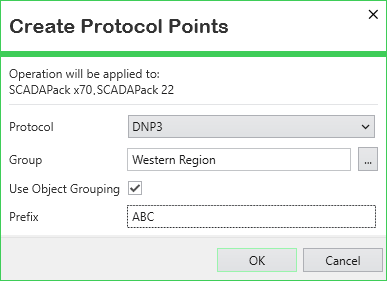
When the pick action is executed, Geo SCADA Expert:
-
Creates a subgroup called 'System' within the existing 'Western Region' Group.
-
Creates a subgroup called 'Status' within the 'Western Region' Group.
-
Creates 10 SCADAPack x70 Points of the appropriate type (one for each SCADAPack x70 <Point Type> Configuration item that is associated with the SCADAPack x70 Device Configuration item).
-
It places three of the Points in the 'System' subgroup within the 'Western Region' Group. These are the Points that are associated with the three SCADAPack x70 <Point Type> Configuration items that have their Object Grouping property set to 'System'.
-
It places two other Points in the 'Status' subgroup within the 'Western Region' Group. These are the Points that are associated with the two SCADAPack x70 <Point Type> Configuration items that have their Object Grouping property set to 'Status'.
-
It places the other five Points directly in the 'Western Region' Group. These are the Points that are associated with the five SCADAPack x70 <Point Type> Configuration items that have their Object Grouping property left blank (the default).
The names of all of the automatically created Points are prefixed with 'ABC'. The rest of the Point name then comprises the same name as the SCADAPack x70 <Point Type> Configuration item to which each Point relates.
 Naming Convention Applied to the Points
When you use the Create Protocol Points pick action to create a suite of SCADAPack x70 protocol-specific Points,those Points are given a name that comprises:
<The Prefix (if any) that is specified in the Create Protocol Points window> <The name of the SCADAPack x70 <Point Type> Configuration item to which each Point relates>
Therefore, it is important to ensure that all of the SCADAPack x70 <Point Type> Configuration items that are associated with the SCADAPack x70 Device Configuration item have a suitable name before triggering the Create Protocol Points pick action on the SCADAPack x70 Device Configuration item. This is particularly important if the SCADAPack x70 <Point Type> Configuration items are in a Group Template that is referenced by multiple Group Instances, as all of the Points that are created in those Group Instances as a result of using the Create Protocol Points pick action will be assigned a name that uses the above naming convention.
A SCADAPack x70 <Point Type> Configuration item has the name:
Sensor 1
The Create Protocol Points pick action is used on the SCADAPack x70 Device Configuration item with which the SCADAPack x70 <Point Type> Configuration item is associated. The Prefix 'GSE' is specified on the Create Protocol Points window. When the pick action is executed, Geo SCADA Expert creates a SCADAPack x70 protocol-specific Point for each SCADAPack x70 <Point Type> Configuration item that references that SCADAPack x70 Device Configuration item. Each Point is automatically assigned a name as part of the point creation process; this takes into account the Prefix and the name of the Configuration item. With the Point that Geo SCADA Expert creates for the above SCADAPack x70 <Point Type> Configuration item, it assigns the point the following name:
GSE Sensor 1
How Do I Convert My Input Point into an Output Point?
With SCADAPack x70 <Point Type> Configuration items that can be associated with either an Input Point or an Output Point, you should ensure that the intended use (input or output) of the Configuration item is specified on that Configuration item's Form before using the Create Protocol Points pick action. This is because the Configuration item's settings determine whether the Create Protocol Points pick action creates a protocol-specific Input Point or Output Point. Unless the Configuration item's settings specify otherwise, the pick action will create an Input Point.
If an Input Point has been created when an Output Point was actually required, perform one of these procedures:
-
Delete the newly created SCADAPack x70 protocol-specific Point.
-
Adjust the settings in the SCADAPack x70 <Point Type> Configuration item to clarify that it represents an Output, rather than an Input. (This configuration will typically be on the <Protocol Type> tab.)
-
Use the separate Create Protocol Point pick action on the SCADAPack x70 <Point Type> Configuration item (rather than the Create Protocol Points pick action on the SCADAPack x70 Device Configuration item).
This should create an Output Point of the selected protocol type.
Or:
-
Use the Convert To pick action on the newly created SCADAPack x70 protocol-specific Point to convert it into an Output Point of the required type. (Remember that on the SCADAPack x70 driver, the protocol-specific Points are nested under the SCADAPack x70 menu option, followed by the option that relates to the communications protocol that applies to the Point.) Diagnostic messages might be displayed as a result of the conversion.
-
Adjust the settings in the SCADAPack x70 <Point Type> Configuration item to clarify that it represents an Output, rather than an Input. (This configuration will typically be on the <Protocol Type> tab.)
-
Address any configuration issues that remain as a result of the conversion operation and point creation process.
Can I Use the Pick Action to Create Pulse Actions?
Some of the communications protocols that are supported by the SCADAPack x70 driver support Pulse Actions. You use Pulse Actions to send pulsed, rather than maintained, controls. SCADAPack x70 protocol-specific Pulse Actions are associated with SCADAPack x70 Digital Configuration items.
If you use the Create Protocol Points pick action on a SCADAPack x70 Device Configuration item with which SCADAPack x70 Digital Configuration items are associated, this will trigger Geo SCADA Expert to create a Digital or Binary Point for each of those SCADAPack x70 Digital Configuration items. Likewise, with a SCADAPack x70 Digital Configuration item, you can only use the separate Create Protocol Point pick action to create a Digital or Binary Point. If you want to create a Pulse Action, we recommend that you use the Create New pick action to create the SCADAPack x70 protocol-specific Pulse Actions that you require. (Remember that on the SCADAPack x70 driver, the protocol-specific Pulse Actions are nested under the SCADAPack x70 menu option, followed by the option that relates to the communications protocol that applies to the Pulse Action.) For more information, see Configure SCADAPack x70 Devices in Geo SCADA Expert.
If you have used either the Create Protocol Points pick action or the Create Protocol Point pick action to create a Digital or Binary Point when you required a Pulse Action, you could consider using the Convert To pick action to convert the Point into the required type of SCADAPack x70 protocol-specific Pulse Action. (Remember that on the SCADAPack x70 driver, protocol-specific Pulse Actions are nested under the SCADAPack x70 menu option, followed by the option that relates to the communications protocol that applies to the Pulse Action.)
Diagnostic messages might be displayed as a result of the conversion. Address any configuration issues that remain as a result of the conversion operation and pulse action creation process.
Further Information
Create a single protocol-specific Point automatically: see Create Protocol Point.