Create the Content for a Property Translation Table
You create the content for a Sparkplug Publisher Property Translation Table outside of Geo SCADA Expert. The content has to take the form of a TSV (tab-separated values) file. You include an entry in the file for each point configuration property in the client for which the value is to differ from the default. Once you have completed populating the file, you import it into the Property Translation Table in the Sparkplug Publisher driver. You associate that Property Translation Table with a Sparkplug Publisher item in the database. In the birth messages that it publishes, the Sparkplug Publisher will then include the values that exist for those point configuration properties in the Geo SCADA Expert database. Only include entries for configuration properties of points for which the Sparkplug Publisher is to publish data (see Define the Historic Export Details). Do not include entries for point configuration properties that are to use the default value or are to remain unpopulated during the automatic configuration process.
Each entry has to be in the format:
<Property Set Key><tab><Geo SCADA Expert Class><tab><Geo SCADA Expert Property Name>
Where:
<Property Set Key>is the key that represents the name of a property in a Property Set that you want to map to a configuration property of a point in the Geo SCADA Expert database.<tab>inserts a horizontal tab to separate the elements in a single entry.<Geo SCADA Expert Class>is the database class of the type of point, or a base class of that point. This identifies the Class in which the configuration property is located in the Geo SCADA Expert database.<Geo SCADA Expert Property Name>is the relevant configuration field in the above database class. The field has to be readable.
A Property Set comprises key and value pairs. It is part of the metric information for a point in a birth message. The Property Set Key is one of the keys in a Property Set. The value of a Property Set key will be the value that is configured for the point property that is associated with the <Geo SCADA Expert Property Name>.
The <Property Set Key> is an arbitrary value. However, if you are going to use a Property Translation Table in the Sparkplug client along with the Sparkplug Publisher Property Translation Table, then the Property Set key must be the same in both Property Translation Tables.
Ensure that each entry is formatted on a single line in the file.
You use the Database Schema in Geo SCADA Expert to ascertain the name of each <Geo SCADA Expert Class> and <Geo SCADA Expert Property Name> that you require. We recommend that you familiarize yourself with the Database Schema and its structure before attempting to produce the content for a Property Translation Table file. For more information, see Welcome to the Guide to the Database, along with Understanding the Database and Working with the Database Schema. You also have to be familiar with the Property Set keys, values, and data types of the metrics that you intend mapping to equivalent configuration fields of Sparkplug Points in the client database.
Be aware of the following:
-
You cannot include a Property Translation Table in a Group Template.
-
Do not include any blank spaces in the Property Translation Table file (other than if they exist in the Property Set Key).
-
Use the exact spelling and case for each string in the Property Translation Table file. These have to match the case and spelling used in the Class and Property Name in the Database Schema. Be aware that British English might be used for some Class and Configuration Field names in the Database Schema.
-
Ensure that you specify the Name (rather than the Display Name) of the Configuration Field in the Database Schema. (The Name does not include any spaces and might also differ in other ways from the Display Name.)
-
Ensure that you only map properties that are of the same or equivalent data type. For example, match a Boolean property in the file to the corresponding Boolean configuration field in the Database Schema.
The Type column of a Configuration Field in the Database Schema indicates the property's data type.
-
You can map to Reference Fields that are in the Database Schema. Only include Reference Fields in the Property Translation Table file if the Sparkplug client in which you want to automatically create and configure points is the Geo SCADA Expert Sparkplug driver. Ensure that you map the equivalent Reference Fields when you Create the Content for a Property Translation Table in the Sparkplug client.
-
Only map to a Configuration Field in the Database Schema. (Property Translation Tables do not support mapping to Data Fields.)
-
You only need to include entries for configuration properties for which both of the following apply:
-
The values are to differ from the defaults in Geo SCADA Expert
-
If you are publishing to a Geo SCADA Expert Sparkplug client, and you want the Geo SCADA Expert client to set the values automatically when it creates the points. (If you are publishing to a third-party Sparkplug host application, you should consult your Sparkplug application documentation to determine what properties to send in birth certificates.)
-
-
If an extra (custom) database field exists on any of the Point Forms in your Geo SCADA Expert database, you can map a suitable Property Set Key to such a custom configuration field if required.
A Property Translation Table is to be used to enable Geo SCADA Expert to include the values of several configuration properties in Sparkplug birth messages for Advanced Modbus points for which the associated Sparkplug Publisher publishes data. The Property Translation Table includes:
-
The description that is to be used for the 'High' limit of the analog points.
-
The description that is to be used for the 'Low' limit of the analog points.
-
The engineering units of the analog points.
-
The description that is to be used for 'State 1' on the digital points.
The Database Schema is used to ascertain the names of the Classes in which the properties are located, along with the names of the Configuration Fields in those Classes:
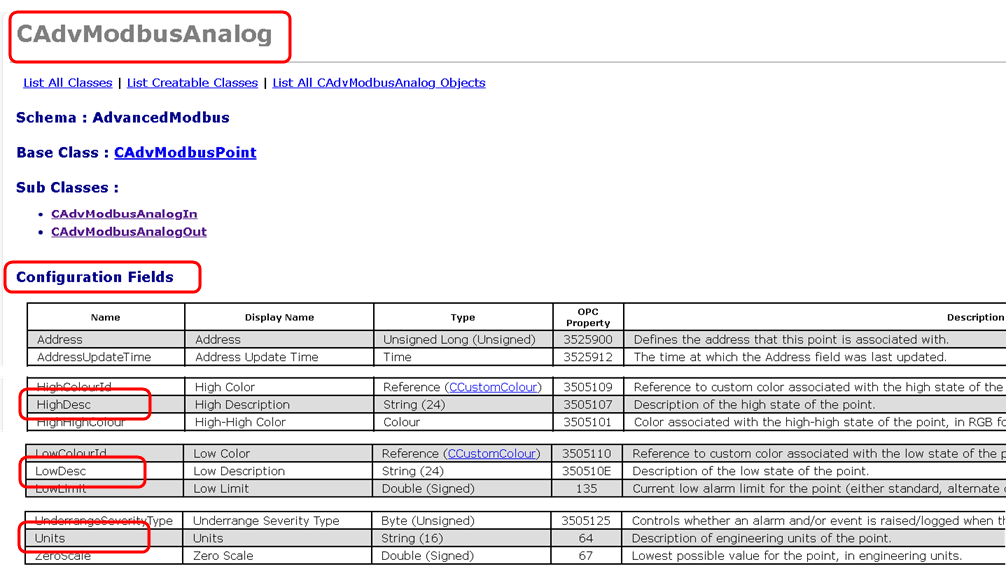
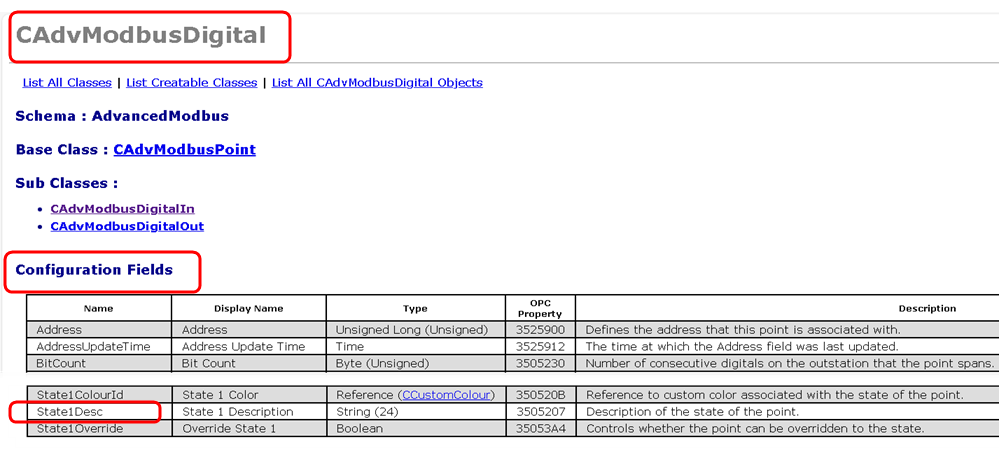
Notice that the Type column specifies the maximum supported string length of each of the properties. Geo SCADA Expert will truncate the strings if they exceed this length when it configures the points.
Also notice that the text in the Name column differs to the text in the Display Name column. It is the text in the Name column that should be included in the TSV file to identify a configuration property.
A TSV file is created to specify that Geo SCADA Expert is to set the values of above 4 configuration properties when it creates the points in the database. The TSV file is used to specify the name of the Property Set key to which Geo SCADA Expert is to map each configuration property. Each Property Set key comprises one of the key/value pairs of data that the associated Sparkplug Publisher will include in the Sparkplug birth certificate that it sends to the client when it first communicates with that client.
The TSV file comprises just 4 lines (one for each configuration property for which the Sparkplug Publisher is to include the value in the birth messages that it transmits):
HighLimitDesc<tab>CAdvModbusAnalog<tab>HighDesc
LowLimitDesc<tab>CAdvModbusAnalog<tab>LowDesc
MyUnits<tab>CAdvModbusAnalog<tab>Units
DigStateBDesc<tab>CAdvModbusDigital<tab>State1Desc
With each line, the string to the left of the first horizontal tab (<tab>) comprises the name of the equivalent Property Set key that exists for the metric for which Geo SCADA Expert is to include the value in Sparkplug birth messages. The rest of the string specifies the Class and Configuration Field to which Geo SCADA Expert is to map the Property Set key. These identify the configuration field of the Point that exists in the Geo SCADA Database. The value of the configuration field will be included in the birth messages that the associated Sparkplug Publisher transmits.
So, with the first line:
-
HighLimitDescis the name of a Property Set key for a metric that Geo SCADA Expert is to map to an Advanced Modbus Analog Point in the database. -
CAdvModbusAnalogindicates that Geo SCADA Expert is to map the Property Set key to a configuration field in the CAdvModbusAnalog Class in the database. This is the Class for Advanced Modbus Analog Points. -
HighDescindicates that Geo SCADA Expert is to map the Property Set key to the HighDesc configuration field in the above Class. This is the configuration property that is used to provide the description of the high state of the analog point.
Once you have produced a suitable Property Translation Table file, you import that file into Geo SCADA Expert. You do this using the Import Property Translation Table pick action on a Sparkplug Publisher Property Translation Table in the database.
If the file that is being imported into a Sparkplug Publisher Property Translation Table in Geo SCADA Expert cannot be loaded, that file import will not succeed.
If the file contains an invalid or unsupported property mapping, an error will be logged in the Events List.
Further Information
Use the Database Schema: see the Geo SCADA Expert Guide to the Database.
Working with the Database Schema.
Understand the Class structure in the Database: see Classes.
Understand the information that is shown about Configuration fields in the Database Schema: see Configuration Fields and Data Fields Section.
Use the Metadata window to create custom extra database fields in Geo SCADA Expert: see Extra Database Fields in the Geo SCADA Expert Guide to Server Administration.
Include Reference Fields in the Property Translation Table: Considerations when using a Property Translation Table.