System administrators have to assign each User Group and/or User Account permissions that define which features and database items a user can access when they log on. You can allocate permissions on a per Group, Group Instance, Group Template, and/or individual database item basis (see Allocating Security Permissions, and see Allocating Permissions to a User Group or User Account). By default, when a new database item is added to an existing Group, Group Instance, or Group Template, it inherits its permissions from that Group, Group Instance, or Group Template. You can apply permissions to each database item separately, for example, to give a user access to controls on one point but not on another.
You allocate the permissions for each item via that item's Security window. You use the Security window to define:
-
Which User Groups and user accounts have access to the item
-
The permissions (and therefore the features and functionality) to which those User Groups and user accounts have access on that item.
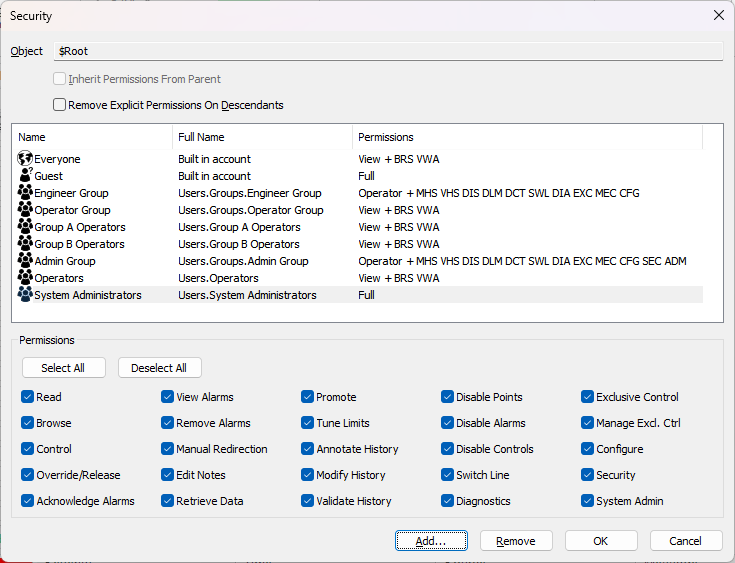
The permissions shown in the Security window vary, according to whether any permissions have been denied (see Define Whether any Permissions are Restricted).
In ViewX, the permissions that you allocate to a user account only take effect if that user account has been configured to have the corresponding ViewX features enabled. The ViewX features for each user account are enabled or disabled on the User Form (see Creating a User Account).
When you set the access permissions for a Group, the same permissions might also be inherited by the items within that Group:
- If the items in the Group have not already had permissions allocated and have the Inherit Permissions from Parent check box selected (the default), they will inherit the permissions of the Group. If the Inherit Permissions from Parent check box is clear, the items in the Group will continue to use their own individual ACLs.
- If you select the Remove Explicit Permissions on Descendants check box on the Group's Security window, the Group's permissions will replace the permissions of the items in the Group automatically. If you clear the Remove Explicit Permissions on Descendants check box, the items in the Group will continue to use their own individual ACLs.
Items in Groups can have different permissions to the 'parent' Group, you can alter the permissions of each item in a Group as required.
Access permissions for Group Templates and Group Instances work slightly differently—Group Instances do not inherit the permissions from their Group Template; you set the permissions for each Group Instance separately via the security settings for that Group Instance.
If you change any permissions, certain menu options will remain visible to users even if they no longer have the permissions to use them. If the users attempt to use such options, an Access Denied message box is displayed. If the users log off and then log on again, those options to which they do not have access will no longer be displayed.
If you want to deny a permission, clear its check box.
To allocate a permission, select the appropriate check box. When a permission is selected for a User Group or User Account, a Short Code appears alongside the group or account in the Security window. Certain combinations of permissions are grouped as View, Operator, Configuration, and Advanced.
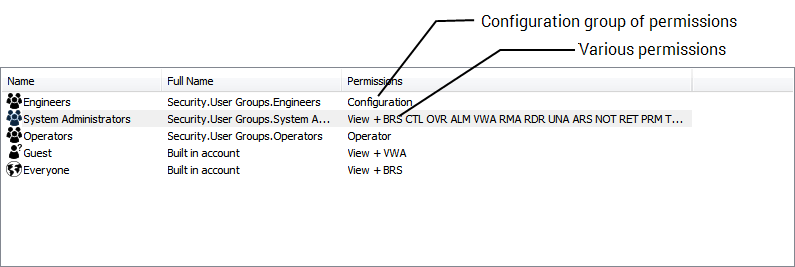
The security permissions for each Group, Group Instance, Group Template, or individual database item, and the associated short codes and default groupings are listed in the following table:
| Permissions | Short Code | View | Operator | Configuration | Advanced |
|---|---|---|---|---|---|
| Read |
RD |
X | X | X | X |
| BRS | X | X | X | ||
| CTL | X | X | X | ||
| OVR | X | X | X | ||
| ALM | X | X | X | ||
| VWA | X | X | X | ||
| RMA | X | X | X | ||
| RDR | X | X | |||
| UNA | X | ||||
| ARS | |||||
| NOT | X | X | X | ||
| RET | X | X | X | ||
| PRM | X | X | X | ||
| TUN | X | X | X | ||
| AHS | X | X | X | ||
| MHS | X | X | |||
| VHS | X | X | |||
| DIS | X | X | |||
| DLM | X | X | |||
| DCT | X | X | |||
| OFS | X | X | |||
| SWL | X | X | |||
| DIA | X | X | |||
| CAN | X | X | |||
| EXC | X | X | |||
| MEC | X | X | |||
| CFG | X | ||||
| SEC | |||||
| ADM |
* By default these permissions are restricted and not visible in the Security window
Considerations and Special Cases
When using the Security window to restrict access to various features, functionality, and areas of the database, take into account the following:
-
The User Accounts of users that work with one or more Groups, Group Templates, and/or Group Instances require the relevant permissions on all of the database items within those Groups, Group Templates, and/or Group Instances. This is in addition to having the relevant permissions on the Groups, Group Templates, and/or Group Instances themselves. In the case of nested Groups and so on, this also applies to all of the lower level Groups and database items within those Groups.
-
The User Accounts of users require the relevant permissions on all of the database items with which they are to work. This includes the User Accounts of users that perform SQL queries
-
The User Accounts of users that manage other User Accounts, User Groups, and User Patterns require Permissions for Working with User Accounts and User Groups. This also applies to other security-related database items, such as
-
The User Accounts of users that modify content in Data Grids have to be assigned the Configure permission on each Data Grid that they are to modify.
-
The User Accounts of users that modify content in Data Tables have to be assigned:
-
The User Accounts of users that modify content in the In-Database Translation Dictionary have to be assigned the Configure permission on the Root Group. This also applies to users that access the dictionary database table DBDictionary directly (for example, by using QueryPad.)
This is not an exhaustive list. You should ascertain whether there are other aspects of your system's setup that need taking into consideration to help ensure that the relevant users have access to the features, functionality, and database items that they require in order to perform their duties.
For further information about permissions required when using SQL to interrogate the database, see User Access Considerations when Working with SQL in the Geo SCADA Expert Guide to SQL.