Adding Windows account permission to enable the real-time data
Adding Windows account permission for a Windows user enables this user to access to PME real-time data from the devices.
 warning
potential compromise of System availability, integrity, and confidentiality
Use cybersecurity best practices when configuring user access.
Failure to follow these instructions can result in death, serious injury, equipment damage, or permanent loss of data.
Cybersecurity policies that govern user accounts and access – such as least privilege and separation of duties – vary from site to site. Work with the facility IT System Administrator to ensure that user access adheres to the site-specific cyber security policies.
To add Windows account permission to enable the real-time data in a PME Standalone system:
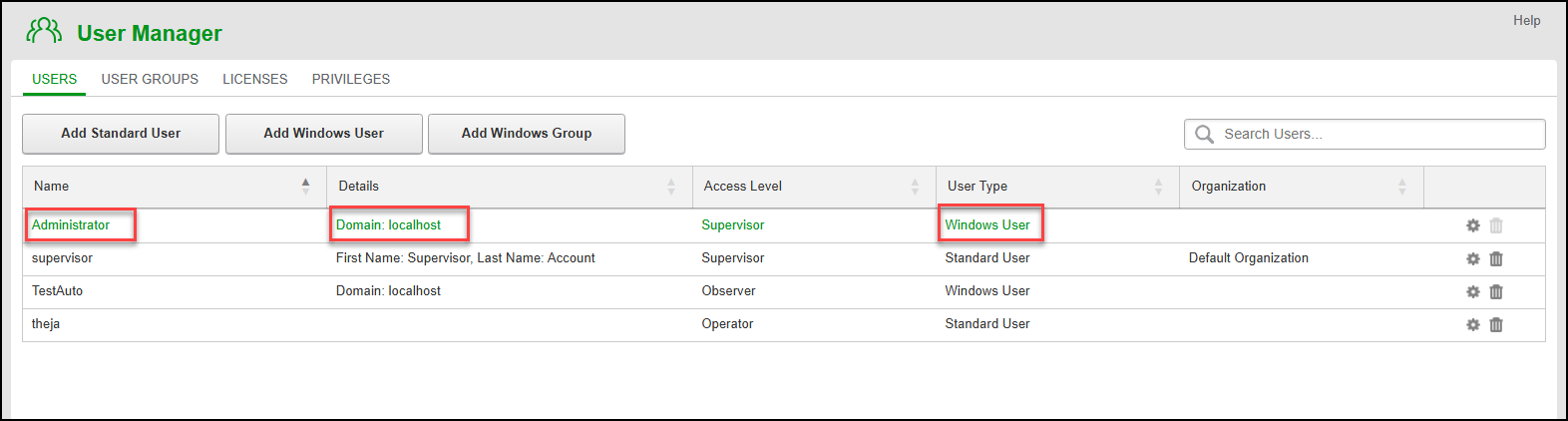
- In User Manager, select the Users tab, and then click Add Windows User.
- In Add Windows User - Selection tab:
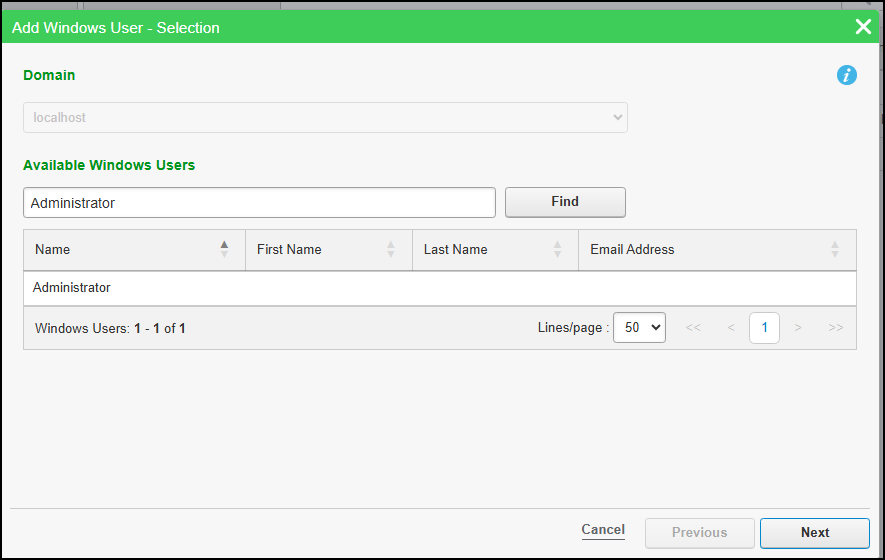
- Domain name - This field is auto populated.
- To find the Windows user you want, (optional) enter a keyword into the Available Windows Users search box, and then click Find.
The search result includes all usernames that match all or part of the keyword string.
- In the search result table, select the Windows user you want to add, and then click Next.
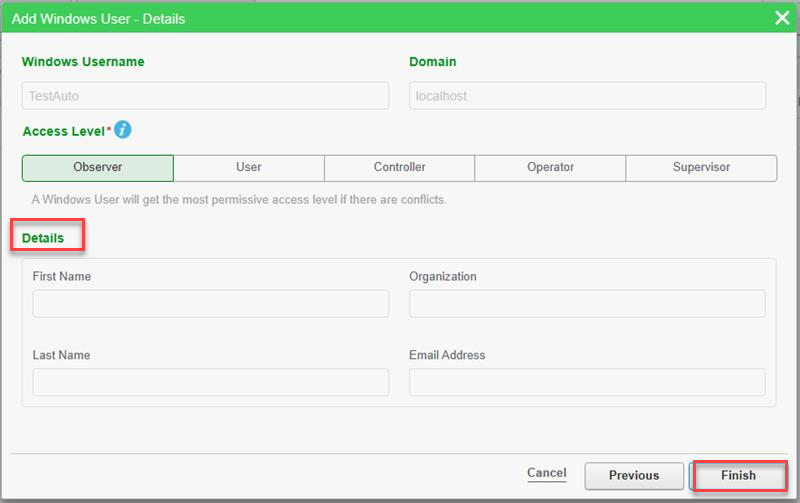
- In Add Windows User - Details, assign an access level, and then click Finish.
To add Windows account permission to enable the real-time data in a PME Distributed (engineering client and secondary server) system:
-
Go to ...\\
Schneider Electric\Power Monitoring Expert\config\realtime.configin the Application Server. -
Add the command in the file as below for the Windows user after the endpoint command:

"users": [ { "HostName": "REMOTE_HOSTNAME_1", "user": "USERNAME_1" }, { "HostName": "REMOTE_HOSTNAME_1", "user": "USERNAME_2" } ]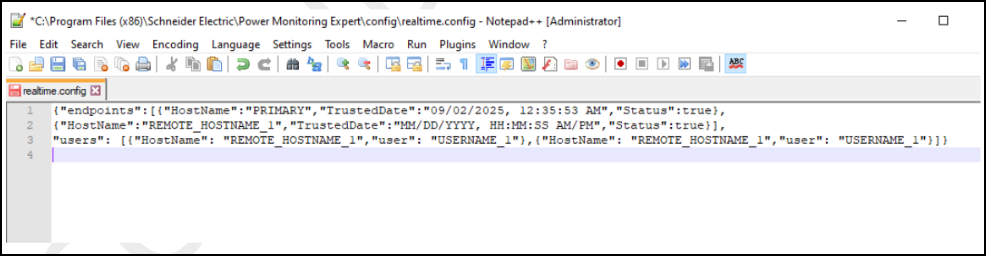
Related topics:
Users
- Users
- Adding a standard user
- Adding a Windows user
- Adding a Windows group
- Changing a username
- Changing a user password
- Changing a user access level
- Changing user details
- Deleting a user
User groups
- User Groups
- Adding a user group
- Adding a user to a user group
- Adding sources to a user group
- Changing a user group name
- Removing a user from a user group
- Removing sources from a user group
- Changing application access for a user group
- Moving a user between user groups
- Deleting a user group
For information on the Web Application user licenses, see:
For information on related Web Application settings, see:
To customize user access level privileges, see:
For reference information see: