Configure the Properties on the Sparkplug Publisher Tab
The Form of a Sparkplug Publisher includes a Sparkplug Publisher tab. Use the fields on the tab to configure these properties:
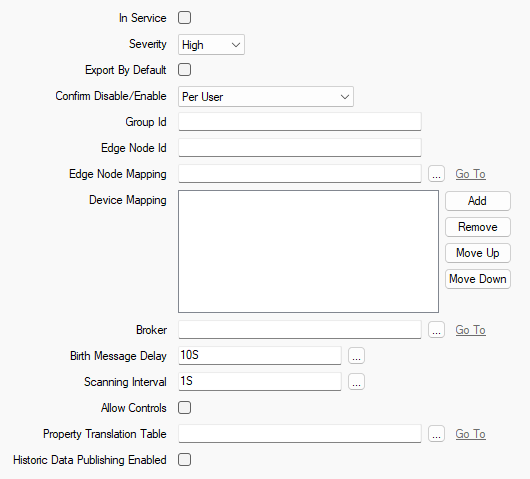
-
In Service—Use to specify whether the database item is active or inactive (see Placing an Item In Service).
-
Severity—Use this combo box to define the severity of any events or alarms that are associated with the database item. For more information about severities, see Defining Severities in the Geo SCADA Expert Guide to Core Configuration.
-
Export by Default—When you create a new point or accumulator with Historic enabled, Geo SCADA Expert can automatically start to export the point or accumulator data to the Sparkplug Publisher. Geo SCADA Expert can also do this when a user enables Historic on an existing point or accumulator. Select this check box to enable this feature. Clear this check box to disable it. For more information, see Define the Historic Export Details.
-
Confirm Disable/Enable—Users with the required permissions can disable a Sparkplug Publisher item that is In Service, or enable a Sparkplug Publisher item that is not In Service. Such actions are carried out using the Disable Publisher and Enable Publisher pick actions.
Use the Confirm Disable/Enable combo box to specify whether a confirmation dialog box is displayed whenever an operator requests that this database item is disabled or enabled (see Requesting Confirmation of Action Requests).
-
Group Id—Specify the unique identifier for the group of Sparkplug nodes that are associated with the Sparkplug Publisher database item.
This string has to match the group_id that is used by the Edge Nodes with which Geo SCADA Expert is communicating. The string forms part of the topic namespace that the driver includes in messages that it sends to the broker.
You can specify any valid UTF-8 alphanumeric string of up to 64 characters.
The Group Id string:
- Is case sensitive
- Cannot contain number sign (hash), slash, or plus sign characters (#, /, +)
- In combination with the Edge Node Id string, has to be unique on the broker with which the Group is associated.
If you are exporting data to a Sparkplug host application that comprises a Geo SCADA Expert system, ensure that the string matches the Group Id that is configured in the Sparkplug client on that application.
-
Edge Node Id— Specify the unique identifier for the Edge Node that is associated with the Sparkplug Publisher database item.
This string has to match the edge_node_id that is used by the Edge Node with which Geo SCADA Expert is communicating. The string forms part of the topic namespace that the driver includes in messages that it sends to the broker.
You can specify any valid UTF-8 alphanumeric string of up to 256 characters.
The Edge Node Id string:
- Is case sensitive
- Cannot contain number sign (hash), slash, or plus sign characters (#, /, +)
- In combination with the Group Id string, has to be unique on the broker with which the node is associated.
If you are exporting data to a Sparkplug host application that comprises a Geo SCADA Expert system, ensure that the string matches the Edge Node Id that is configured in the Sparkplug client on that application (see Configure the Properties on the Edge Node Tab).
-
Edge Node Mapping—Use to specify a Group database item that contains one or more database items, including points and any subgroups. The Group that you specify in the Edge Node Mapping field defines the 'Node Root Group' of the Sparkplug Publisher. The Node Root Group is the root folder in which you configure the Sparkplug Edge Node, Sparkplug Devices, and Sparkplug points.
The Node Root Group is mapped to the Sparkplug Edge Node that has the specified Edge Node Id. When the Sparkplug Publisher publishes data of the database items in the Node Root Group, a similar Node Root Group is defined in the Sparkplug client namespace.
If the client to which you publish data is a Geo SCADA Expert system that is running the Geo SCADA Expert Sparkplug driver, you can opt to automatically Create Devices from Device Birth Messages and Create Points from Birth Metrics in the Sparkplug client. You can optionally use a Property Translation Table to automate some of the configuration when those Edge Node Devices and points are created. Specifying the Node Root Group in the Sparkplug Publisher enables you to create a database structure in the Sparkplug client that is consistent with that in the Sparkplug Publisher.
Any database items that you create from the Edge Node (using the Create Devices from Device Birth Messages or Create Points from Birth Metrics pick actions) are automatically associated with the Node Root Group of the client. The Sparkplug Edge Node in the client's Node Root Group becomes the Metric Parent of the database items in this Group (see Configure the Common Point Properties). This means that you can use relative references in the Property Translation Table (see Considerations when using a Property Translation Table).
You can configure only one Node Root Group as the Edge Node Mapping for each Sparkplug Publisher.
When the Sparkplug Publisher generates a birth message for a point from this Group, the string representation of the Edge Node Mapping field is removed from the metric name of the point.
A Group named 'Sparkplug.SparkplugPublisher' is added to the Edge Node Mapping field. This Group contains an Analog Point 'A1'.
When a birth message is generated for the 'A1' point, the metric name of the point is just 'A1.' If you do not configure the Edge Node Mapping field with the 'Sparkplug.SparkplugPublisher' Group, the metric name of the point will be 'Sparkplug.SparkplugPublisher.A1'.
When the Sparkplug Publisher generates a birth message for a Sparkplug Device from this Group, the string representation of the Edge Node Mapping field is removed from the Device ID of the Device.
A Group named 'Sparkplug.SparkplugPublisher' is added to the Edge Node Mapping field. This Group contains a subgroup named 'DeviceGroup01'. The 'DeviceGroup01' subgroup contains an Analog Point 'D1'.
'DeviceGroup01' is added to the Device Mapping field.
The Device ID for DeviceGroup01 is 'DeviceGroup01'. When a birth message is generated for the 'D1' point, the metric name of this point is 'DeviceGroup01.D1'. If you do not configure the Edge Node Mapping field with 'Sparkplug.SparkplugPublisher' Group, the metric name of the point will be 'Sparkplug.SparkplugPublisher.DeviceGroup01.A1'.
Also see What Happens if I add the same Group as the Edge Node Mapping and Device Mapping?
-
Device Mapping—Use to add a Group database item that contains one or more points. This Group is mapped on to a Sparkplug Device. All of the points in the Group are associated with a Sparkplug Device that has a Device ID based upon the name of the Group.
The Group name and point names form a part of the topic namespace that the driver includes in messages that it sends to the broker. Changing this database structure changes the defined topic namespace and can disconnect a device and its points from Sparkplug clients that are subscribed to them.
-
Broker—Specify the Sparkplug Publisher Broker item with which the Sparkplug Publisher database item is associated. Use the browse button to display a Reference browse window and then select the required entry from the window.
-
Birth Message Delay—Specify a delay time period before a birth message is sent. Each time there is change in the configuration of any of the following, a message is sent to the Primary Host Application via the broker:
- The Group Id, Edge Node Id, or Device Mapping properties on the Sparkplug Publisher Form.
- A point that is configured to export its values via the Sparkplug Publisher.
When you specify a birth message delay period, a single birth message is sent with all the configuration changes that have occurred within this period, instead of separate birth messages for each configuration change. The default duration is 10 seconds.
-
Scanning Interval—Specify the frequency at which the Sparkplug Publisher scans for historic data that it is to publish to the broker. The default scanning interval is 1 second.
-
Allow Controls—Use this check box to specify whether a Sparkplug client is to modify the values that are published by the Sparkplug Publisher. Select this check box to enable this feature. Clear this check box to disable it.
-
Property Translation Table—You can optionally use a Sparkplug Publisher Property Translation Table to help you to create and configure points in a client, based on the point configuration properties in the Geo SCADA Expert database. You use the Property Translation Table to store information about the point configuration properties that are to differ from the default values on the client. This is useful if you want to use that information as a basis for configuring the points on the client, so that their configuration values match those of the points in the Geo SCADA Expert.
Use this field to specify the name of the Sparkplug Publisher Property Translation Table that contains the configuration properties that are to be included in the birth messages that the Sparkplug Publisher sends to the client. Use the browse button to display a Reference browse window and then select the required entry from the window. For more information, see Configure a Sparkplug Publisher Property Translation Table.
-
Historic Data Publishing Enabled—Use this check box to specify whether the Sparkplug Publisher driver is to publish historic data to the client.
By default, this check box is clear when a Sparkplug Publisher database item is created. This triggers the Sparkplug Publisher driver to send birth messages to the client and to store (rather than publish) the historic data. This is intended to give you time to create the points on the client before the driver publishes historic data to those points. While the check box is clear, the Publishing State status attribute in the Sparkplug Publisher's Status display will show the state 'Publishing Disabled / Caching new values' (see Status Attributes that are Specific to Sparkplug Publisher Database Items).
Select the Historic Data Publishing Enabled check box once you have created the points on the client. This will trigger the driver to publish historic data to the client, including the historic data that it was previously storing.
You can associate new points with the Sparkplug Publisher at any time, even when it is publishing historic data for existing points. (To associate a point with the Sparkplug Publisher, enable Historic on configuration Form of the point (see Defining Historic Details for a Point), and add the Sparkplug Publisher database item to the Historic Exports field (see Define the Historic Export Details).) If the Historic Data Publishing Enabled check box is selected at the time, the Sparkplug Publisher will cache the historic data of the new points until the birth messages for those points have been published to the client. Once that has occurred, the Sparkplug Publisher will publish the historic data of the new points.
If the Historic Data Publishing Enabled check box is not selected when you associate the new points with the Sparkplug Publisher, only birth messages are published to client. The Sparkplug Publisher will cache the historic data of the new and existing points until you enable the check box.
Further Information