
What's New in Geo SCADA Expert 2025
Removal of Obsolete Feature
The Aquis Thin Client
The Aquis Thin Client driver is no longer available in Geo SCADA Expert. When you install Geo SCADA Expert 2025 or later, the Aquis ViewX Client and Server components will not be available for selection. When the Geo SCADA Expert server is started, any Aquis database items will be removed.
Future Removal of Deprecated Features and Protocols
Original WebX Client
Geo SCADA Expert 2025 will be the last version of the product to include and support the deprecated Original WebX client. For web client support, please use Virtual ViewX clients instead of Original WebX clients.
Legacy Server and Client Protocol (used before Geo SCADA Expert 2019)
Geo SCADA Expert 2025 will be the last version of the product to include support for legacy communications to ClearSCADA versions of the software. This change will prevent future versions of Geo SCADA Expert servers and clients from communicating with ClearSCADA servers and clients using the legacy protocol. Therefore, future versions of Geo SCADA Expert will only be able to connect to servers and clients that are running Geo SCADA Expert 2019 or later versions of the software. Please note that official support includes communications only across in-support software versions. Legacy protocol support has been disabled by default in all recent versions of Geo SCADA Expert.
Geo SCADA Expert Integration with Wonderware Alarm Provider
We intend to remove this facility in the next major release of Geo SCADA Expert.
API Support for Offline Objects
There are Application Programming Interface calls in the .Net Client API that relate to offline objects. Previously these were used for managing version control. We propose to remove these calls in the next major release of Geo SCADA Expert, and replace them in future with alternative methods.
Totalflow Driver
Geo SCADA Expert uses a communications library produced by ABB for this driver, the Totalflow toolkit API (Totalflow Communication Interface – tci.dll). ABB are not able to declare this library compatible with the EU Cyber Resiliency Act’s cyber security requirements. We therefore propose to remove this driver from the next major release of Geo SCADA Expert.
TBox Driver
Geo SCADA Expert uses a communications library produced by Ovarro for this driver (TComm.dll). Ovarro are not able to declare this library compatible with the EU Cyber Resiliency Act’s cyber security requirements. We therefore propose to remove this driver from the next major release of Geo SCADA Expert.
To provide feedback about any of these deprecated items, please send an email to your nearest technical support team. You can find the contact details of your local support team at: https://www.se.com/us/en/faqs/FAQ000270935/
Geo SCADA Expert 2025
New Features and Enhancements
To use any of the new drivers, features, or functionality mentioned in this topic, your Geo SCADA Expert servers and clients have to be running the above or a later version of Geo SCADA Expert software. Additionally, if you have upgraded from an earlier version of the product, you have to deactivate any Database Emulation that was activated during the upgrade process. You should only deactivate the Database Emulation once you have successfully completed the upgrade process on all of the servers and clients in your system (see Deactivate Database Emulation after a Successful Upgrade).

Device Protocol Support
TLS Support for Advanced Drivers
We have added support for Transport Layer Security (TLS) to the advanced drivers in Geo SCADA Expert (see Transport Layer Security (TLS)). This applies to advanced drivers that have Channel database items that can be configured to represent TCP/IP or Network connections. This includes, for example, the DNP3 and DNP3 Slave, IEC 60870-5-104 and IEC 60870-5-104 Slave, and Advanced Modbus drivers. (The MQTT and IEC 61850 drivers already support TLS.) We have also added Datagram TLS (DTLS) support for UDP, which applies to Channel database items on drivers such as the Advanced Trio Diagnostics driver.
With an Outstation database item that has a Network tab, you can now configure the outstation as a TLS client to enable Geo SCADA Expert to make a secure outbound connection to the outstation. To facilitate this, the Outstation database items have new configuration fields:
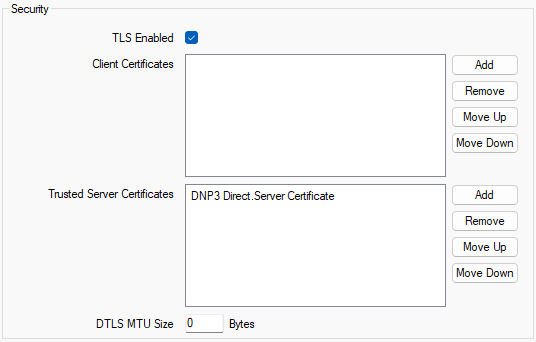
Channel database items with a TCP/IP connection have the same new fields as the above outstations. You can use the fields to configure the channel as a TLS client to enable Geo SCADA Expert to make a secure outbound connection to the single network-connected device (such as a radio base station) on that channel.
With a Channel database item that is configured to use a Network connection with a Listen Port enabled, you can configure the channel as a TLS server to enable outstations to make a secure inbound connection to the Geo SCADA Expert server. For example:
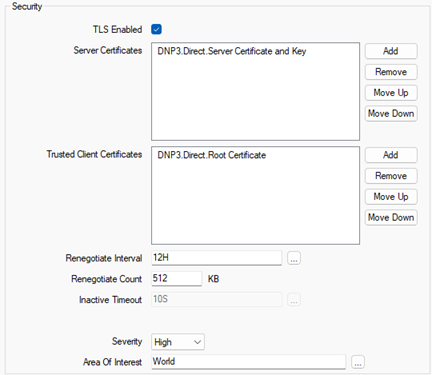
The new fields shown above refer to SSL Certificate and SSL Certificate and Key items in the Geo SCADA Expert database. A specific range of certificate content and format types are supported (see the SSL Certificate Improvements section below).
For information about configuring and importing certificates into Geo SCADA Expert, see Use SSL Certificates for Driver Communications.
TLS Handshake and Authentication Failures
If a driver fails to establish a secure connection with an outstation or other device then an alarm is raised and an event logged in the Event Journal with details of the TLS failure. Also, additional status attributes are available with more details of the issue:
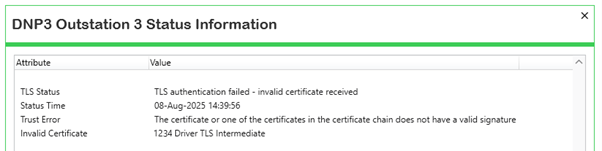
If a failure relates to a particular certificate, then that invalid certificate is identified by its subject common name. Also, details of the remote certificate(s) are stored in the database to further aid troubleshooting.
SSL Certificate Improvements
We have made a number of improvements in relation to the handling of SSL certificates in Geo SCADA Expert. These improvements apply to certificates and private keys that are stored in SSL Certificate and SSL Certificate and Key items in the Geo SCADA Expert database.
When importing certificates and private keys into SSL Certificate and SSL Certificate and Key items, the imported files are now validated to ensure that they contain valid certificate(s) or private key. Invalid files are rejected.
Geo SCADA Expert supports the following certificate types (including certificate chains in a single file):
-
X.509 (both PEM and DER format).
-
PKCS#7 (both PEM and DER format).
-
PFX / PKCS#12 (including encrypted).
(With PFX, the certificates and private key are together in a single file.) -
Microsoft serialized certificate store.
Geo SCADA Expert supports the following private key file types:
-
PKCS#1 RSA private key (both PEM and DER format).
-
PKCS#8 unencrypted private key (both PEM and DER format).
-
PKCS#8 encrypted private key (both PEM and DER format).
-
PFX / PKCS#12 (including encrypted).
(With PFX, the certificates and private key are together in a single file.)
The certificate file type and private key file types that are supported vary per protocol. For example:
-
Advanced Drivers (such as DNP3, IEC 60870-5-104, Advanced Modbus, and Advanced Trio Diagnostics): Supports certificate and private key file types other than PKCS#8 encrypted private keys. (To encrypt private keys, use the PFX file type.)
-
IEC 61850: Only supports X.509 certificates and private key types except for PFX. Both files must be in PEM format.
-
MQTT: Only supports X.509 certificates and private key types except for PFX. Both files must be in PEM format.
-
OPC-UA (client): Only supports X.509 certificates and unencrypted private keys. Both files must be in DER format.
Geo SCADA Expert already provided an Import Certificate pick action. You can still use this pick action to import a certificate, or a certificate with a private key that is in a separate file to the certificate. With Geo SCADA Expert 2025, we have added a further import pick action, Import PFX Certificate. You can use this new pick action to import a PFX certificate, which comprises a single file that contains one or more certificates and a private key, all in the same file.
When you import a certificate or certificate and key file into the database, information about the file type is stored in the database along with details from the certificates and key (if applicable) contained in the file. This information is stored in the SSL Certificate or SSL Certificate and Key database item. You can view this information in various displays.
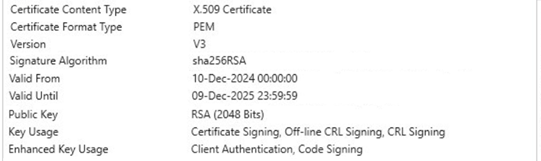
The Status display of the SSL Certificate or SSL Certificate and Key database item includes certificate information, of which an example excerpt is shown below. Basic information is included about each certificate; other attributes (such as Key Usage and Enhanced Key Usage) are included when applicable, typically due to such certificate extensions being specified when the certificate was created.
The Status display of the SSL Certificate and Key database item additionally includes information about the private key. For example:
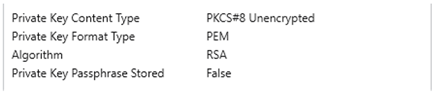
There is a new Queries List available from the following types of database items to show their associated SSL certificates:
-
Network channels (with listen port).
-
TCP/IP channels.
-
Network outstations.
The Queries List shows the individual certificates that are associated with that particular database item:
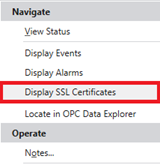
There are now three System Queries Lists for certificates:
-
SSL Certificate and Key Objects: Shows information about each SSL Certificate and Key database item.
-
SSL Certificate Objects: Shows information about each SSL Certificate database item.
-
SSL Certificates: Shows information about the individual certificates stored in the above database items.
These Queries Lists include columns that show information such as the certificates' format and content type. The last Queries List expands certificate chains to show each individual certificate. This uses a new CSSLCertificateInfo database class that deals with the one-to-many relationship between database items and certificates. This Queries List also shows the date following which the certificates become invalid.
For information about configuring and importing certificates into Geo SCADA Expert, see Use SSL Certificates for Driver Communications.
MQTT Sparkplug Publisher
We have added a new extension driver to the MQTT driver. The extension adds to the Sparkplug functionality of MQTT by providing the ability to publish historic data to other Sparkplug applications. The new Sparkplug Publisher driver in Geo SCADA Expert acts as a virtual RTU that you can use with (or independently of) the existing Sparkplug driver in Geo SCADA Expert.
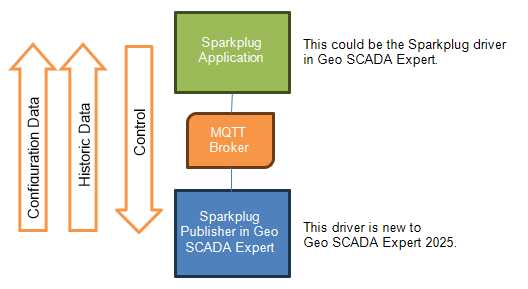
The Sparkplug Publisher can optionally send configuration properties of Geo SCADA Expert points to help in the configuration of points on the receiving Sparkplug application. It will publish historic point data values to that Sparkplug application once those data values have been added to the Geo SCADA Expert historian. The Sparkplug Publisher can also receive control requests from the Sparkplug primary host application in order to trigger those control actions on the points that reference the Sparkplug Publisher if configured to do so.
You install the Sparkplug Publisher as a separate option in the MQTT driver. Please note that the option is unavailable when Geo SCADA Expert is used in unlicensed 100-Point Indefinite Demo mode:
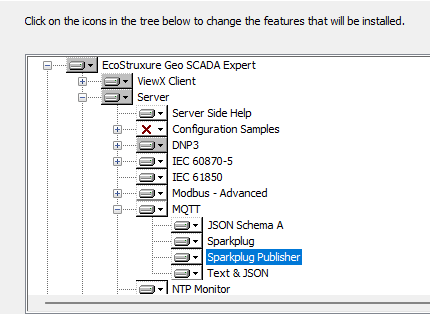
To create new Sparkplug Publisher items, find them in the Historic Export section of the Create New menu:

The Sparkplug Publisher is designed to enable the replication of a Geo SCADA Expert point and group hierarchy from the source Geo SCADA Expert server to the receiving Sparkplug application, which can also be Geo SCADA Expert. This ‘central’ Geo SCADA Expert Sparkplug application could receive configuration and data from several Geo SCADA Expert instances each running the Sparkplug Publisher driver, and acting as a ‘hub’ for those remote gateway instances.
The Sparkplug Publisher can send data to the Sparkplug driver to help replicate points and aspects of their configuration in the Sparkplug driver. You use the Create Points from Birth Metrics pick action in the latter driver to perform the point creation from that data. This pick action does not create other types of database item, such as Mimics or Trends, however you could manually export these from a gateway to the hub application or vice-versa.
Configuration
This example configuration assumes that the Sparkplug Publisher is being used to publish data to a Sparkplug host application that happens to be another Geo SCADA Expert system that is running the Sparkplug driver. (You can also use the Sparkplug Publisher driver to publish historic data to a Sparkplug host application or Sparkplug client that comprises a third-party Sparkplug-compliant system.)
Basic configuration requires only a Sparkplug Publisher Broker and Sparkplug Publisher database item. These will enable source point data to be mapped to a physical Sparkplug Edge of Network gateway or logical Edge Node (either of these can be represented by a Sparkplug Edge Node in the Sparkplug driver). In the example below, there are a small number of points such that only a Sparkplug Edge Node is required. For more complex configurations Sparkplug Devices may be required, and the Sparkplug Publisher item provides a way to map their configuration. We have also added a Property Translation Table for the Sparkplug Publisher, which acts similarly to the Property Translation Table for the Sparkplug driver.
Sample configuration of the Sparkplug Publisher items :
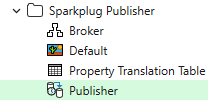
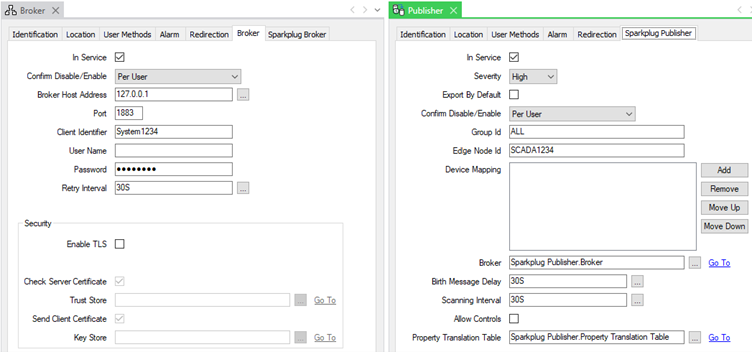
The Broker configuration is similar to that of the Sparkplug driver. The Primary Host Application ID (which is on the Sparkplug Broker tab of the configuration form), must be configured to match the Sparkplug Host ID in the Sparkplug driver.

The Sparkplug Publisher is configured with a Group Id and Edge Node Id, both to match the driver configuration.
To enable any historic point data to be published by this Sparkplug Publisher item, you add a link to the Sparkplug Publisher from the Historic configuration of the points:
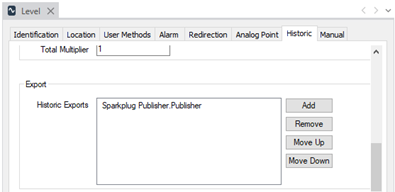
The points can be on any driver in Geo SCADA Expert, provided that those points support and are configured to store data historically in the database.
The Property Translation Table for this example has a single line entry. This contains instructions to causes the Sparkplug Birth messages to include the units text for any Simple Analog points that are included in the Publisher. You create a text file with this content. The fields are separated by Tab characters.
Units CPointAlg Units
Then use the Import Property Translation Table menu item on the Sparkplug Publisher Translation Table item to import that file into the database.
To complete the ‘other side’ of the Geo SCADA Expert configuration for this example, you can create a Sparkplug Driver Broker, Group, Edge Node and Property Translation Table as below:
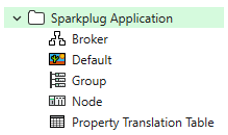
These are for the separate Sparkplug driver, rather than the Sparkplug Publisher driver.
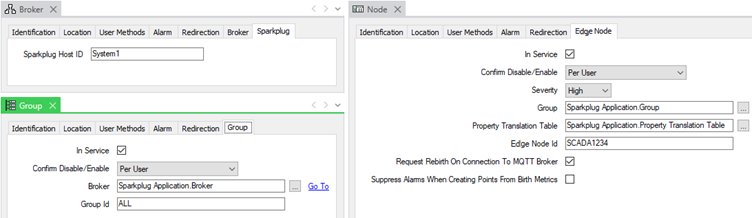
Set up the Property Translation Table for the driver so that it specifies the units on Sparkplug Driver points. For example:
Units CSparkplugPointAnalog Units
When you modify the configuration of any point linked to the Sparkplug Publisher, a new birth message is sent to the broker. This message includes the configuration properties identified in the Property Translation Table.
Back on the Sparkplug driver, display the context-sensitive menu of the Edge Node and select the Create Points from Birth Metrics pick action. The pick action will cause Geo SCADA Expert to create corresponding Sparkplug Driver points in the database. (Provided that those Sparkplug Driver points do not already exist in the database. If points already exist, their configuration will be modified if necessary.) When creating new points, the driver will create one Sparkplug Point of the appropriate type (such as analog or digital) per point that is configured to export data via the Sparkplug Publisher. So, for example, if 2 analog points reference the Sparkplug Publisher, then 2 Sparkplug Analog Points will be created on the client. The newly created points will automatically be assigned the units text that was specified in the birth message that the Sparkplug driver received from the Sparkplug Publisher. Other point configuration properties will remain unpopulated, or be set to their default values (whichever is applicable).
Thereafter, whenever a source point stores new historic data and is also configured for Historic Export via the Sparkplug Publisher, the point data will be transferred to the similarly named point connected to the Sparkplug driver.
For more information, see the Geo SCADA Expert Guide to the Sparkplug Publisher Driver, and the Geo SCADA Expert Guide to the Sparkplug Driver.
Controls
To enable the Sparkplug Publisher to receive control actions from the Sparkplug primary host application (in order to set point values), some conditions need to be met:
-
The Allow Controls check box has to be selected on the Sparkplug Publisher item.
-
The published point has to support controls.
-
The Sparkplug driver point has to be configured as an Analog or Digital Output point.
(We are unable to determine from the metrics in a Sparkplug birth certificate as to whether a point should be an input point or output point. Therefore by design the Create Points from Birth Metrics pick action creates all points as input points. With points that are to be output points, edit the point’s configuration to enable the Control feature on the Control tab and then specify the required control functionality.)
Performance
The performance of a system can be adversely affected by Historic data export. For more information, see Operational Limitations in the Sparkplug Publisher Driver, and Operational Limitations in the Sparkplug Driver.
This driver is supported by Geo SCADA Expert 2025 onwards. To use this driver, your Geo SCADA Expert servers and clients have to be running that version of Geo SCADA Expert software or later. Additionally, if you have upgraded from an earlier version of the product, you have to deactivate any Database Emulation that was activated during the upgrade process. You should only deactivate the Database Emulation once you have successfully completed the upgrade process on all of the servers and clients in your system (see Deactivate Database Emulation after a Successful Upgrade).
SCADAPack x70 Driver
This driver supports new SCADAPack x70 device and RemoteConnect features in R3.2, including:
-
New HART serial port function (see Port Function - HART).
-
New Modbus/TCP server performance setting (standard/enhanced/maximum) (see Device Configuration Modbus Tab).
SCADAPack Modbus Realflo Driver
We have extended this driver to support Realflo versions 7.41 and 7.42. Support for version 7.41 extends the K/M Configuration Events logging option added in Realflo version 7.10.2 to also apply to SCADAPack x70 controllers. Version 7.42 adds support for the Foxboro CFT34A Coriolis meter (see Coriolis Meter Properties). This type of Coriolis meter only applies to SCADAPack x70 controllers.
EtherNet/IP Driver
We have extended the digital point support on this driver to enable the individual bit of an integer to be specified in the Tag Name property of an EtherNet/IP Digital Point (see Configure Common Point Properties). For example, you can now specify:
MyPoint.MyDataItem.2
where 2 is the number of the individual bit in the integer.
With an EtherNet/IP Digital Point that is configured to operate as an output point (in order to control plant), you now have to specify the type of data that the point is being used to control. You do this using a new Type field on the Control tab of the point's configuration form.

The type that you specify has to match that of the data item on the controller (see Specify the Type of Digital Point that is being Controlled).
Sparkplug Driver
With Geo SCADA Expert 2025 onwards, we now use the term 'Edge Node' instead of 'EoN Node' in this driver.

Operational Improvements
Geo SCADA Mobile Server - Mobile Mimics and Trends
We have rewritten the Geo SCADA Mobile apps. In addition to supporting existing functionality, we have enhanced the apps to include graphical displays when connected to a Geo SCADA Expert 2025 or later release of Geo SCADA Mobile Server. They also have a refreshed look and feel, with new ways to set up connections and interact with menus.
For more information, see the separate Geo SCADA Mobile documentation suite.
Sparklines on Embedded Trends
You can now configure an additional property on embedded Trend items. The property is called Sparkline. It is located on the General tab of the Properties window on embedded Trends.
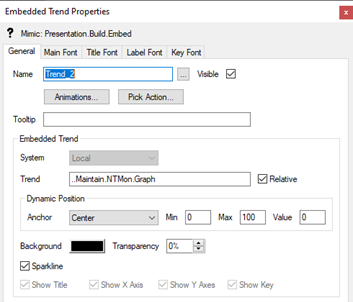
When the Sparkline check box is selected, the embedded Trend is displayed without its title, axes, key, or borders.
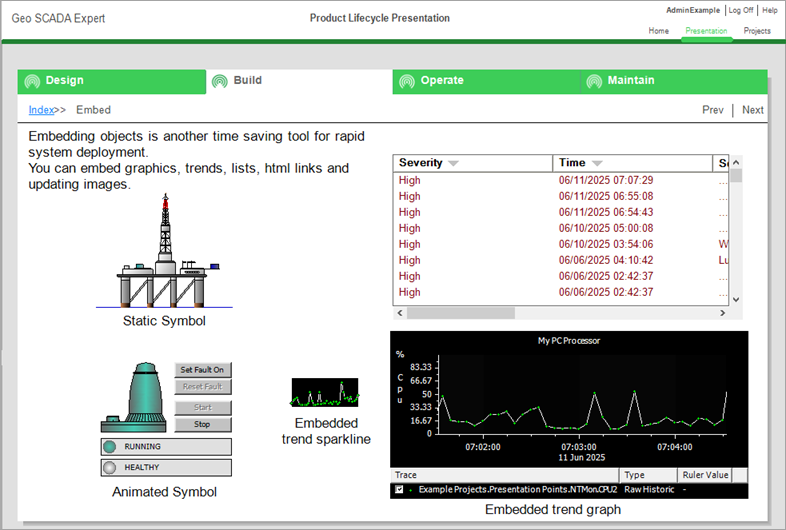
You can customize the traces in the Trend item itself to create specific sparkline appearances, such as removing the markers.
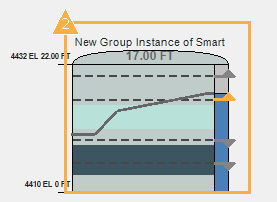
The embedded Trend as a sparkline has no border and can be set to have a transparent background, which means that you can superimpose it on other items such as shapes. As an example, this tank symbol shows an embedded Trend superimposed on a tank showing limits and with a histogram on the right. The Trend line appears to emerge from the top of the histogram.
For more information, see General Tab (Embedded Trend) in the Geo SCADA Expert Guide to Mimics.
Show the Outlines of Hidden Items on Mimics
When designing Mimics, it is common to use animations to render some items invisible. You hide the items by setting their ‘Visible’ property or animation value to False. The inclusion of hidden items can make it difficult to edit complex Mimics, particularly if those Mimics have been designed by others.
To help Mimic designers to understand complex animated content, hidden items on Mimics now have a blue outline. The blue outline is only visible when you display the Mimics in Design Mode.
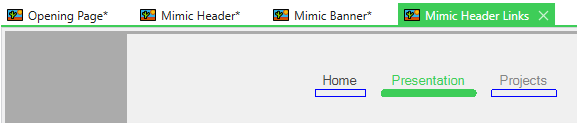
These hidden item outlines are shown for hidden items on top level Mimics that are:
-
on the selected layer
-
not selected to be edited
-
not within a group of objects on a Mimic, or on an Embedded Mimic.
Mimic Editor Paste Size
We have added a new menu item to the context-sensitive menu that is available when you edit a Mimic. The new option, Paste Size, enables the size of a graphical item to be imposed on another. In the example below, the user wants the second tank symbol to be made the same size as the first.
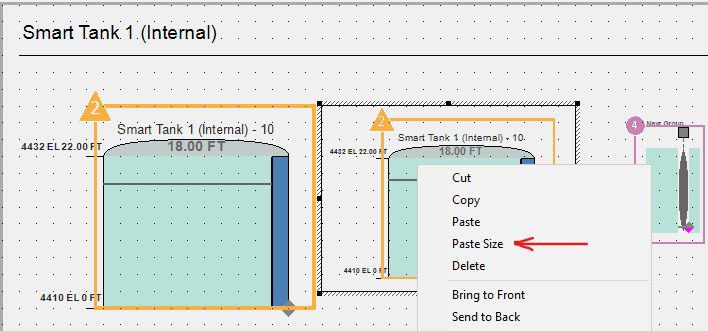
To do this, the user selects and copies the first tank symbol. Then the user selects the second tank symbol with the context-sensitive menu. The new Paste Size menu item will cause the second tank to be resized.

System Administration and Security
Geo SCADA Mobile Server 2025
The Geo SCADA Mobile Server must now be installed on a separate server to the Virtual ViewX Server. We continue to recommend that the Geo SCADA Mobile Server is installed on a separate machine to the Geo SCADA Expert server too.
For more information, see the separate Geo SCADA Mobile documentation suite and the Geo SCADA Mobile pages of the Geo SCADA Knowledge Base website.
Python Integration
In a major advance for Geo SCADA Expert, we have added functionality to enable code written in the Python programming language to be managed and executed by the Geo SCADA Expert server. We provide a fully native Python API to the Geo SCADA Expert server for use with programs in the server and on supported clients.
The Python support provides huge benefits in ease of use, extensibility to use other Python libraries and compatibility across Geo SCADA Expert versions.
You use Python programs in a similar way to Logic programs in Geo SCADA Expert, but there are some important differences in execution strategy, performance and security. Please see Which Programming Language Should I Use? in the Geo SCADA Expert Guide to the Python Driver. The Guide is located in the Coding section of the Core Reference branch in the help.
You follow separate procedures in order to use Python integrated with the Geo SCADA Expert server and Python on a Geo SCADA Expert client.
Setup for Python Functionality on the Geo SCADA Expert Server
-
Download a supported version of the Python software from the following website:
https://www.python.org/downloads/
You can choose the specific supported Python release that you want or go with the latest version (see Supported Versions of the Python Programming Language). We recommend that you only install a supported version of the Python executable that is marked as a stable release for Windows 64-bit operating systems.
You might want to consider adding the path of the executable to the machine's PATH System environment variable during the installation process. You might also want to make a temporary note of this path, for use later in this procedure.
The Python installation should include pip, the Python package installer.
-
Install the Python software on the server for all users. If you have previously installed Python for a single user, reinstall for all users so that packages installed from pip can be used by the Geo SCADA Server. This operation requires Administration privileges.
-
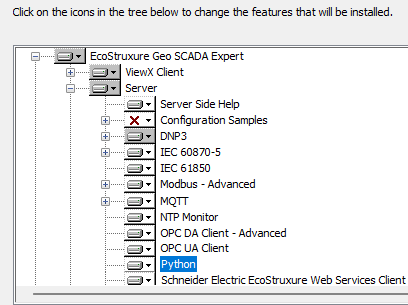
If you are choosing a custom Geo SCADA Expert setup, ensure that you select the Python component:
-
Start the Geo SCADA Expert server and run the Server Configuration tool.
-
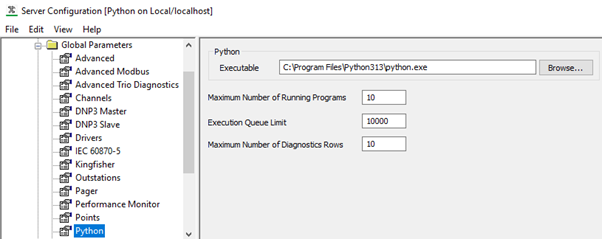
In the Global Parameters | Python section, add the path to the installed Python executable:
-
Open a Command Prompt window.
-
If need be, used the change directory command (
cd) to go to the location of the Python executable.(If you opted to add the path to the machine's PATH System environment variable when you installed the Python executable, you should not need to use this command.)
-
Install the API Python package files for Geo SCADA Expert by executing this command from the command line:
python -m pip install --no-index --find-links="C:\Program Files\Schneider Electric\ClearSCADA\PythonPackages" geoscada-client
For more information, see Install the Required Python Components on the Server in the Geo SCADA Expert Guide to the Python Driver.
Whenever you upgrade Geo SCADA Expert, the installer will include a new set of Python Package files. To take advantage of any additional functionality that the files support, you should replace the existing Python Package files with the new files. For more information, see Steps Required Following an Upgrade in the Geo SCADA Expert Guide to the Python Driver.
Setup for Python Functionality on a Geo SCADA Expert Client
-
Download a supported version of the Python software from the following website:
https://www.python.org/downloads/
You can choose the specific supported Python release that you want or go with the latest version (see Supported Versions of the Python Programming Language). We recommend that you only install a supported version of the Python executable that is marked as a stable release for Windows 64-bit operating systems.
You might want to consider adding the path of the executable to the machine's PATH System environment variable during the installation process.
The Python installation should include pip, the Python package installer.
-
Install the Python software on the server for all users or just your own user.
-
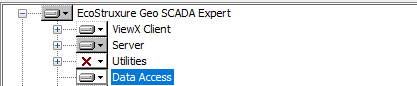
If you are choosing a custom Geo SCADA Expert setup, ensure that you select the Data Access feature on the Custom Setup page of the installation wizard:
-
Open a Command Prompt window.
-
If need be, used the change directory command (
cd) to go to the location of the Python executable.(If you opted to add the path to the machine's PATH System environment variable when you installed the Python executable, you should not need to use this command.)
-
Build and install the API Python package files for Geo SCADA Expert by executing this command from the command line:
python -m pip install --no-index --find-links="C:\Program Files\Schneider Electric\ClearSCADA\PythonPackages" geoscada-client
Whenever you upgrade Geo SCADA Expert, the installer will include a new set of Python Package files. To take advantage of any additional functionality that the files support, you should replace the existing Python Package files with the new files.
Programming with Python
We assume that the engineers who are to write Python programs for use with Geo SCADA Expert have an in-depth knowledge of the Python programming language.
If you have not used the Python programming language before, we recommend that you start by following some online tutorials to understand the basic principles. Once you are familiar with the programming language, move on to using the Geo SCADA Expert API through the client.
Use the Geo SCADA Expert API from a Client
When you install the Python software, you have by default a programming environment called IDLE. You can use this tool to create, run and debug a new Python program. The example program below will connect and log in to the Geo SCADA Expert server, then list the properties of the Root group.
Note that this code will connect to the local server node 'localhost'.
Note also that this code requests a username and a password. Consider how you store credentials securely, or request passwords discreetly. You should also use credentials that are limited in scope to the requirements of your code’s functions.
from geoscada.client import ConnectionManager
import sys
with ConnectionManager('localhost', 5481, 'ConnectionManager example') \
as connection:
#Log on
user = input('Enter Geo SCADA Username: ')
#We suggest using the pwinput module to hide the password
passw = input('Enter Geo SCADA Password: ')
connection.log_on(user, passw)
status = connection.get_object_status(0)
for stat in status:
print(f'{stat.name}: {stat.value.get_value_as_string()}')
Use the Geo SCADA Expert API from a Server
To write code for the Geo SCADA Expert server, create a new Python Program database item and edit its properties.
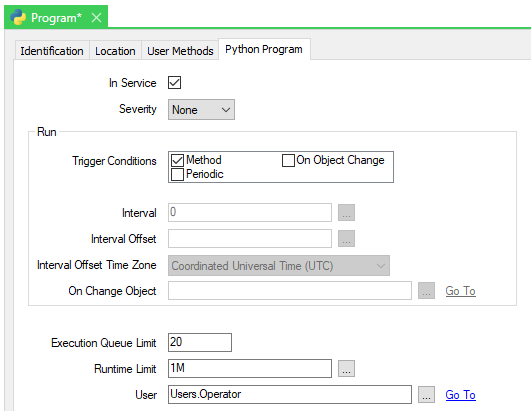
The Trigger Conditions are similar to the configuration used for Logic or Calculated Points. In this example, the trigger is from a Method, which you can use from the context-sensitive menu of the program item. Notice the User property configured in the lower part of the form. This defines the Geo SCADA Expert user that provides credentials for accessing the Geo SCADA Expert database; your program will start with a pre-made connection logged in with these credentials.
For more information, see Create and Configure a Python Program Item in the Geo SCADA Expert Guide to the Python Driver.
A similar program to the client example is as follows. It gets the database group containing the program and lists properties.
from typing import Optional
import geo_scada_types
from geoscada.client.interface_scx import InterfaceScx
# Allow program to write to its StdOut property
import sys
def execute(program_path: str, program_name: str, \
trigger_type: geo_scada_types.ProgramTrigger, \
geo_scada_args: dict, connection: Optional[InterfaceScx], \
*args, **kwargs):
# Find this program item
ppath = connection.find_object(program_path)
thisprogram = connection.get_object_status(ppath.id)
# Returns a list of name/value pairs
for stat in thisprogram:
print(f'{stat.name}: {stat.value.get_value_as_string()}')
Note that the program writes output to the ‘stdout’ stream. This output is stored in the database to the property StdOut when the program stops and can be displayed on Lists and Mimics or viewed with the OPC Data Bar. You can also write to ‘stderr’ which will be stored in the database to the property StdErr. These fields are limited in size to protect performance.
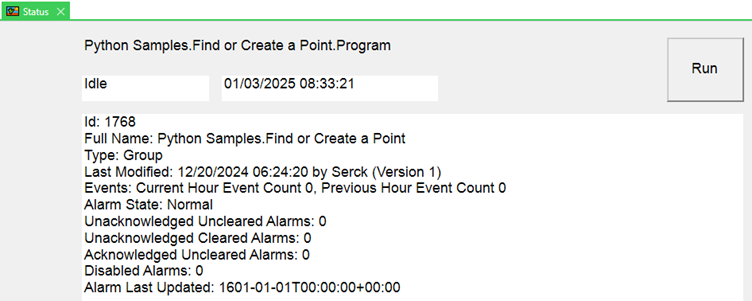
When a program is configured to run on Object Change, information about the specific Point or Accumulator database item (‘ object’) is passed to the program in the arguments of the execute function. For more information, see Define the Run Settings of a Python Program in the Geo SCADA Expert Guide to the Python Driver.
You can follow up this brief introduction to Python functionality in Geo SCADA Expert by reading the Python Driver Guide in the online help, the API documentation, and looking at the example programs in the Example Projects database in Geo SCADA Expert.
Assess the Status of Recently Executed Logic Programs
We have added a new Logic category to the Database branch of the Server Status Tool. You can use the category to investigate the status of Logic programs that have recently executed. The category shows the Logic programs that have run during the latest snapshot interval.
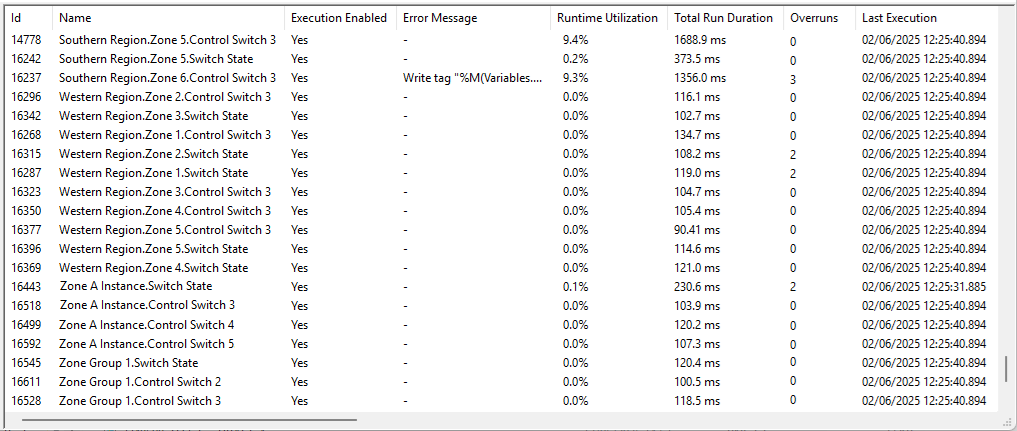
You can use the display as an alternative to using Queries Lists such as the Logic Execution Status List. For more information, see Logic in the Geo SCADA Expert Guide to the Server Status Tool.
Send Email Method
We have added a new method to the User database item. You can use the method programmatically to send an email to a specified email address.
The method is named SendEmailMessage. The parameters are the email address index in the user’s configuration, the subject line, and the email contents. Refer to the Database Schema browser page for CDBUser for details.
The method will not return a status code to indicate success because the sending process is asynchronous.
For more information, see SendEmailMessage in the Geo SCADA Expert Guide to Security.
AVEVA OMI Web Integration
This feature is available on request to the developers of AVEVA OMI combined user interfaces. The feature enables Geo SCADA Expert Mimic, Trend, Alarm and List displays to be embedded within the OMI system. Virtual ViewX licenses are required to use this feature, and the software installation kit is not included on the Geo SCADA Expert ISO image. Please contact your Schneider Electric sales representative to find out more about this feature.
ViewX Log File Registry Settings
To enable a consistent setup across different user accounts, we have changed the default location of some of the ViewX log file registry settings. These changes will apply to clean installations of Geo SCADA Expert 2025 onwards. Existing log file setting locations will remain unchanged on upgrade to Geo SCADA Expert 2025 or later.
For more information, see ViewX and Virtual ViewX Logging. In relation to Original WebX users only, also see REGISTRY, SetRegistry, and GetRegistry.
Virtual ViewX Server
In Geo SCADA Expert 2025 onwards, the Virtual ViewX Manager application is now known as the Virtual UI Server Tool. The product and documentation have been updated accordingly.
Supported Operating Systems
Geo SCADA Expert 2025 is compatible with Windows Server 2025 in addition to other supported platforms.
 WARNING
LACK OF AUDIBLE ALARM NOTIFICATION
-
The custom Default Bell Sound feature in Geo SCADA Expert. You configure this using the Options window in ViewX (see Specify the Font and Sound Settings for the Alarm Bell).
-
The custom alarm severity Sound in the Server Configuration tool. You can assign a different sound to each range of alarms (see Associate a WAV Sound File with a Severity Range).
There is one other issue of which you should be aware when running ViewX directly on Windows Server 2025: Mimic Scripts written using JScript will not run if you switch the Mimic display directly from Design mode to Run mode (see Run Mode and Design Mode). To run the Mimic script, close and then reopen the Mimic in Run mode. This restriction applies only to JScript and this particular operating system.
The earliest version of Windows Server that Geo SCADA Expert 2025 supports is Windows Server 2019.
The earliest version of Windows 10 that Geo SCADA Expert 2025 supports is version 1607, 64-bit (Professional and Enterprise editions). This version is also known as the 'Windows 10 Anniversary Update'.
For information about these and the other versions of Windows operating systems that Geo SCADA Expert supports, see Operating Systems.